


Most people pick the best screen recording software the wrong way: they Google it, click the first result, and download whatever has the most stars. Then they spend an hour figuring out why their audio is out of sync.
Finding the right screen recorder shouldn’t be a frustrating process of trial and error. Whether the priority is a powerful free option, a seamless macOS experience, or a user-friendly tool that takes five minutes to set up, this guide highlights exactly which software delivers and why.
Key Takeaways
- OBS Studio is free, open-source, and the gold standard for streamers, but has a steep learning curve.
- Loom is the fastest way to record and share async video for teams.
- Camtasia is the best pick for educators who need post-production inside the same tool.
- CleanShot X is the cleanest screen recording software for Mac users.
- ShareX is the most capable free screen recording software for Windows, no strings attached.
- ScreenPal is purpose-built for beginners and non-technical users.
Why Most Screen Recorders Are Not Worth Your Time
There is no shortage of screen recording software out there. A quick search will give you dozens of options, each claiming to be the best. Most of them are bloated, paywalled after five minutes, or simply outdated.
The six tools I’ve shortlisted are based on real-world usage, active development, and distinct use case fit. No two tools on this list do the same job, which means one of them is almost certainly the right pick for what you need.
How I Evaluated the Best Screen Recording Software
Every tool in this list was tested against the same set of criteria:
- Ease of setup: How long does it take to go from download to first recording?
- Recording quality: Does the output look clean at 1080p and above?
- Audio handling: Can it capture system audio, mic, or both simultaneously?
- Editing features: Does the tool let you trim, annotate, or add captions?
- Export and sharing options: How easy is it to get your video out and to someone else?
- Platform support: Windows, Mac, or both?
- Pricing: Is there a free tier worth using, or does the paywall hit immediately?
I also weighted tools based on their actual use case fit, not just feature count. A tool that does 20 things poorly is worse than one that does 3 things perfectly.
Best Screen Recording Software in 2026 – At a Glance
| Tool | Best For | Free Plan | Platform | Starting Price |
| OBS Studio | Streamers and power users | Yes (fully free) | Windows, Mac, Linux | Free |
| Loom | Business and async teams | Yes (limited) | Windows, Mac, Web | $12.50/mo |
| Camtasia | Educators and course creators | No (30-day trial) | Windows, Mac | $179.88/yr |
| ShareX | Free tool for Windows users | Yes (fully free) | Windows only | Free |
| ScreenPal | Beginners | Yes (limited) | Windows, Mac, Web | $3/mo |
| CleanShot X | Mac users | No | Mac only | $29 one-time |
Best Screen Recording Software in 2026 – Full Breakdown
1. OBS Studio – Best for Power Users and Streaming

OBS Studio (Open Broadcaster Software) is a free, open-source screen recorder and live streaming tool used by millions of content creators worldwide.
It is the tool most professional streamers and YouTubers run. The reason is simple: it gives you complete control. Scene switching, multiple audio sources, custom overlays, real-time encoding. No other free tool comes close to this capability.
Key Features:
- Multi-scene recording with custom transitions and overlays
- Simultaneous system audio and microphone capture
- Real-time encoding for both local recording and live streaming
- Extensive plugin library through the open-source community
Pros:
- Fully free with no watermarks, no recording limits, and no paywalls
- Works on Windows, Mac, and Linux
- Industry-standard tool with a massive support community
Cons:
- No built-in editor, so you need a separate tool to trim and cut footage
- Initial setup takes significant time for new users
- Interface can feel overwhelming on first launch
Best for: Gamers, streamers, and anyone who needs maximum control over their output without paying anything.
2. Loom – Best for Business and Async Teams
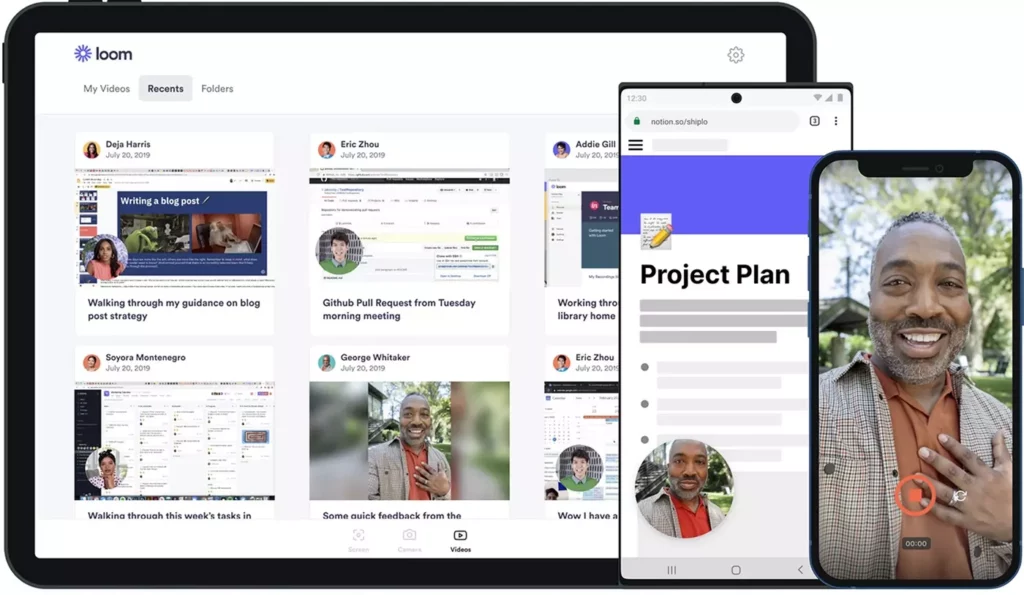
Loom is a video messaging platform that lets you record your screen, camera, or both, and instantly generate a shareable link.
This is the tool I’d give to anyone who sends long emails explaining things to colleagues. Record once, share a link, done. No file transfers, no rendering waits.
According to Loom’s own data, over 25 million people use the platform to communicate asynchronously. The free plan allows up to 25 videos, which is enough for light users.
Key Features:
- Instant shareable link generated the moment recording stops
- AI-generated transcripts and video summaries on paid plans
- In-video reactions and timestamped comments from viewers
- Browser-based recording with no heavy desktop install required
Pros:
- Fastest record-to-share workflow of any tool on this list
- Works across Windows, Mac, and directly in the browser
- Viewer engagement features make it genuinely interactive
Cons:
- Free plan caps at 25 videos with a 5-minute limit per recording
- No granular local file control or offline editing
- Monthly cost scales quickly for larger teams
Best for: Teams doing async standups, client demos, product walkthroughs, or internal documentation.
Before committing to another recurring tool, it helps to go through managing software subscriptions first.
3. Camtasia – Best for Educators and Course Creators

Camtasia, made by TechSmith, is an all-in-one screen recorder and video editor built specifically for instructional content.
Unlike most screen recorders where you record first and then drag the file into a separate editing tool, Camtasia handles both in one place. You can add quizzes, callout annotations, zoom effects, and captions without ever leaving the app.
Key Features:
- Built-in video editor with timeline, transitions, and effects
- Callout annotations, zoom and pan, and interactive quizzes
- One-click export to YouTube, Vimeo, and Google Drive
- Pre-built asset library with templates, lower-thirds, and intros
Pros:
- The built-in editor is genuinely powerful, not just a basic trimming tool
- Produces clean, professional-looking output without extra software
- Purpose-built for tutorial and instructional content workflows
Cons:
- No free plan, only a 30-day trial before purchase
- At $179.88/year, it is one of the more expensive options here
- Occasional performance lag on older machines during export
Best for: Teachers, course creators, L&D professionals, and anyone producing structured educational video content.
If you’re already paying for multiple creative tools, Camtasia’s all-in-one approach is worth running through a free vs. paid software analysis first.
4. ShareX – Best Free Tool for Windows
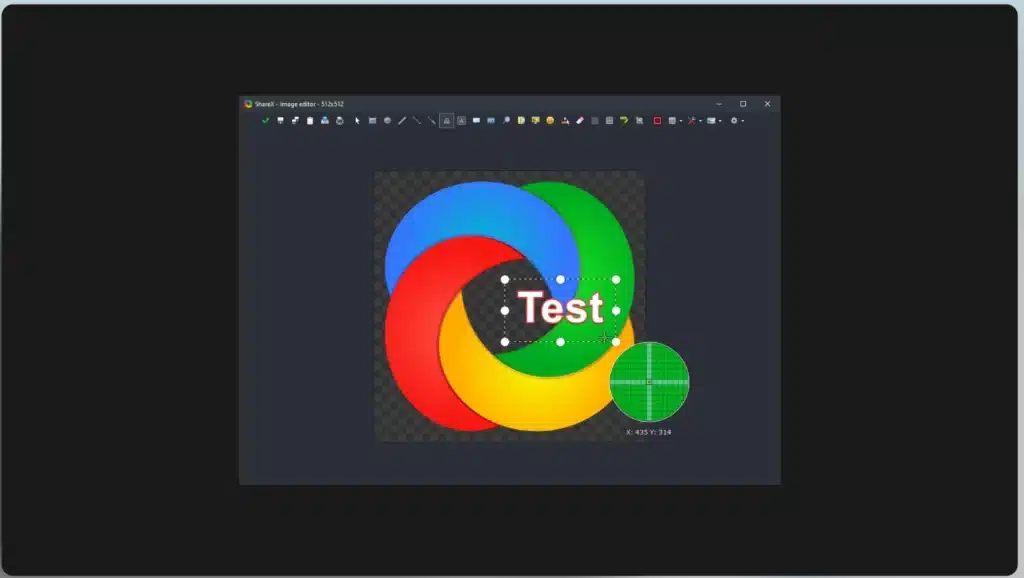
ShareX is a free, open-source screen capture and recording tool for Windows with a feature set that puts most paid tools to shame.
Scrolling capture, region recording, GIF export, OCR, color picker, screen ruler, and automatic file uploading to over 80 destinations. ShareX does all of it for zero dollars.
Key Features:
- Scrolling capture, region recording, and GIF export built in
- Workflow automation through a customizable Task system
- Annotation and image editing tools included with the recorder
- Auto-upload to over 80 platforms including Imgur, Dropbox, and Google Drive
Pros:
- Completely free with no watermarks, paywalls, or recording limits
- More built-in utilities than any other free Windows tool tested
- Actively maintained with regular updates
Cons:
- Windows only, with no Mac version available
- The interface is dense and not suitable for first-time users
- Documentation exists but requires effort to navigate
Best for: Windows power users who want the most capable screen recording software for Windows without spending anything.
5. ScreenPal – Best Screen Recording Software for Beginners
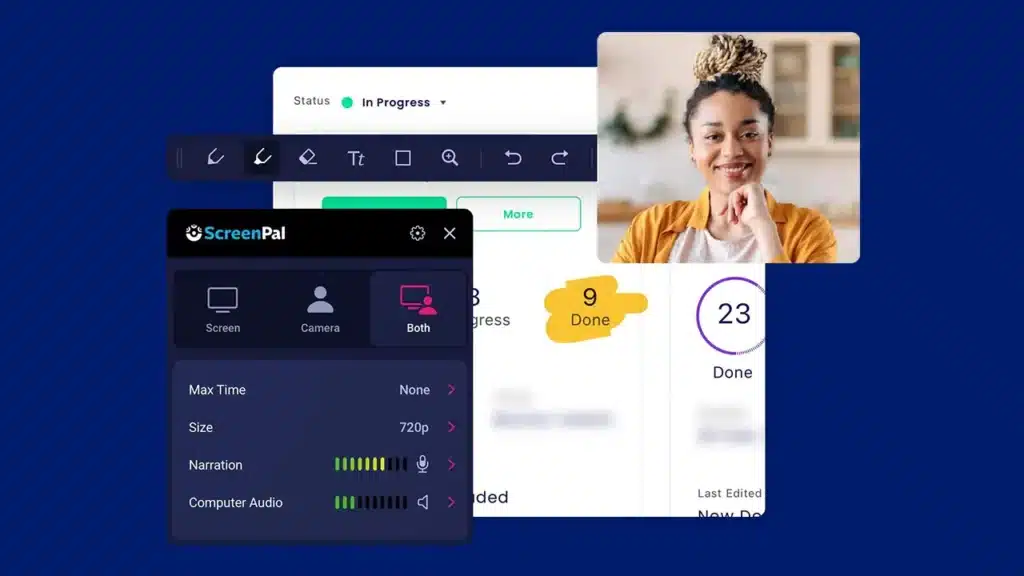
ScreenPal (formerly Screencast-O-Matic) is a lightweight screen recorder designed for users who want to start recording without any learning curve.
If the first thing you do when you open OBS is close it, ScreenPal is the tool for you. It records your screen, adds a webcam bubble, and lets you upload directly to YouTube or Google Drive in a few clicks.
Key Features:
- One-click recording with webcam overlay and mic capture
- Browser-based option that requires no software installation
- Direct upload to YouTube, Google Drive, and Dropbox
- Basic trimming and captioning tools available on the free plan
Pros:
- Fastest setup of any tool tested, recording-ready in under two minutes
- Works in the browser, so no install is required
- Affordable paid plan at $3/month for full access
Cons:
- 15-minute recording cap on the free plan
- Limited advanced editing, so it is not the right tool once you outgrow basic needs
- Free plan includes a ScreenPal watermark on exported videos
Best for: First-time screen recorders, teachers who need a simple tool, or anyone who finds other options overwhelming.
6. CleanShot X – Best Screen Recording Software for Mac

CleanShot X is a Mac-exclusive screen capture and recording tool that replaces your system’s default screenshot and recording functions with something significantly better.
The key difference between CleanShot X and everything else on this list is polish. It integrates with macOS at the system level, looks like it belongs, and adds features like scrolling capture and annotation without bloating the experience.
Key Features:
- Scrolling capture for full-page screenshots and recordings
- Built-in annotation tools with text, arrows, blur, and highlights
- Instant cloud upload with shareable link via CleanShot Cloud
- Replaces the macOS native screenshot tool with a faster, richer alternative
Pros:
- One-time $29 purchase with no recurring subscription required
- Native Mac feel, integrating with system shortcuts and the menu bar
- Annotation tools are precise and visually clean
Cons:
- Mac only, with no Windows version available
- Full cloud features require a CleanShot Cloud subscription at $8/month
- Overkill if you only need occasional, basic screen recording
Best for: Mac users who want the cleanest, most native-feeling screen recording experience available.
Mac users who rely heavily on browser tools will find that pairing CleanShot X with the right Chrome extensions covers most remaining workflow gaps.
What to Look for Before Choosing a Screen Recorder
Before you download anything, answer these questions:
- What are you recording? A game, a tutorial, a work update, or a product demo all call for different tools.
- Where does the video need to go? If you need a shareable link instantly, Loom wins. If you need a local file for editing, OBS or Camtasia is better.
- Do you need editing in the same tool? Camtasia and ScreenPal offer this. OBS and ShareX do not.
- Which platform are you on? ShareX is Windows only. CleanShot X is Mac only. Loom and ScreenPal work on both.
- What’s your budget? There are genuinely excellent free options here in OBS and ShareX. The paid tools earn their price through convenience, not necessity.
- How important is audio quality? If you’re doing voiceover work, check whether the tool supports mic monitoring and noise suppression. OBS and Camtasia both do.
The screen recorder market has also been shifting fast. AI-powered features like automatic transcripts, speaker detection, and smart summaries are increasingly standard on paid plans.
Understanding how AI tools are changing content production workflows is useful context before locking into any one platform.
Which Screen Recorder Should You Use? – By Use Case
| Use Case | Recommended Tool | Why |
| Live streaming on Twitch or YouTube | OBS Studio | Free, powerful, industry standard |
| Quick async update for a colleague | Loom | Instant shareable link, no setup |
| Online course or tutorial video | Camtasia | Built-in editor with instructional features |
| Free tool for Windows users | ShareX | Most features of any free Windows option |
| First-time screen recorder | ScreenPal | Fastest setup, simplest interface |
| Mac user who wants quality | CleanShot X | Native Mac feel, one-time purchase |
| Recording a software demo for a client | Loom or Camtasia | Loom for speed, Camtasia for polish |
| Gamer capturing gameplay | OBS Studio | Handles high-frame-rate content natively |
Final Thoughts
The best screen recording software is the one that fits your actual workflow, not the one with the longest feature list. OBS if you want power and zero cost. Loom if speed and shareability matter most. Camtasia if you’re building courses. CleanShot X if you’re on a Mac and want something that feels right. ShareX if you’re on Windows and refuse to pay for software. ScreenPal if you just want to hit record without reading a manual.
Pick one, record something, and adjust from there. The worst choice is no choice at all.
Anyone adding new tools to their stack should also think about app overload and what it costs over time before making another subscription commitment.
FAQs
OBS Studio and ShareX are both completely free with no watermarks and no recording limits. OBS works on Windows, Mac, and Linux. ShareX is Windows only but includes annotation tools and GIF export built in.
CleanShot X is the best screen recording software for Mac in 2026. It offers a one-time $29 purchase, native macOS integration, scrolling capture, annotation tools, and instant cloud sharing without the complexity of cross-platform tools.
ScreenPal is the most beginner-friendly option available. Setup takes under two minutes, the interface is minimal, and the free plan covers basic recording with webcam overlay. It also runs in the browser with no install required.
OBS Studio is the most widely used screen recorder among YouTubers and streamers. It is free, open-source, and supports live streaming to Twitch, YouTube, and other platforms with professional scene management and encoding control.
