


While almost all of us are familiar with extensions in Google Chrome, do we all clearly understand the concept of how to install Chrome extensions on our systems? And, how to use Chrome extensions, once they are installed?
Also, those who might be familiar with such processes, do you know there are still many essential aspects to be aware of to take full advantage of the best Chrome extensions? What about the common problems that usually occur? How to successfully manage extensions? What are the common troubleshooting tips?
In this blog, I’ll explain just about everything there is to know about how to install Chrome extensions, how to use and manage them the correct way, common setbacks and tips, and much more!
Key Learnings
- Installing Chrome extensions usually takes just a few clicks, as long as the browser is updated and synced with your Google account.
- Android allows manual extension installs, but compatibility varies widely, and many desktop features won’t work.
- Managing extensions responsibly helps avoid slow performance, privacy issues, and unexpected browser glitches.
- Basic troubleshooting like disabling conflicting add-ons or checking permissions, keeps Chrome running smoothly.
Extensions In Google Chrome: Key Insights
What are Chrome extensions?
Simply put, Extensions in Google Chrome are widgets for the web browser that customize it. Depending on the one that you install, these software programs add new features, change your interface, or automate various tasks.
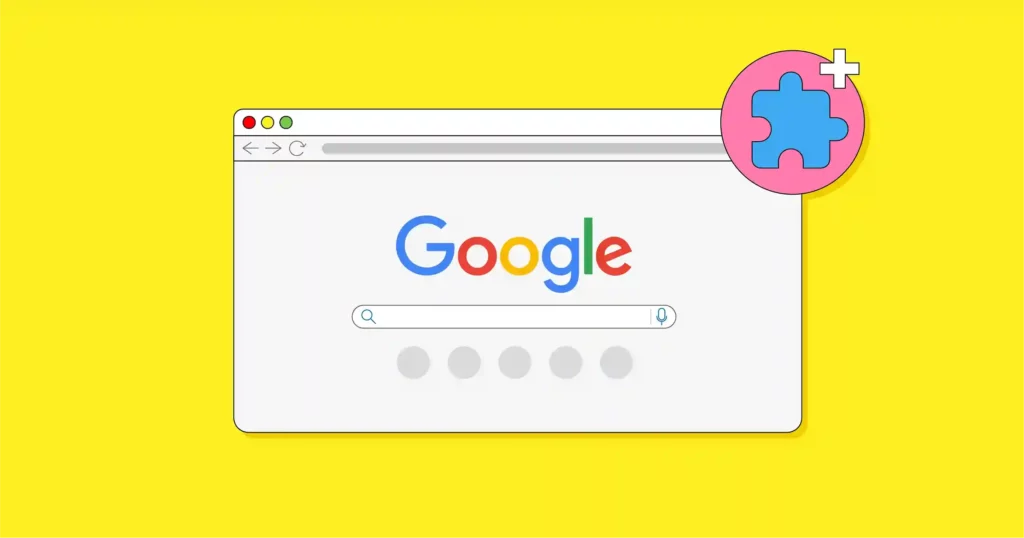
In Google Chrome, web extensions are most commonly available on the official Chrome Web Store. Akin to the Google Play Store, here companies list their services, which are sorted into different categories and are available for you to install.
Why do Extensions in Google Chrome matter?
Chrome extensions for desktop are essential, and these points highlight how:
- Extensions in Google Chrome let you customize it to your liking, such as adding text transcription, note-taking, a personalized dashboard, and more.
- They can also bring essential features for individuals and businesses to your fingertips, such as project management, task automation, and others.
- Extensions add valuable features that aren’t built into the core browser, such as Password managers and collaboration tools with platforms like Zoom.
Read more: Insomniac Games: How Its Marvel & PlayStation Partnership Changed Gaming
How To Install Chrome Extensions
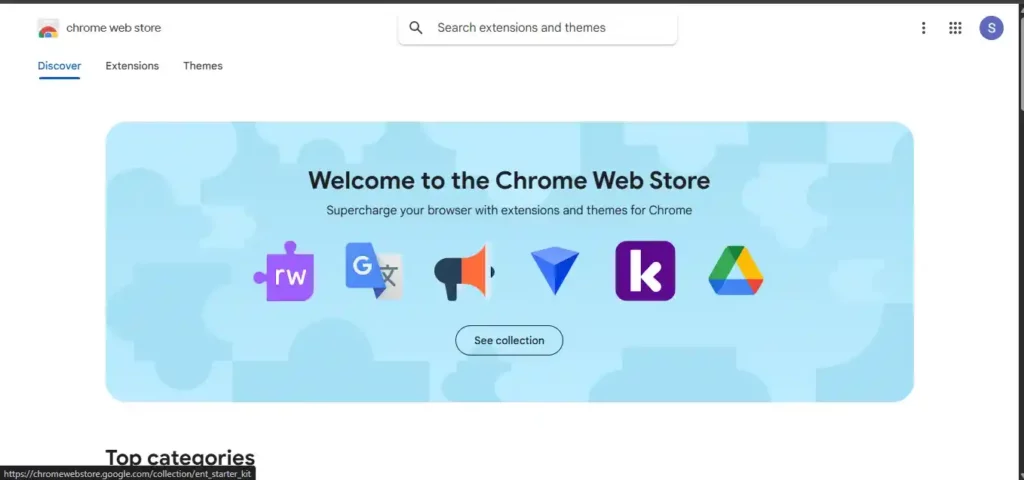
Step 1 – Open the Chrome Web Store
Visit the official Google Chrome Web Store to get the best Chrome extension. These are safe and verified by Google, both automatically and through a human review.
Step 2 – Search for the Extension You Want
Once you have done the above, select the extension you want or explore the relevant alternatives. For this, you need to click on the ‘Extensions’ option in the top left corner.

Choose the board type of extension from options such as Education, Workflow & Planning, Entertainment, and others. Doing so will provide the list of the best Chrome extensions in that category.
Step 3 – Click ‘Add to Chrome’
Once you’ve chosen the extension that you want, you will see a blue ‘Add to Chrome’ button on the right side of the screen; click it.

Clicking it will prompt several permissions. You need to review these carefully before you go ahead.
Step 4 – Confirm Installation
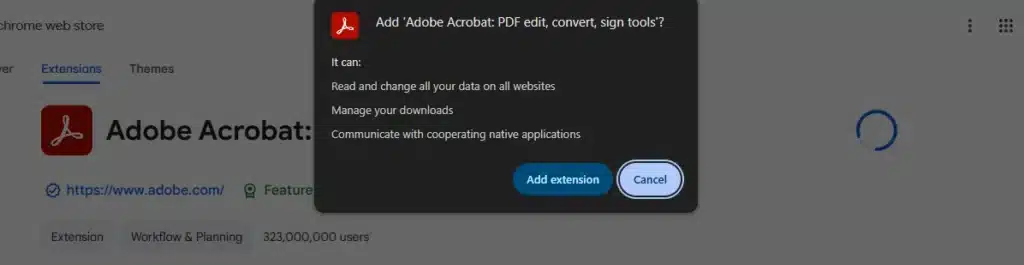
Once you have evaluated all permissions and are ready to comply, click ‘Add extension.’ This will confirm the installation process, and your extension will finally be installed. From here, you will see the features of the installed extension next time you browse. You can also pin the extension to the toolbar now, if you want.
How To Install Chrome Extensions On Android
While they aren’t directly available, you can still install Chrome extensions on Android devices; you could bypass this.
How To Install Chrome Extensions on Android: Using Kiwi Browser
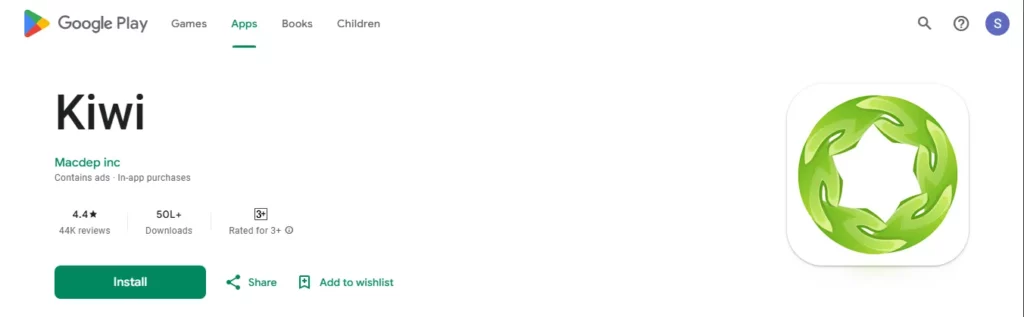
- Firstly, you must download and install Kiwi Browser from the Google Play Store.
- Open Kiwi Browser and tap the three-dot menu icon in the top-right corner. Now, select the Extensions option.
- Tap the store, or go to the menu again (three dots), then select Open Chrome Web Store to access the store.
- Here, you locate the extension you want, then click Add to Chrome. Tap ‘OK’ in the pop-up box to confirm the installation.
These installed Chrome extensions on Android can be managed (enabled, disabled, or removed) by going back to the Extensions page in the Kiwi menu.
Chrome Extensions Limitations on Android
- There is no official Chrome Web Store support for Chrome extensions on Android, and not all extensions are available.
- Also, extensions can cause performance issues on Android devices and may not function properly on low-end devices.
- Similarly, since they weren’t originally designed for mobile interfaces, they may be difficult to use on smaller screens.
How To Use Chrome Extensions
Now that you are familiar with the whole installation process for extensions in Google Chrome, the following points will provide you with the steps on how to use Chrome Extensions correctly.
- Pinning Extensions to the Toolbar: First, click the puzzle piece icon. Then, click the pin icon next to the extension you want to add to your toolbar. The chosen extension’s icon will be permanently visible on your browser’s toolbar.
- Opening and Using Extensions in Google Chrome: Search for the extension’s icon in the toolbar, to the right of the address bar. Alternatively, you can click the puzzle-piece icon to open your list of extensions. From there, you can click the extension you want to use.
- Changing Extension Settings: Firstly, click the three-dot menu in your browser to open the extensions management page. Now, select “Extensions,” and then “Manage extensions.’ Now you can change the settings you want.
How To Manage Chrome Extensions
Managing extensions in Google Chrome is also an important task, and might actually be the difference between you going from a ‘good’ browsing experience to a ‘great’ one. So, the following are some of the things and the related steps to do so:
Disabling extensions in Google Chrome: Click the three-dot menu in the top right, locate the Extensions option, and then click Manage extensions. On the extensions page, you can click the toggle switch for any extension to turn it off.
Removing extensions in Google Chrome: You need to go to the menu in the top-right corner. Here, from the Extensions menu, select Manage extensions, and click the Remove button next to the one you want to delete, then confirm your decision to remove.
Viewing permissions for extensions in Google Chrome: Click the Extensions icon on the toolbar, then select “Manage extensions”.Now, locate the extension you want to inspect, and click the “Details” button. Here, you can review the permissions listed under the “Permissions” section of the details page.
How To Install Chrome Extensions Manually
Now that you are aware of the standard solution to the ‘How to install Chrome Extensions’ problem, let’s look at the alternative manual method for doing the same.
- You need to find your CRX file and rename it from .crx to .zip.
- Now you have to extract the contents of the new .zip file into a folder using a program like Windows’ built-in extractor by clicking on the ‘Extract All’ option.
- Upon doing so, you have to open your browser’s extensions management page by typing chrome://extensions into the address bar.
- After this, enable “Developer mode” by clicking on the option in the top-right corner.
- Click the “Load unpacked” button that will appear, and select the folder where you extracted the extension’s files. The extension will be installed.
Yup! This process is harder than the one discussed above. But, I’ve discussed it here in case you ever need it!
How To Install Chrome Extensions: The Safe Way
Safety Tips while Installing Extensions in Google Chrome
- You should only download and install extensions from the official Chrome Web Store or from a trusted developer directly.
- You need to enable the ‘Enhanced protection’ feature, which provides an extra layer of safety by warning you about untrusted extensions.
- Make sure you fully understand the permissions the extension is requesting before granting them. And only grant the necessary ones.
- Lastly, conduct a brief research into the developer of the extension to ensure you’re getting the right product.
Best Chrome extensions to install
Now that you know the essential tips for installing extensions in Google Chrome, here are some of the best Chrome extensions that you could explore:
- Grammarly: This provides AI-powered writing assistance and suggestions.
- Todoist: This helps users manage tasks and to-do lists seamlessly.
- Adobe Acrobat: This provides a comprehensive solution to managing PDFs
Common Problems & Troubleshooting Tips
Extensions in Google Chrome: The Common Problems
- Using multiple resource-intensive extensions in Google Chrome can cause performance and stability issues, such as crashes and slowdowns.
- Some Chrome extensions cause hassles with the number of permissions they ask, which sometimes even conflict with Google’s privacy settings.
- There is also a risk of malicious Chrome extensions that may contain malware, especially if installed from an unverified source.
- With multiple extensions installed, there is a chance they will conflict, hindering overall browser functionality.
- Besides the above-mentioned, extensions can also encounter operational issues such as blank pages, timing failures, specific features not working, and so on.
Troubleshooting Tips for Chrome Extensions:
- Updating or restarting the browser: The problem is often with the browser, which is updated regularly. Or, your PC or Google Chrome simply needs a restart, that’s all….
- Clearing cache and cookies: You can also clear the cache and cookies data by going to chrome://settings/clearBrowserData. Sometimes stored data becomes corrupted, so clearing it might resolve the issue.
- Running an antivirus/anti-malware: This solution provides broad coverage, and running an antivirus scan can help you detect issues with corrupted extensions. You can, therefore, remove them.
- Reinstalling the extension: Sometimes, a simple reinstall of Chrome extensions for desktop is the best solution. So, if you witness a problem, do not forget to do this.
Final Thoughts
How to install Chrome extensions? How to use Chrome extensions?
Now that both of these questions have been answered, I can say that finding and using the best Chrome extensions isn’t a hassle and is understandable to just about everyone who uses a web browser.
However, while such processes do seem easy, the overall management of Chrome extensions involves many crucial elements discussed above that require your attention. Similarly, there are the safety measures you’ve already been told about, as well as the common issues you need to be aware of.
To conclude, I believe that getting and using Chrome extensions involves several essential aspects, and this blog sheds light on them to help you stay on track.
So, go ahead. Try installing one and using it yourself!
Read more: What is Google Gemini? Complete Guide to Google’s AI Chatbot
Want to learn more about the latest tech developments and solutions? At Yaabot, we pride ourselves on being your ultimate stop for all things related to online technology, software, applications, consumer trends, AI, science, health tech, and more.
Frequently Asked Questions
- Where are Chrome extensions available?
There are various sources for the best Chrome extensions for desktop. However, the safest option is the Google Chrome Web Store. It is Google’s official product and contains almost all the best Chrome extensions that you’ll ever need. However, while they are available on external websites, it is recommended that you obtain them only from trusted sources.
- Can Chrome extensions have viruses?
Absolutely. Just as with games and movies, if you download Chrome extensions from unverified sources, they may contain malware that can harm your system. Therefore, use only the Chrome Web Store or trusted, verified websites.
- How much do Chrome extensions cost?
That depends on the Chrome extension that you’ve installed. While some are completely free, others have tiers you need to pay for to access advanced features. While the process of ‘How to install Chrome extensions’ is similar for almost all, the associated costs vary with each.
