



Video editing software has gotten a lot easier to use, and a lot more capable, in a short space of time. Free apps now offer professional colour correction and visual effects, and browser-based tools can generate captions and resize videos for social media in a matter of minutes.
Honestly, the right pick depends entirely on what you make. A filmmaker wants precise editing controls. A social media creator usually just wants templates, automatic captions, and a fast vertical-video export.
For most people, I’d point to DaVinci Resolve as the best overall video editing software. Adobe Premiere is still a strong professional pick, while Clipchamp, CapCut and Canva Video are friendlier options if you’re a beginner, a marketer, or a social media creator who just needs to get videos out the door.
Key Takeaways
- DaVinci Resolve pairs the strongest free set of editing, colour-grading, audio and visual-effects tools.
- Adobe Premiere fits agencies and professional editors already living in Creative Cloud.
- Microsoft Clipchamp is one of the easiest starting points for first-time Windows users.
- CapCut is genuinely useful for Reels, Shorts and other social videos.
- Canva Video works well for branded marketing and template-based content.
- Final Cut Pro runs fast on Apple devices, for anyone editing on a Mac.
- VEED and Descript are handy for captions, interviews, podcasts and browser-based editing.
How I Selected the Best Video Editing Software
To rank these tools, I judged these based on how they actually hold up during real editing work – ease of use, timeline controls, export quality, platform support, captioning, audio tools, and how restrictive the free plans are.
In addition, I considered what type of content each program is really built for. For instance, a professional tool like DaVinci Resolve solves a very different problem than a template-led tool like CapCut or Canva Video.
Therefore, list below covers beginners, professional editors, social media creators, marketers, and teams that need to collaborate on projects together.
Overview of the Best Video Editing Software Options
Take a look at this table for a quick comparison.
| Software | Best for | Platforms | Free version | Main limitation |
| DaVinci Resolve | Professional free editing | Windows, Mac and Linux | Yes | Steeper learning curve |
| Adobe Premiere | Agencies and professional workflows | Windows and Mac | Trial only | Subscription required |
| Final Cut Pro | Professional editing on Apple devices | Mac and iPad | Trial available | Not available on Windows |
| Microsoft Clipchamp | Beginners and basic editing | Windows and browser | Yes | Limited advanced controls |
| CapCut | Reels, Shorts and social videos | Windows, Mac, web and mobile | Yes | Many tools require Pro |
| Canva Video | Marketing and branded content | Web, desktop and mobile | Yes | Limited complex editing |
| VEED | Browser editing and captions | Browser | Yes | Restrictive free plan |
| Descript | Podcasts and talking-head videos | Windows, Mac and web | Yes | Limited cinematic controls |
Here’s a more detailed look at all of them.
DaVinci Resolve
DaVinci Resolve packs professional editing, colour correction, visual effects and audio production into one app. The free version alone is capable enough for YouTube videos, documentaries, short films, and even client work.
Key Features
- Professional timeline editing with advanced colour-grading controls
- Fusion visual effects and Fairlight audio-production tools built in
- A free version that supports Ultra HD exports at up to 60 frames per second
Pros
- The free tier is genuinely good enough for serious, professional-looking projects.
- Editing, colour, effects and audio all live under one roof.
- The Studio edition is a one-time purchase, not a subscription.
Cons
- On the other hand, first-time editors can find the interface a bit much at first.
- Advanced effects and high-resolution projects need decent hardware behind them.
- A handful of AI and pro tools are locked behind the paid Studio edition.
Best For
YouTubers, filmmakers and serious creators who want professional computer video editing software without being locked into a subscription.
Adobe Premiere

Adobe Premiere is built with professional editors, agencies and production teams in mind. It shines especially for anyone already using Photoshop, After Effects, Audition or the rest of Creative Cloud.
Key Features
- Advanced timeline, multicamera and text-based editing
- Automatic transcription, captions and AI-assisted editing tools
- Tight integration with After Effects, Photoshop, Audition and Frame.io
Pros
- Slots naturally into professional agency and production pipelines.
- Handles complicated, long-form and multicamera projects without breaking a sweat.
- Comes with a huge library of templates, plug-ins and learning resources.
Cons
- You’re committing to an ongoing subscription.
- It can be demanding on older or less powerful machines.
- The sheer number of tools and panels can overwhelm someone just starting out.
Best For
Professional editors, agencies and production teams already working inside Adobe Creative Cloud.
Final Cut Pro
Final Cut Pro is Apple’s own professional editor for Mac and iPad. It’s fast on Apple hardware and brings solid editing, colour and organisational tools along with it.
Key Features
- Magnetic Timeline with advanced trimming and organisation
- Multicamera editing, colour grading and object tracking
- Performance tuned specifically for Apple-silicon Macs
Pros
- Runs efficiently on modern Mac hardware.
- No permanent subscription required – it’s a straight purchase.
- Works especially well with Apple and ProRes-based workflows.
Cons
- Windows and Linux users are out of luck here.
- The Magnetic Timeline takes some getting used to.
- Some of the newer smart features need recent Apple hardware to work at all.
Best For
YouTubers, filmmakers and professional editors who work mainly on Mac.
Microsoft Clipchamp

Microsoft Clipchamp is a simple drag-and-drop editor that runs on Windows and in the browser. It’s a solid fit for basic social videos, presentations, school projects and screen recordings.
Key Features
- Simple timeline for trimming, splitting, cropping and resizing
- Built-in screen, webcam and voice recording
- Automatic captions, templates and text-to-speech tools
Pros
- Easy enough for a first-time editor to pick up quickly.
- Already sitting on many Windows machines, ready to go.
- The free version covers most basic editing needs.
Cons
- Colour and audio controls are pretty limited.
- Not really built for large or complicated productions.
- Some stock assets and brand tools sit behind a paywall.
Best For
Students, beginners and Microsoft 365 users looking for simple video editing software for Windows.
CapCut
CapCut is built for churning out social videos fast. Its templates, automatic captions and vertical-video tools make it a natural fit for Reels, Shorts and TikTok-style content.
Also read: Best CapCut Alternatives: Free and Paid Video Editors
Key Features
- Automatic captions and transcript-based editing
- Templates, effects and resizing built for vertical-video formats
- Background removal, stabilisation and AI voice tools
Pros
- Makes short social videos genuinely quick to produce.
- Beginner-friendly interface that doesn’t take long to learn.
- A huge library of effects and templates to pull from.
Cons
- A lot of the best tools sit behind a Pro subscription.
- Features and pricing shift depending on your region.
- Less fine-grained control than you’d get from a professional desktop editor.
Best For
Influencers, social media managers and businesses publishing short videos regularly.
Canva Video
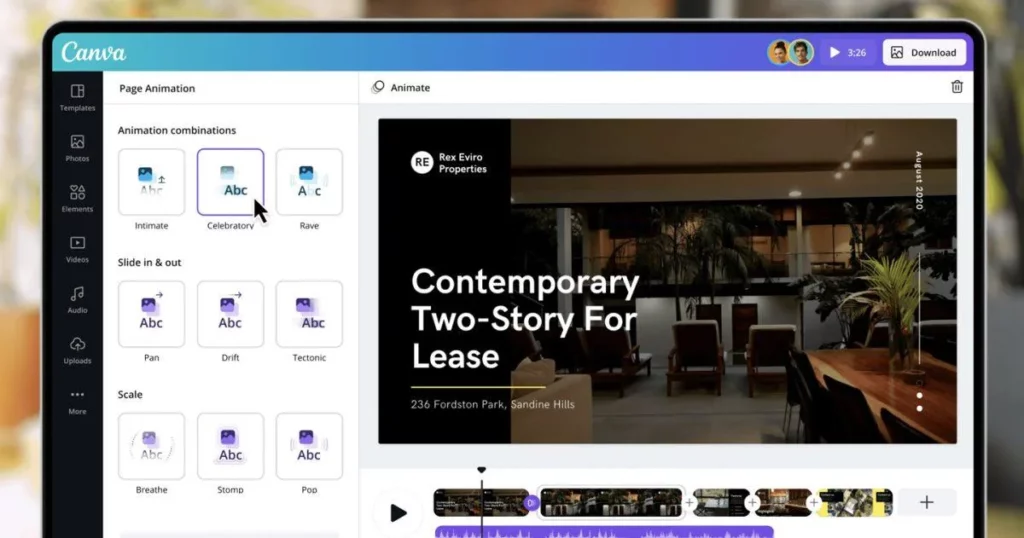
Canva Video helps marketers and small businesses put together branded videos using templates, stock assets and saved brand elements. It’s especially handy for ads, announcements and social content.
Key Features
- Drag-and-drop editor with ready-made video templates
- Brand kits that store your logos, fonts and colours
- Stock media, animations and automatic resizing for social platforms
Pros
- Easy for marketers and non-editors to jump straight into.
- Keeps branding consistent across a team.
- Plays nicely with Canva’s other design and collaboration tools.
Cons
- Timeline controls are fairly basic.
- Not built for complex or multicamera editing.
- Many assets and AI features require Canva Pro.
Best For
Marketers, small businesses and content teams producing branded videos.
VEED
VEED is an online editor geared toward marketing, training and social videos. It mixes browser-based editing with recording, automatic subtitles, translation and collaboration tools.
Key Features
- Browser-based video editing and recording
- Automatic subtitles, translation and AI dubbing
- Templates, brand tools and team collaboration
Pros
- No need to install any professional desktop software.
- Makes captioning and translation genuinely painless.
- Lets teams work together in one shared online space.
Cons
- The free plan comes with a fair number of restrictions.
- Performance leans heavily on your internet connection.
- Lacks the deep timeline controls of a professional editor.
Best For
Marketing and training teams that need browser-based editing, captions and collaboration.
Descript
Descript lets you edit video and audio by editing a transcript – literally deleting words to cut the footage. It’s especially good for podcasts, interviews, webinars and talking-head content.
Key Features
- Transcript-based video and audio editing
- Automatic transcription and filler-word removal
- Screen recording, captions and audio enhancement
Pros
- Speeds up editing spoken content enormously.
- Combines recording, transcription and editing in one place.
- Great for turning long recordings into short social clips.
Cons
- Not designed for effects-heavy productions.
- Transcription and AI limits depend on your subscription tier.
- Auto-generated transcripts still need a human check before publishing.
Best For
Podcasters, educators, interviewers and creators making speech-led content.
Which Video Editing Software Should You Choose?
Picking video editing software gets a lot simpler once you focus on what you actually make most often.
- DaVinci Resolve: The strongest starting point for ambitious beginners and experienced editors alike; the free version is powerful enough for YouTube videos, documentaries, and even professional client work, though it takes some time to learn.
- Adobe Premiere: Makes more sense for agencies and production teams already living in Creative Cloud, since its links to Photoshop, After Effects and Frame.io genuinely make collaborative work smoother.
- Final Cut Pro: Worth a look if you’re on a Mac and want professional-grade performance; runs efficiently on Apple hardware and doesn’t lock you into a subscription.
- Microsoft Clipchamp: The better starting point if you’re new to Windows editing and mainly need trimming, captions, transitions and screen recording.
- CapCut: Suits creators pumping out Reels, Shorts and other social content on a regular basis.
- Canva Video: Useful when video is just one piece of a wider branded marketing push.
- VEED: Better for browser-based collaboration and subtitles.
- Descript: The stronger pick for podcasts, interviews and other speech-heavy projects.
A lot of creators end up using more than one tool anyway – a long video might get edited in DaVinci Resolve or Premiere first, then shorter clips get pulled together in CapCut, Canva or VEED.
Key Factors to Consider When Choosing Computer Video Editing Software for PC
The best editing software for PC should match both your content and your machine. Here’s what’s worth checking before you download or subscribe to anything.
Also read: Best AI Video Generators to Look Out For
Hardware Requirements
Professional video editing software for PC can chew through memory, storage and graphics power fast. Look at the recommended specs, not just the minimum ones.
For instance, a simple editor might run perfectly fine on a standard laptop, but 4K footage, visual effects and noise reduction usually call for a dedicated graphics card and more RAM.
Free-Plan Restrictions
A free version might cap your export quality, slap on a watermark, or limit captions, stock assets and AI tools.
Run through a full export before sinking hours into a project, so you catch any restrictions early rather than at the finish line.
Supported Formats
First of all, check that the software actually supports whatever your camera, phone, or screen recorder produces. For example, professional cameras often shoot in formats like ProRes, RAW, or H.265. As a result, basic editors often struggle to handle these files smoothly.
Captions and Transcription
While automatic captions save real time, they are not flawless. Specifically, accents, background noise, and specialist vocabulary can all throw off accuracy. Therefore, always double-check generated subtitles before publishing, especially for anything educational, business-related, or news-adjacent.
Type of Project
For instance, a template-based editor might be perfect for a social ad but a poor fit for a documentary. On the flip side, professional computer video editing software can feel like overkill for a short promo clip.
Ultimately, pick your software based on the kind of project you are actually making, rather than choosing the one with the most features on paper.
Long-Term Cost
In the long run, monthly subscriptions add up fast over a few years. Therefore, it is worth comparing the total cost against free alternatives or one-time licences. Additionally, check whether you will still be able to open or export old projects after canceling a paid plan.
Final Thoughts
Overall, DaVinci Resolve stands out as the strongest video editing software, largely because its free version already includes advanced editing, colour, audio and effects tools. However, Adobe Premiere is still a dependable professional pick, and Final Cut Pro is particularly strong for Mac users.
For instance, Clipchamp is the better fit for Windows beginners, while CapCut suits social videos and Canva Video is great for branded marketing. Meanwhile, VEED and Descript are more suited to captions, collaboration, interviews, and podcasts.
Therefore, try a free version or trial on a real project before you commit to paying for anything. The best tool is simply the one that helps you actually finish videos, without unnecessary cost or complexity getting in the way.
For more info on tech and AI, visit Yaabot.
Frequently Asked Questions (FAQs)
DaVinci Resolve is the best overall option if you want advanced features without a subscription. Adobe Premiere suits professional workflows better, and CapCut is more convenient for social media videos.
DaVinci Resolve is the most capable free video editing software for Windows. Microsoft Clipchamp is friendlier for beginners and works well for personal, educational and basic business projects.
Microsoft Clipchamp is one of the easiest options for beginners. Meanwhile, CapCut is also approachable for short social videos, and Canva Video suits anyone already comfortable with Canva’s design tools.
Yes. DaVinci Resolve has a genuinely capable free version with editing, colour, visual effects and audio tools included. The paid Studio edition adds more AI features, effects and high-end format support on top.
CapCut is faster and easier for Reels, Shorts, templates and trend-driven videos. Adobe Premiere gives you more control for long-form projects, complex timelines and professional Creative Cloud workflows.
Browser platforms like VEED, Canva Video, Clipchamp and Descript can turn out professional-looking marketing, training and social videos. Desktop editors are still the better call for advanced colour work, visual effects and large multicamera projects.
Basic computer video editing software can get by with 8 GB of RAM, but 16 GB is a more realistic starting point for modern 1080p and 4K work. Complex effects, RAW footage and multicamera editing may push you toward 32 GB or more.
DaVinci Resolve is an excellent choice for serious YouTube production. CapCut works well for Shorts, while Adobe Premiere and Final Cut Pro suit professional channels with more demanding workflows.
