

Windows is pretty capable, but I feel like small jobs can still feel unnecessarily awkward. I have resized images one by one, hunted for a window, and retyped words from screenshots often enough to appreciate a better shortcut.
This is where Microsoft PowerToys helps. It is a free, open-source collection of Windows utilities for layouts, clipboard work, keyboard shortcuts, file management, and screen tools. I use it as a menu of small fixes, not as one giant program.
In this post, I’ll give you a deeper insight on Microsoft PowerToys and the best utilities and features, plus a few tips to help you out.
Also read: What is Project Polaris? Microsoft’s Homegrown AI Coding Model Explained
Key Takeaways
Microsoft PowerToys is free, open source, and modular. Install it once, then enable only the utilities that match your habits.
- FancyZones is my first recommendation for anyone working with several windows.
- Image Resizer and PowerRename save time directly inside File Explorer.
- Advanced Paste, Text Extractor, and Color Picker help move information between apps.
- Always On Top and Awake solve simple problems Windows does not always handle well.
- Specialist Windows PowerToys Tools include Keyboard Manager, Registry Preview, Power Display, Mouse utilities, and ZoomIt.
- Start with one Microsoft PowerToys utility and see whether it earns a place in your routine.
- The best PowerToys features are the ones that remove tasks that are repeated every week.
What Is Microsoft PowerToys and How Does It Work?
Microsoft PowerToys is a set of free Windows utilities for power users, developers, and anyone who wants fewer repetitive steps. Microsoft says the project is open source, so the community can report issues, improve documentation, suggest ideas, and contribute changes. In simple terms, Windows PowerToys adds optional tools around the operating system rather than replacing it.
The project began with Windows 95 utilities and later returned for Windows 10 and Windows 11.
The PowerToys app gives every tool its own switch, shortcut, and settings. You can turn off anything you do not use. This modular approach is why I would recommend PowerToys for Windows 11 even to someone who is not especially technical. The PowerToys features list can look long, but the useful choices are quite personal.
Who Should Use Microsoft PowerToys?
Microsoft PowerToys suits anyone who repeats small actions on a Windows PC. It can help students, writers, designers, office workers, and developers who want PowerToys for Windows 11 to feel more personal.
You don’t need to understand every utility. Notice the task that keeps irritating you. If windows never stay where you put them, try FancyZones. If filenames are messy, try PowerRename. If a screenshot contains text you need, try Text Extractor. This is the easiest way to approach PowerToys for Windows 11.
- For office work: Always On Top, FancyZones, PowerToys Run, and Advanced Paste.
- For study: Peek, Text Extractor, Shortcut Guide, and PowerRename.
- For creative work: Color Picker, Image Resizer, and Power Display.
- For technical work: Keyboard Manager, Hosts File Editor, Registry Preview, and ZoomIt.
The function of the most useful PowerToys Tools is to basically remove a repeated annoyance. For me, a good PowerToys Utility earns its place through use, not always novelty.
How I Chose These Windows PowerToys Utilities
I looked for tools that solve clear problems in an ordinary Windows routine. Here’s a quick checklist:
- Usefulness: It should help with work, study, browsing, or files.
- Ease: It should provide value without scripting knowledge.
- Time saved: Batch actions and shortcuts mattered more than feature lists.
Some Microsoft PowerToys features appear later. They suit particular users.
Best Microsoft PowerToys Utilities You Should Try
Advanced Paste for Cleaner Clipboard Work
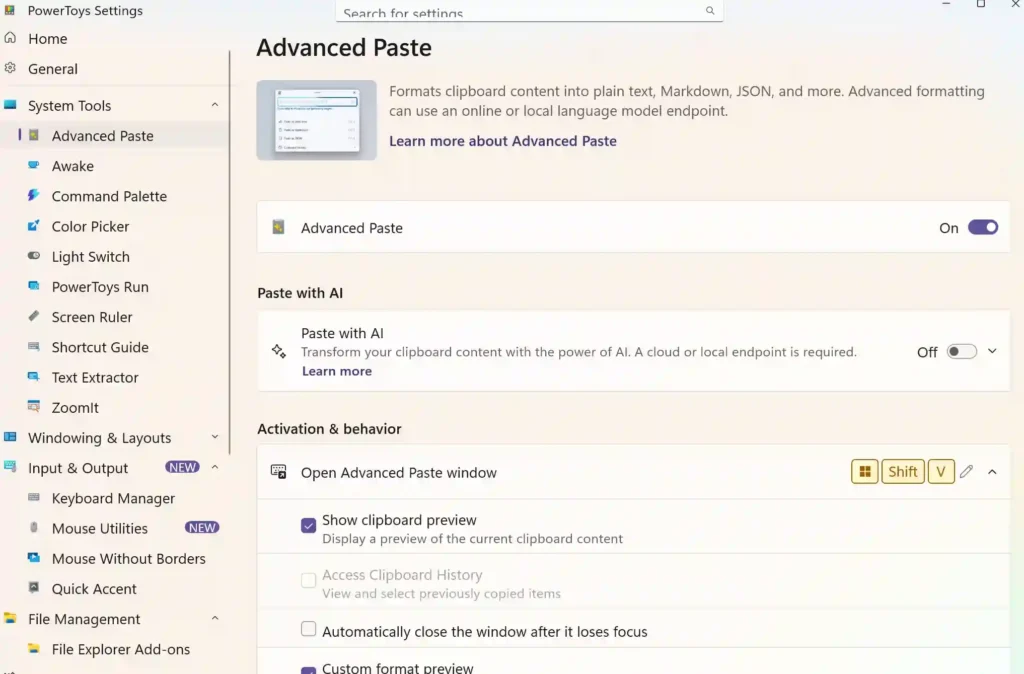
Advanced Paste is for the moment when copied content arrives with the wrong formatting. It lets you choose how clipboard content should be transformed before it lands in a new app.
You can use it for plain text, Markdown, JSON, and other supported formats. Microsoft also documents an optional AI-powered feature. I would treat this as an extra and check its setup, privacy, and model requirements first.
- Plain formatting: Strip unwanted styling when you need clean text.
- Format conversion: Turn clipboard material into a form that suits the destination.
- Optional AI features: Use advanced transformations only after checking the setup, privacy, and model requirements.
Advanced Paste is a strong choice for writers, researchers, and anyone moving information between browsers and documents.
FancyZones for Managing Windows
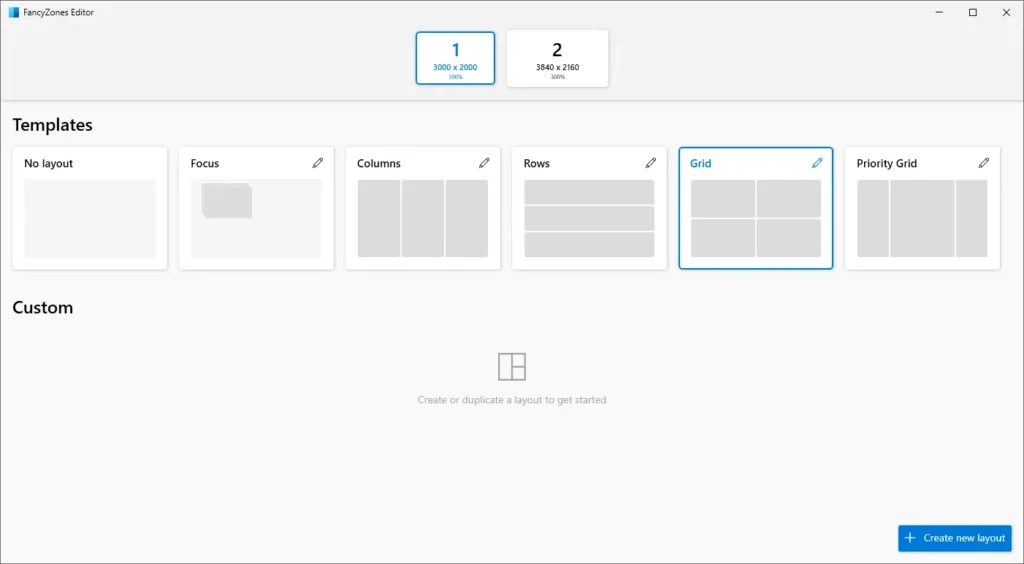
FancyZones is the Microsoft PowerToys utility I would suggest first to someone with a large monitor, an ultrawide display, or a busy desktop. It lets you create zones and place windows into them. Windows 11 already includes Snap layouts, but FancyZones gives you more control.
With this I can now create a wide zone for a browser, a narrow zone for messages, and another zone for a document. Once the layout is ready, I can place windows into it instead of dragging their edges until they look roughly right. Release notes mention extra layout controls in the preview channel, so I would check your installed version before expecting them.
- Custom layouts: Build columns, rows, grids, or uneven areas for your screen.
- Repeatable placement: Reuse the same arrangement whenever you return to a project.
- Workflow fit: Create different layouts for writing, research, editing, or meetings.
Image Resizer for Batch Image Changes
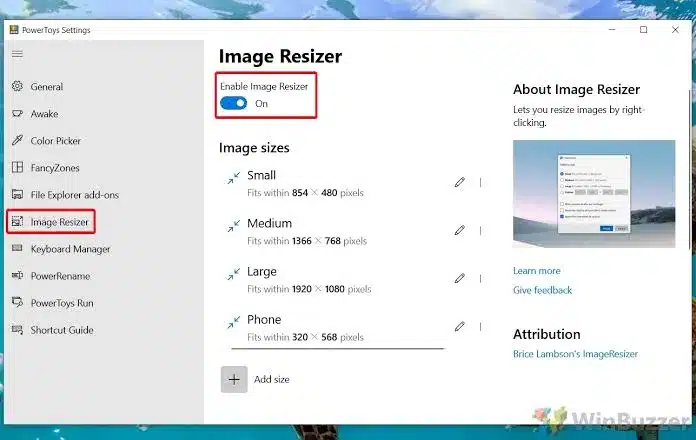
Image Resizer saves you from opening an editor when all you need is a different size. Select images in File Explorer, right-click, choose resize, and pick a preset or custom dimension.
This is the sort of Microsoft PowerToys feature that earns its place through repetition. If you have 30 photos that are too large to upload, resizing them together is far less tiring than opening each file. The tool can create copies, which helps protect the originals, although I would still check the output folder before deleting anything.
- Batch processing: Resize multiple images in one action.
- Preset sizes: Use common size choices when you do not need exact dimensions.
- Custom dimensions: Set a specific width or height for a website, form, or upload limit.
Image Resizer is not a Photoshop replacement. It stays focused on one frequent job, which is why I keep it around.
PowerRename for Better File Organization
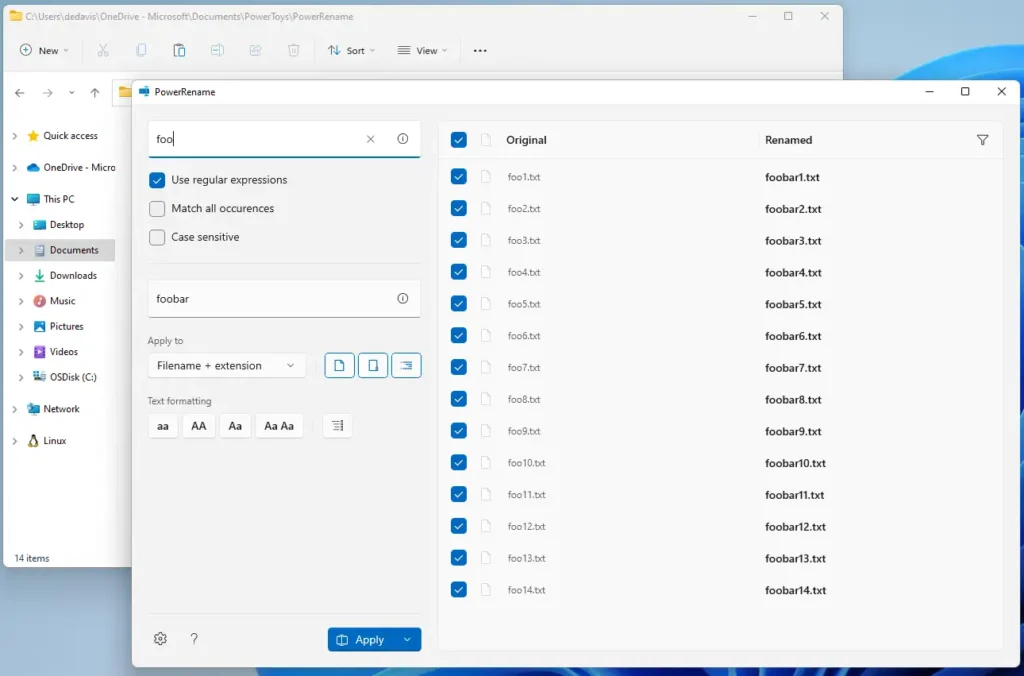
PowerRename is useful when a folder needs consistent names. Search for part of a filename, replace it, and preview changes before applying them. Regular expressions and undo support are available.
I would use it after a photo shoot, while organizing research, or when preparing files for a client. The preview matters because a broad search can create a bit of a mess.
- Search and replace: Change repeated words or numbers across selected filenames.
- Regular expressions: Handle complex naming patterns.
- Preview and undo: Review the result before committing and reverse a change if required.
PowerRename is one of the PowerToys Tools that feels small until you need it. Anyone who manages folders regularly should keep it available.
Text Extractor for Copying Words from Screenshots
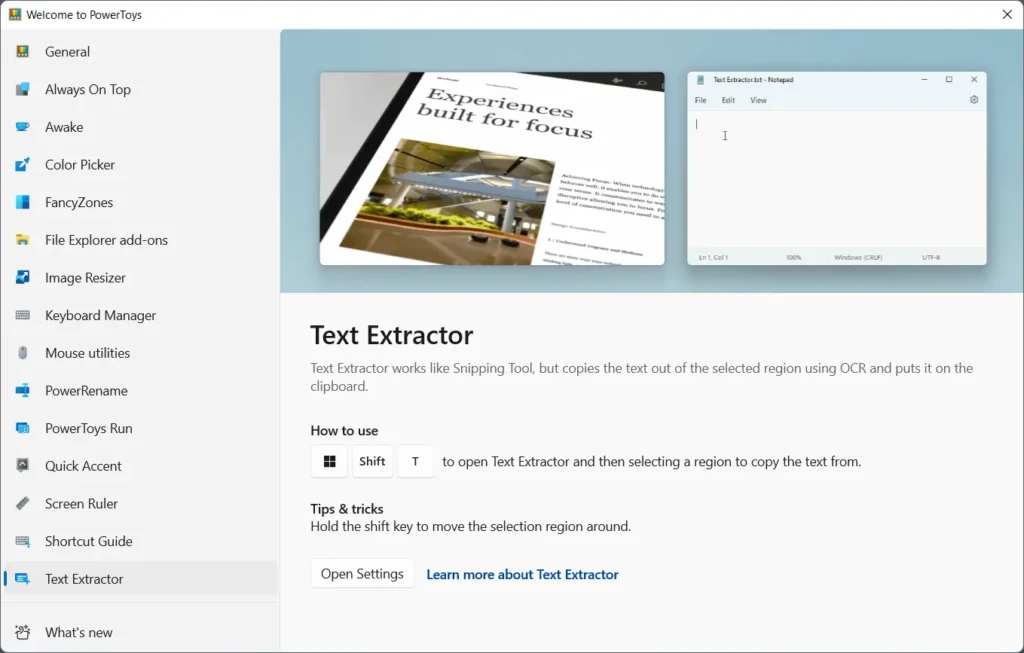
Text Extractor uses OCR to copy words from a screen. Select part of a screenshot, video frame, image, or unselectable website, and the result goes to the clipboard.
I would use it when a colleague sends a screenshot, when a PDF behaves badly, or when I need a short passage from an image. OCR can make mistakes with unusual fonts, low resolution, tables, and crowded layouts, so I always check the result before using it in a final document.
- Quick capture: Select only the part of the screen that contains the words you need.
- Useful across apps: Work with images, browser content, video frames, and screenshots.
- Simple correction: Paste the result into a document and proofread obvious OCR errors.
Text Extractor is a practical Microsoft PowerToys utility because it solves a problem that appears without warning.
Always On Top for Reference Windows
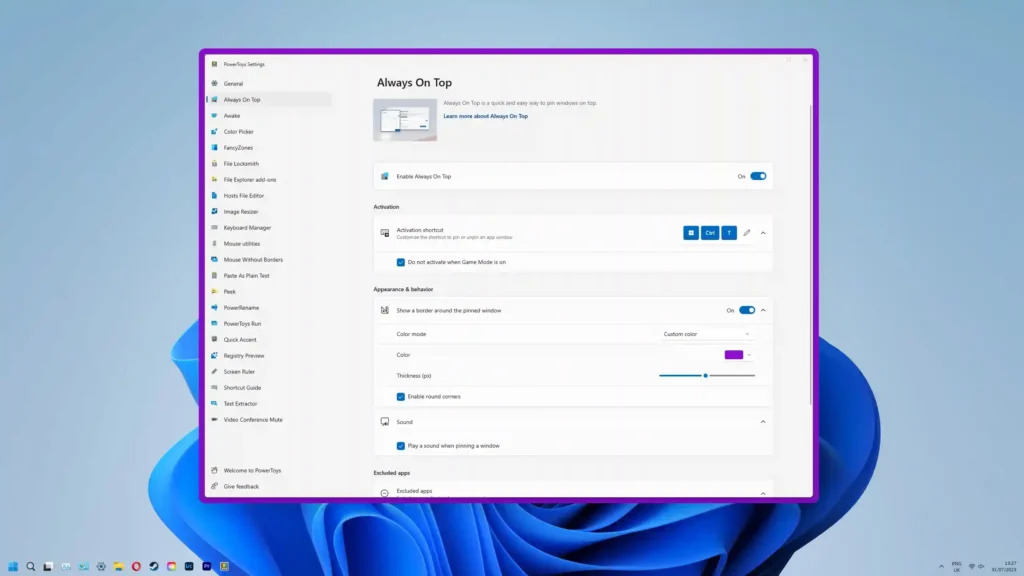
Always On Top pins a chosen window above other windows. The default shortcut is Windows key plus Ctrl plus T. You might keep a calculator, a reference page, a video call, or a set of instructions visible while working elsewhere.
- Fast pinning: Use the shortcut instead of searching through window menus.
- Visible references: Keep instructions, notes, or media available while another app has focus.
- Visual control: Adjust the border appearance in the utility’s settings.
Always On Top is a good first Microsoft PowerToys download for someone who wants an immediate, low-effort improvement.
Awake for Long Tasks
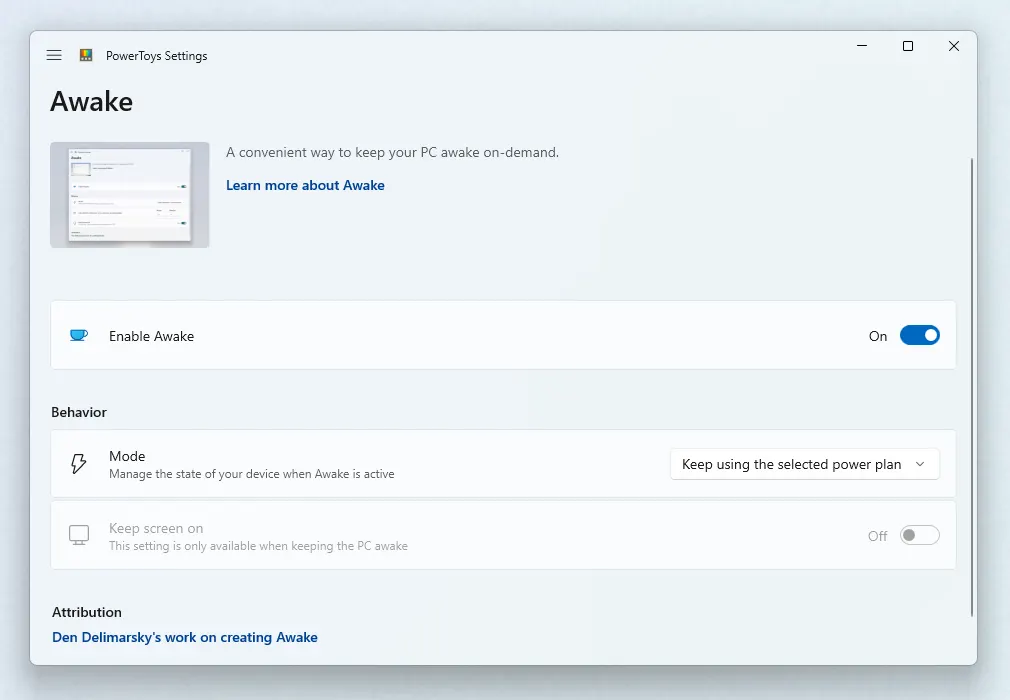
Ever left your laptop doing something and come back only to find that it had gone to sleep? Now you don’t have to worry about that. That’s what Awake is for. It keeps your computer awake without changing your normal Windows power settings. It can help during a long download, a presentation, a render, or a script that needs time to finish.
You can choose an indefinite mode, a timed duration, or an end time. I prefer a defined period when possible because it reduces the chance of leaving a laptop awake in a bag or draining its battery overnight.
- Flexible timing: Choose a countdown, an end time, or an indefinite setting.
- Display choice: Keep the machine awake while allowing the screen to turn off, if your workflow permits it.
- Separate control: Return to normal power behavior by switching Awake off.
Color Picker for Design and Presentation Work
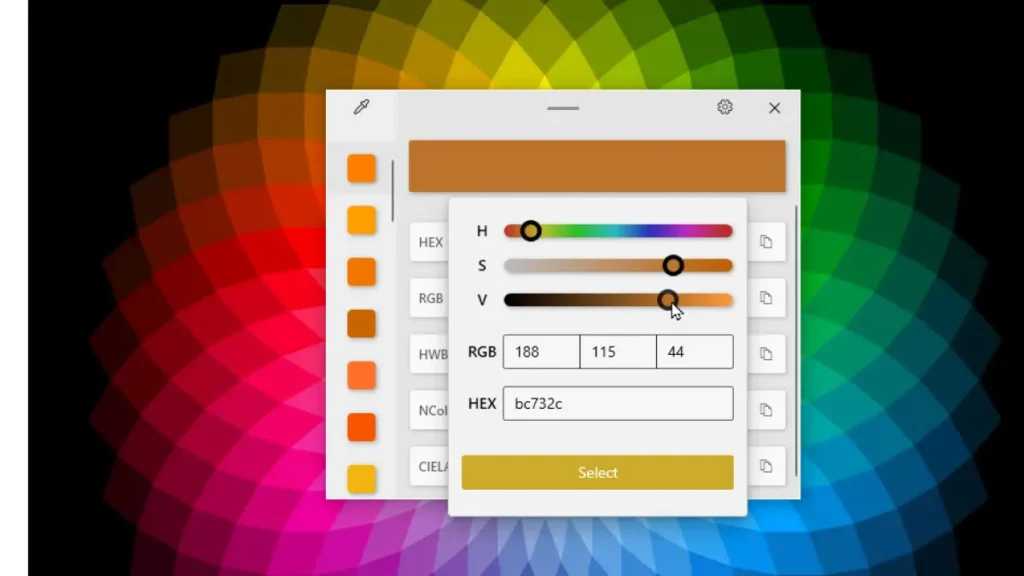
If you work with colors (video editors, graphic designers, this one’s for you), you’ll probably need this one a lot. Color Picker lets you pick a color directly from your screen and copy it as is. RGB, HEX, CMYK, and HSL are among the formats Microsoft documents.
Instead of guessing a website’s blue or taking a screenshot to compare shades, activate Color Picker and select the pixel you need. The tool is quick, system-wide, and easier than opening a separate design program for a single value.
- Multiple formats: Copy colour values in a format that fits your next tool.
- System-wide use: Pick colours from browser windows, desktop apps, icons, and other visible areas.
- Fast access: Use the shortcut when you need a value, then return to your main task.
Some interface layers may not behave perfectly, so I would test it before relying on it for precise production work.
File Explorer Add-ons and Other Useful Tools
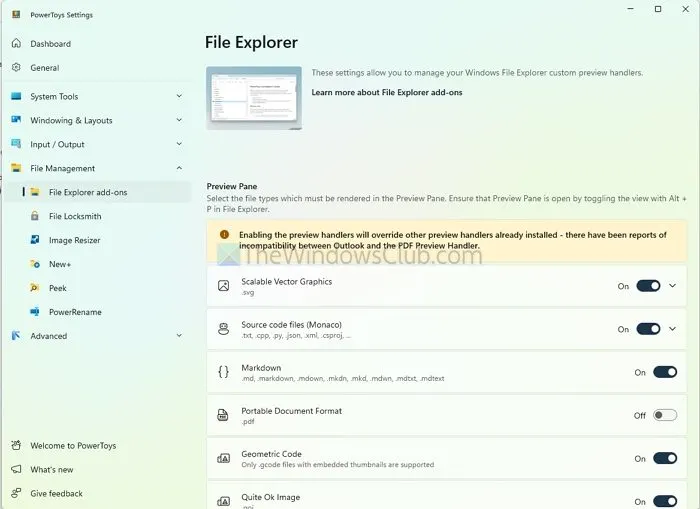
Microsoft PowerToys includes several utilities that deserve a quick mention. File Explorer add-ons can add preview and thumbnail support for formats such as SVG, PDF, Markdown, and source code. File Locksmith shows which processes are using a file when Windows will not let you rename or delete it.
Keyboard Manager remaps keys and creates shortcuts. PowerToys Run launches apps and files quickly. Workspaces opens applications in saved positions. Power Display controls supported external monitors. ZoomIt provides zoom, annotation, and recording tools.
Other Microsoft PowerToys features include:
- Command Not Found: Suggests WinGet packages when a PowerShell command fails.
- Command Palette: Opens commands, apps, and tools from one customisable interface.
- Environment Variables: Groups environment variables into profiles.
- Grab And Move: Moves or resizes a window with a modifier key.
- Hosts File Editor: Edits the Windows Hosts file more directly.
- Mouse utilities: Include Find My Mouse, Highlighter, Jump, and Crosshairs.
- New+: Creates files and folders from personalised File Explorer templates.
- Peek: Previews file content without opening the full application.
- Quick Accent: Helps type accented characters.
- Registry Preview: Helps view and edit Registry files.
- Screen Ruler: Measures pixels by detecting edges.
- Shortcut Guide: Shows useful shortcuts.
- Window Hopper: Cycles through windows in the focused app.
You do not specifically need this list. I would choose one tool that solves a real problem, then add another when needed. Crop And Lock is worth testing for a focused panel.
How to Set Up Microsoft PowerToys Without Clutter
The easiest way to make Microsoft PowerToys useful is to avoid treating it as a checklist. Install stable, open Settings, and review shortcuts first.
- Start with FancyZones, Image Resizer, PowerRename, Text Extractor, or Always On Top.
- Change conflicting shortcuts and turn off unwanted notifications or overlays.
- Test one change at a time so you know which utility affected your workflow.
- Keep the app updated through official release channels.
Stable is sensible for most people. Preview releases may contain unfinished changes.
Microsoft PowerToys Limitations to Remember
Microsoft PowerToys is useful, but not a magic repair kit. Some tools need administrator permissions or behave differently across applications.
- Background activity: Enabled utilities may use memory or background processes.
- Shortcut conflicts: A PowerToys shortcut can overlap with one from another app.
- Compatibility: Crop And Lock, previews, and overlays may behave differently in unusual applications.
- Battery use: Awake and display tools can consume more power if left running.
- Preview risk: Preview releases can change before they become stable.
Settings lets you disable a utility or change its shortcut. I would keep backups before using Registry Preview or editing the Hosts file.
That’s a Wrap
You do not need every Microsoft PowerToys utility. Match the tool to the annoyance in front of you. FancyZones helps with crowded desktops, Image Resizer handles photos, PowerRename cleans filenames, and Text Extractor saves retyping.
My personal starting set would be FancyZones, PowerRename, Text Extractor, Always On Top, and Awake. Add Advanced Paste if you move formatted content, then explore specialised PowerToys Tools when needed. These PowerToys features are enough for many beginners.
Microsoft PowerToys works best as a quiet collection of small fixes. Install it, choose one feature, and let your own routine decide whether it stays.
I usually revisit these choices whenever my Windows routine changes materially.
For more info on AI and tech, visit Yaabot.
FAQs
Yes. Microsoft PowerToys is free and open source. Install it through Microsoft’s official channels and use tools such as FancyZones, PowerRename, Keyboard Manager, and Always On Top.
Yes. The current project supports modern Windows versions, including Windows 11. Check the stable requirements before installing it on an older machine.
Use stable on a main work computer. Choose preview only if you are comfortable testing unfinished changes.
Start with FancyZones if windows feel messy, Image Resizer if you handle photos, PowerRename if filenames are repetitive, or Text Extractor if you often copy words from screenshots.
