


Nothing is as frustrating as running out of storage on your Windows PC.
The worst part? We don’t even know what is taking up so much space. Windows will show you how much storage is available, but finding the specific files and folders responsible takes a lot more digging.
These days I’m a bit relieved because of Windows disk space analyzers. These tools scan your drives and give you a clearer view of how your storage is being used; they use size-based lists or visual treemaps. Whether you want to find large files, old downloads, application data, temporary files, and other space-consuming folders, these tools will help serve the purpose.
In this guide, I’ll compare some of the best Windows disk space analyzer tools in 2026, including their features, scan speeds, pricing, and support for local, network, and cloud storage.
Key Takeaways
- Fastest local scan: WizTree reads the NTFS Master File Table, allowing it to scan a full drive in seconds.
- Best free open-source tool: WinDirStat is released under GPLv2 and has no paid tier or account requirement.
- Best for network and cloud storage: TreeSize Professional supports SharePoint, Amazon S3, Azure, and Linux or SSH targets.
- Best portable option: SpaceSniffer runs without installation and displays its treemap during the scan.
- Built-in Windows option: Settings > System > Storage shows storage use by category, but it does not provide detailed folder-level results.
- Best for scheduled reports: FolderSizes includes scheduled scans, exports, snapshots, and storage trend reports. It has limited independent review data.
What Is a Windows Disk Space Analyzer?
A Windows disk space analyzer is a tool that scans a drive or folder and lists everything in it by size, something the built-in Properties window doesn’t do on its own.
- Core function: Scans a selected drive or folder and ranks the contents by size, shown as a sorted list, a visual treemap, or both.
- What it finds: Large video collections, old installers, temporary files, application data, and cache folders that are easy to miss when browsing manually.
- What Windows alone doesn’t show: The Properties window reports total used and available space only. It does not break that number down by folder or file.
- File safety: The scan is read-only. Nothing is deleted or moved unless you take that action yourself.
Comparing Different Windows Disk Space Analyzer Tools
| Tool | Rating and Source | Reviews | Price | Tree Map | Network Scan | Scan Speed |
| WizTree | 4.3/5 on AlternativeTo | 34 | Free for personal use; paid code for commercial use | Yes | Yes, without its MFT speed advantage | Seconds on local NTFS drives |
| TreeSize | 4.3/5 on AlternativeTo and GetApp | 11 / 6 | Free for non-commercial use; paid plans from roughly $20 per user per year | Yes, including 2D and 3D views | Yes, plus SharePoint, S3, Azure, and SSH on paid plans | Fast |
| WinDirStat | 4.0/5 on AlternativeTo | 49 | Free and open source under GPLv2 | Yes | Yes | Moderate |
| SpaceSniffer | 5.0/5 on Snapfiles and FossHub | 7 / 1,720+ | Free | Yes, with live updates during scanning | Yes | Fast |
The ratings came from AlternativeTo, GetApp, Snapfiles, and FossHub in Q3 2026. The review samples are limited, so they offer a general indication rather than a final ranking.
If you’re looking for an immediate answer, for local NTFS drives, WizTree is the quickest option. WinDirStat is the best choice for users who want free, open-source software. TreeSize is better suited to network shares, SharePoint, cloud storage, and Linux systems.
The Best Windows Disk Space Analyzer Tools
WizTree: Fastest for local drives
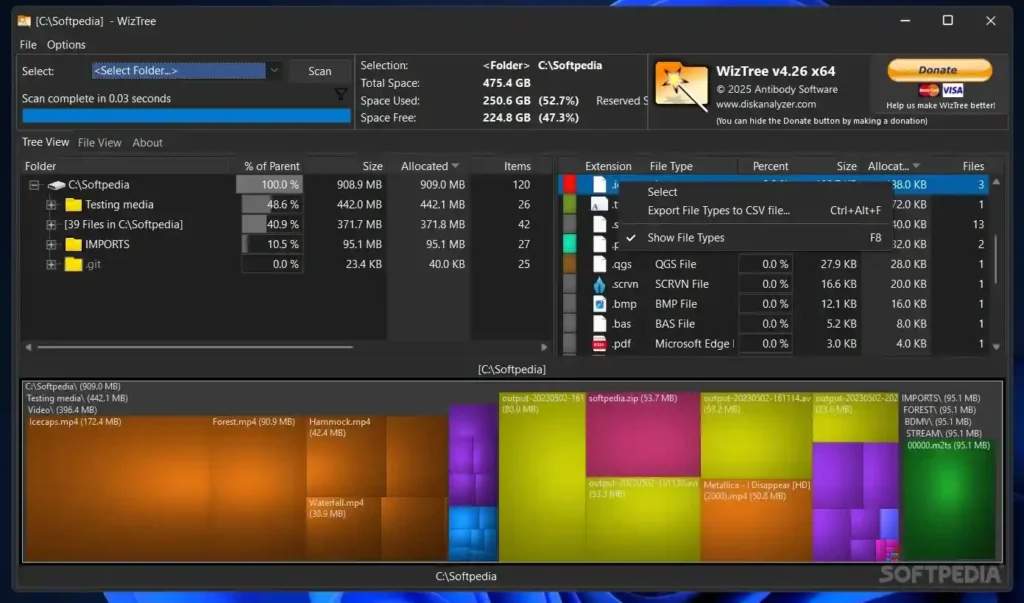
WizTree reads the NTFS Master File Table instead of checking every folder individually. That lets it scan large local drives in seconds. This one comes in handy for me.
On Snapfiles, 85% of reviewers gave it a 5-star rating.
- Best for: Quickly finding what is using space on the C: drive.
- Limitations: The main speed advantage applies to local NTFS drives. On network shares, WizTree checks files in the usual way, so the process can be a little slower. Its reporting and export features are limited.
- Price: Free for personal use. Commercial users need a paid supporter code.
TreeSize: Best for network shares and cloud storage
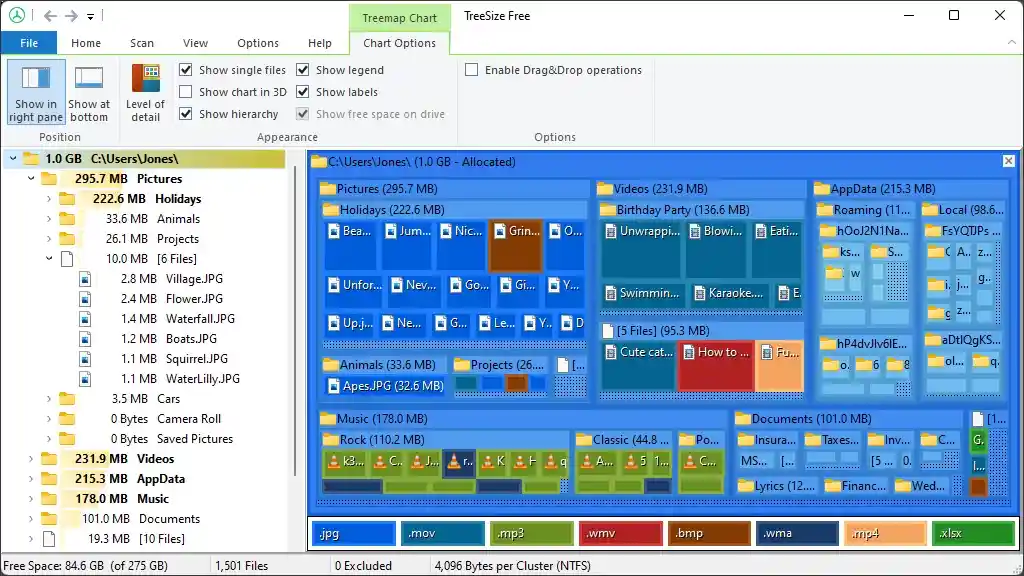
TreeSize supports a wider range of storage locations than the other tools in this list. If you opt for the paid editions, it can scan SharePoint, Amazon S3, Azure, and Linux systems through SSH.
It has a 4.3/5 rating on AlternativeTo from 11 reviews and the same rating on GetApp from 6 reviews.
It has a 4-star rating on Snapfiles.
TreeSize is also available as a free Microsoft Store app.
- Best for: Administrators handling storage across local machines, network shares, cloud services, and remote systems.
- Limitations: The free edition is limited to non-commercial use only. Search, duplicate detection, and scheduled scans require a paid Personal or Professional plan.
- Price: Free for non-commercial use. Paid plans start at roughly $20 per user per year.
WinDirStat: Best free open-source option
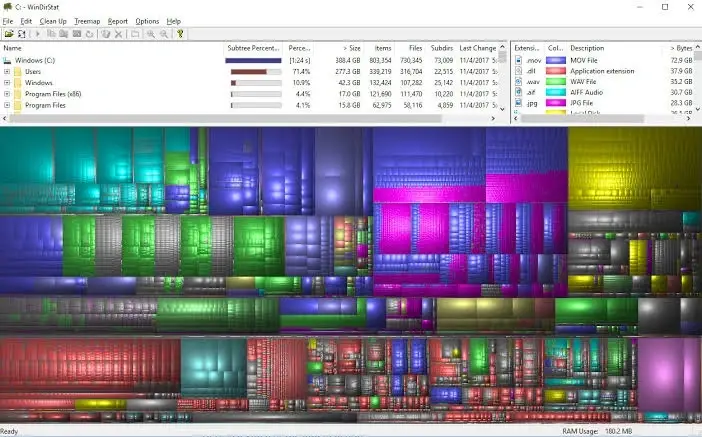
WinDirStat is an open-source software released under GPLv2. Its treemap gives users a visual breakdown of storage use, while the file-type list shows which formats occupy the most space. I have used this one once, and honestly, it was a smooth experience.
The project saw limited activity between 2007 and 2024. A later 2.x rewrite introduced multi-threaded scanning, NTFS MFT support, and dark mode.
It has a 4.1/5 rating on AlternativeTo
- Best for: Users who want free software with no account, paid tier, or commercial upsell.
- Limitations: WinDirStat doesn’t offer dedicated reports, scheduled scans, or snapshots. CSV is the main export format. Large drives can take longer to scan than they do with WizTree.
- Price: Free.
SpaceSniffer: Best portable visual tool
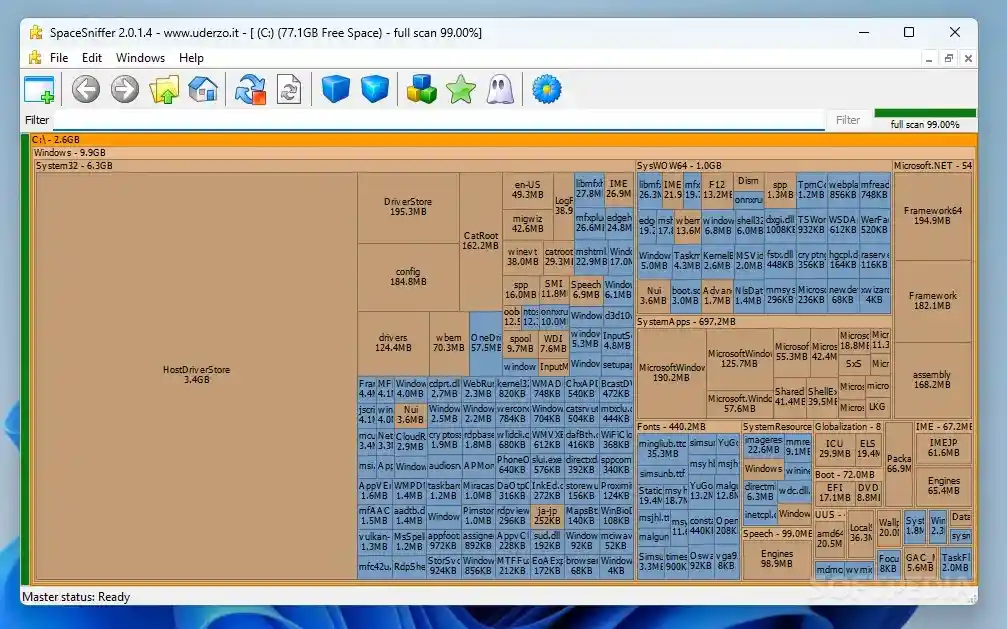
SpaceSniffer runs directly from its executable file. It doesn’t require an installer or make registry changes, making it useful on a USB drive or on a computer where you can’t install software.
The treemap changes as the scan progresses. So, if you delete or rename a file during the scan, the display reflects the change without requiring a fresh scan.
SpaceSniffer has a five-star rating on Snapfiles. FossHub lists roughly 5/5 across more than 1,720 reviews.
- Best for: A quick storage check without installing software.
- Limitations: Development has slowed, and the current stable build dates to mid-2025; no scheduled scans or duplicate-file finder. Export is limited to a basic text report.
- Price: Free.
How I Compared These Tools
- Scan speed: How quickly each tool can scan local Windows drives and identify large files and folders.
- Ease of use: How simple the interface is for finding storage-heavy files without a steep learning curve.
- Visual breakdowns: Whether the tool offers treemaps or other visual ways to understand how storage is being used.
- Network support: Whether it can scan network shares, mapped drives, or other remote locations.
- Cloud storage: Support for services and platforms such as SharePoint, Amazon S3, and Azure.
- Reporting features: Availability of exports, scheduled scans, snapshots, and storage history.
- Portability: Whether the software can run without installation, which is useful for troubleshooting on different PCs.
- Pricing: What is included in the free version and which features require a paid plan.
- File management features: Options such as filtering, searching, duplicate detection, and identifying large or unnecessary files.
- User feedback: Public ratings and reviews were considered where available, but review counts vary significantly between tools.
- Windows compatibility: How well each tool works with common Windows storage setups, particularly local NTFS drives.
- Practical use: I considered which type of user each tool is most suitable for, from someone cleaning up a personal PC to administrators managing network or cloud storage.
How to Choose a Windows Disk Space Analyzer
You can choose based on the type of storage you need to inspect:
- To find large files on a local C: drive: WizTree.
- For a portable tool with no installation: SpaceSniffer.
- For free open-source software: WinDirStat.
- For SharePoint, S3, Azure, or SSH storage: TreeSize Professional.
- For scheduled reports and storage history: FolderSizes Pro.
- For a basic overview without installing anything: Windows Storage settings.
How to Check Storage Use Without Installing a Tool
Windows includes a basic storage view in Settings. Follow these steps, and you’ll be good to go:
- Press the Windows key + I to open Settings.
- Select System > Storage.
- Wait for Windows to scan the drive.
- Review categories such as Apps, Temporary files, Documents, and Pictures.
- Select a category to view its contents and remove files you no longer need.
- To inspect another drive, open Advanced storage settings > Storage used on other drives.
This works well when you only need a category-level summary. Windows doesn’t rank every folder and file by size. If the “Other” category uses 40 GB, for example, Settings may not show which subfolder accounts for that space. It also cannot scan network shares.
Also Read: How to Manage App Overload: Tips, Tricks, and a Step-by-Step Guide to Declutter Your Devices
Bottom Line
A Windows disk space analyzer can make routine storage maintenance much easier. It shows where your available space is going, helps you remove files you no longer need, and gives you a clearer view of your drives than Windows’ default storage screen. All you have to do is choose a tool that matches your storage setup, reporting needs, and comfort with third-party software.
Whether you’re cleaning up a personal laptop, freeing space on a work PC, or managing multiple storage locations, these tools can save you from manually digging through folders. A quick scan can show you where the biggest space hogs are, making it easier to decide what to keep, move, archive, or delete.
For more information on AI, Tech, Science, Futurism, and more, check Yaabot.
FAQs
WizTree is the top one choice for a local NTFS drive. This is built for users who want free, open-source software. TreeSize Professional is better for network shares, SharePoint, and cloud storage. FolderSizes offers more reporting options but has limited independent review data.
WinDirStat is fully free, open source, and has no paid tier. SpaceSniffer is another free option and can run without installation. WizTree is free for personal use, while TreeSize’s free edition is limited to non-commercial use.
Yes, on local NTFS drives. WizTree reads the Master File Table directly, while WinDirStat checks the file system more traditionally. On large drives, WizTree can finish in seconds while WinDirStat may take several minutes. The difference is smaller on network or non-NTFS drives.
Most of the tools listed here can inspect mapped network drives and UNC paths. WizTree, WinDirStat, TreeSize, and FolderSizes support network locations. TreeSize’s paid editions also support SharePoint, Amazon S3, Azure, and Linux or SSH targets.
The scanning process only measures file and folder sizes. It does not alter the data. Deletions require user action, and the tools in this comparison either send deleted files to the Recycle Bin or request confirmation.
Windows has a basic version under Settings > System > Storage. It groups storage into categories such as Apps, Documents, and Temporary files and offers cleanup suggestions. It does not show a detailed ranking of individual folders and files or scan network shares.

