



Last night, right before the big plot twist, my screen froze into that dreaded loading wheel. WiFi has impeccable comic timing – it also loves to die mid-sentence on work calls, leaving me to mutter the most humbling phrase in remote work: “Sorry, can you repeat that? My WiFi’s acting up.”
My reflex is the same as everyone’s: switch the router off, count to twenty, switch it back on. It usually works – but it only treats the symptom, never the actual cause, like interference, dead zones, or a jammed channel.
That’s where a good WiFi analyzer earns its keep.
The best WiFi analyzer apps turn the invisible soup of radio waves around you into something you can read, so you stop guessing. In this post, I’ll walk you through six WiFi analyzer tools worth your time, across desktop and mobile.
Also read: Mesh WiFi vs Router: Which One Actually Fixes Your Coverage Problem
Key Takeaways
- WiFi analyzer tools help you spot weak signals, congested channels, interference, and other WiFi network problems you can’t see with the naked eye.
- NetSpot is my pick for the best WiFi analyzer if you want visual heatmaps of your signal strength and coverage.
- WiFi Explorer (Mac) is brilliant for digging into nearby networks, channels, and signal quality.
- WiFi Analyzer by VREM is a free, open-source, no-ads option for Android users who value privacy.
- For phones, Ubiquiti WiFiman and Fing are the handiest wireless network analyzer apps to keep around.
- A signal of -67 dBm or stronger is the practical target for reliable streaming and video calls – anything past -75 dBm gets pretty shaky.
What is a WiFi Analyzer Tool?
Your WiFi travels through the air as radio waves on a few frequency bands – mostly 2.4 GHz, 5 GHz, and increasingly 6 GHz. Those waves are invisible, so you’ve no way of knowing, just by looking, whether your neighbour’s router is stepping on your frequency or whether a thick wall is quietly eating half your signal.
A WiFi analyzer makes the invisible visible. It scans your surroundings and turns the radio chatter into charts and numbers. Here’s what it clears up:
- Channel congestion: When too many devices or routers pile onto the same channel (or overlapping ones), things slow and drop. A wireless network analyzer shows the traffic visually so you can move to a clearer channel.
- Signal strength: Measured in decibels (dBm), it tells you exactly where your signal fades – gold for hunting a dead zone.
- Network security: Most WiFi analyzer tools show each network’s encryption status, so you can spot anything running wide open.
- Interference: It’s not just other WiFi – microwaves, cordless phones, and plenty of household electronics can muddy things, and a good analyzer helps you find the culprit.
Also read: WiFi 8 Explained (802.11bn) Explained
Common WiFi Network Problems (and What’s Actually Behind Them)
Before you go tool-shopping, it helps to know what you’re even hunting for. In my experience, almost every “the WiFi is broken” moment traces back to one of these WiFi network problems:
- Channel congestion: In a flat or a packed neighbourhood, everyone’s router fights over the same handful of 2.4 GHz channels. It’s the wireless equivalent of ten people talking over each other.
Sign: Fine at 3 a.m., miserable at 8 p.m.
- Distance and dead zones: Signal weakens the further you get from the router, and some corners just never get a usable amount.
Symptom: One room where video calls always fall apart.
- Physical obstructions: Thick walls, metal, mirrors, and even large fish tanks (yes, really) absorb or bounce your signal.
Symptom: A strong signal that dies the moment you round a particular wall.
- Non-WiFi interference: Microwaves, baby monitors, cordless phones, and Bluetooth gear all crowd the 2.4 GHz band.
Sign: A reliable connection that stutters at oddly specific times – like whenever someone reheats coffee.
- Band confusion: Your device clings to the wrong band – sticking to the far-reaching-but-slower 2.4 GHz when a faster 5 GHz is right there.
Symptom: Slow speeds even when you’re close to the router.
- Overloaded router: Too many devices, or an ancient router, simply running out of puff.
Symptom: Everything slows down when the whole household is online.
A WiFi analyzer won’t really fix these for you, but it will tell you which one you’re dealing with – and that’s most of the battle.
The Best WiFi Analyzer Tools for Network Problems
Desktop tools first, then mobile – because nobody’s lugging a laptop around the house to check every corner (and definitely not me, I’m a couch potato).
But first, take a look at this table for a quick comparison.
| Tool | Best For | Platform |
| NetSpot | WiFi coverage and dead zones (heatmaps) | Windows, macOS, Android |
| WiFi Explorer | Channel overlap and signal quality | macOS |
| Acrylic Wi-Fi Home | Approachable Windows analysis | Windows |
| Fing | General troubleshooting, beginner-friendly | iOS, Android |
| Ubiquiti WiFiman | Quick, ad-free mobile checks | iOS, Android |
| WiFi Analyzer (VREM) | Privacy-first channel analysis | Android |
NetSpot (macOS and Windows)
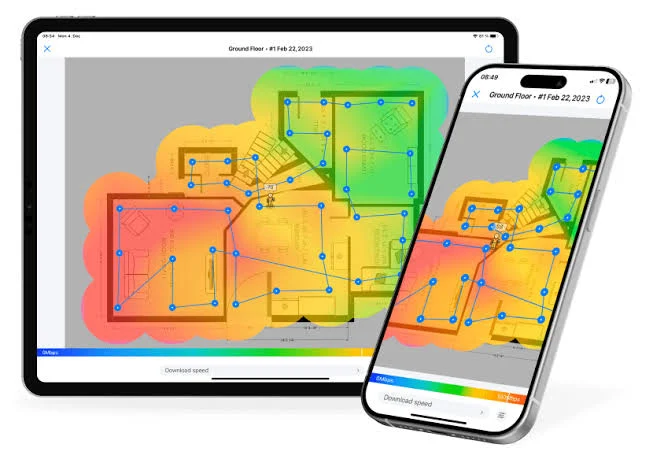
If I had to hand someone one “best WiFi analyzer” and walk away, it’d be NetSpot. Its party trick is the heatmap: load a floor plan, walk around while it takes readings, and it paints a color-coded map of where your WiFi is strong and where it quietly dies. The first time I ran it, the dead zone turned out to be exactly where I’d parked my desk. Humbling – but once you can see it, the fix is obvious.
Key features
- Visual heatmaps: Turns a walkthrough survey into a clear map of your WiFi coverage and dead zones.
- Inspector mode: A free, real-time scan of nearby networks showing channel, band, signal level, and security.
- Cross-platform: Runs on Windows and macOS, with an Android app that even handles predictive planning.
Best for: Mapping WiFi coverage and hunting down dead zones.
WiFi Explorer (macOS)
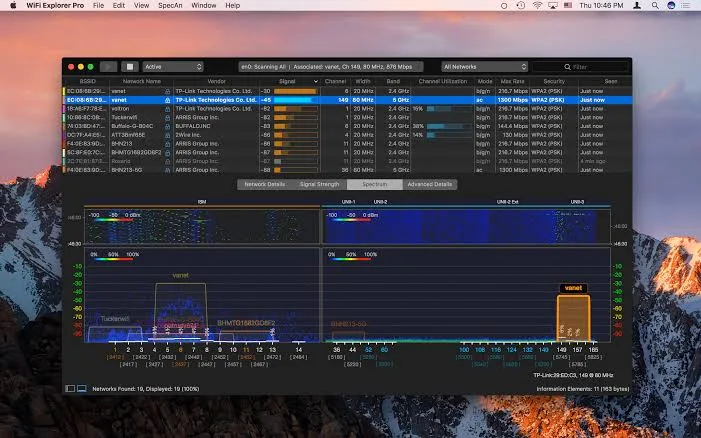
WiFi Explorer is what I reach for when the problem smells like a channel clash. It makes overlapping channels genuinely easy to spot – open it, flip between the 2.4 GHz and 5 GHz views, and see how every nearby network is carving up the airspace. If your router and three neighbours are crammed onto the same channel, it’s right there. It also weighs signal against noise, which helps explain why a connection feels flaky even at “full bars.”
Key features
- Channel overlap view: Instantly shows which channels are crowded so you can pick a cleaner one.
- Signal vs. noise: Compares signal quality against background noise for a truer read on stability.
- Deep network detail: Surfaces security, connection settings, and specifics on every network in range.
Best for: Mac users diagnosing channel congestion and signal quality. (A WiFi Explorer Pro version exists for pro-grade scanning.)
Acrylic Wi-Fi Home (Windows)

Acrylic WiFi is the one I’d point a less techy friend toward on Windows, because the interface doesn’t try to intimidate you. It analyzes your network in real time, shows who’s connected, helps you optimize channels, and even offers automatic recommendations. That last part is pretty underrated in my opinion – nice when a tool doesn’t just flag a problem but nudges you toward the fix.
Key features
- Real-time analysis: Watch your network’s performance and connected devices as it happens.
- Channel optimization: Spot the best channels to switch to and cut interference.
- Auto recommendations: Built-in suggestions to tidy up and improve your network.
Best for: Windows users who want a clean, approachable wireless network analyzer.
Now the mobile apps – the ones that live on your phone for whenever WiFi network problems strike.
Fing (iOS and Android)

Fing is the app I recommend most to people who freeze at the word “network.” Its headline trick is showing you every device connected to your WiFi, which is oddly satisfying (and occasionally alarming, when something unfamiliar pops up). Beyond that, it also packs a full toolkit.
Key features
- Device discovery: See everything on your network, with plenty of detail on each device.
- Built-in toolkit: Ping to check if a site’s down, Traceroute to chase a connection issue, and a WiFi scanner for nearby access points.
- DNS Lookup: Trace a domain back to an IP to help untangle broader internet issues.
Best for: general, no-stress troubleshooting for non-experts.
Ubiquiti WiFiman (iOS and Android)

WiFiman is a bit of a gem, mostly because it’s completely free and – pretty rare these days – totally ad-free. Ubiquiti clearly just built something good and left it alone. It gives you a clean, modern dashboard with download and upload speeds, latency, and how nearby channels are distributed.
It’s the one I open when I just want a fast read on the network I’m actually connected to, not a whole survey.
Key features
- Speed testing: Run download and upload tests, save them, and compare over time.
- Signal strength meter: Check live signal and latency as you move around, with WiFi 6 support.
- Device and port scanner: Discover what’s on your network, right down to a port scan.
Best for: quick, ad-free mobile checks on the network you’re using.
WiFi Analyzer (Android)

If privacy is your thing, this is the one. WiFi Analyzer by VREM is open-source, free, has no ads, and doesn’t collect your personal information – which is great for an app that needs scanning permissions. It’s not flashy, but it nails the core job: examine nearby networks, find crowded channels, and measure signal strength. It even scores the available channels so you can see the best one at a glance.
Key features
- Channel rating: Scores nearby channels so you can jump to the least congested one.
- Signal graphs: Plots access-point signal strength over time across 2.4 GHz, 5 GHz, and 6 GHz bands.
- Privacy-first and open-source: No ads, no data collection, and the code is out in the open.
Best for: privacy-conscious Android users who want a straightforward, free scanner.
Also read: Ultimate Guide to High-Speed Internet: Boost Speed & Fix Slow Connections Fast
How to Read Your WiFi Analyzer: The Signal Strength Cheat Sheet
Here’s the bit that confused me for ages: signal strength is shown in dBm, and the numbers are negative. Closer to zero is stronger. So -50 dBm is a much better signal than -75 dBm, even though -75 is technically the “bigger” number. Once that clicked, everything else made sense.
Here’s the rough scale most WiFi analyzer tools use, and what each range means in real life:
| Signal (dBm) | Rating | What it’s good for |
| -30 to -50 | Excellent | Everything; you’re basically next to the router |
| -51 to -60 | Good | Reliable streaming, video calls, gaming |
| -61 to -67 | Usable | Fine for most things; -67 is the common minimum target |
| -68 to -70 | Weak | Email and light browsing only |
| -71 to -80 | Unreliable | Frequent drops and slowdowns |
| Below -80 | Unusable | You may not even hold a connection |
A couple of things worth knowing so you read this correctly:
- -67 dBm is the number to remember: It’s the widely accepted floor for reliable video streaming and VoIP. If your important rooms are weaker than that, that’s your problem spot.
- Signal isn’t always the whole story – noise matters too: Many analyzers also show signal-to-noise ratio (SNR). Aim for 20 dB or more; the bigger the gap between your signal and the background noise, the cleaner the connection. A strong signal drowning in noise can still perform badly.
- Ignore the little bars on your phone: Those OS bars are a rough cartoon of reality and vary wildly between devices. A proper WiFi analyzer gives you the real number.
Free vs Paid: Do You Actually Need to Pay?
Short answer for most people: no. But here’s the honest split:
- Free is plenty for home use: WiFiman, WiFi Analyzer by VREM, Fing’s core features, and NetSpot’s free Inspector mode will diagnose the vast majority of household WiFi network problems.
- Paid tiers earn their money on surveys: If you want full multi-floor heatmaps, predictive planning, or you’re doing this professionally, that’s where NetSpot’s paid version or a WiFi Explorer Pro-style tool pays off.
- My rule of thumb: Start free, and only pay once you hit a wall the free version genuinely can’t get you past. Most people never hit it.
Also read: Free vs Paid Software: When Is It Actually Worth Paying? (2026 Guide)
That’s a Wrap
You really don’t need to be a network engineer to work out why your WiFi keeps letting you down. These WiFi analyzer tools show you what’s going on around your connection – a congested channel, a weak signal, a dead zone in the back bedroom – instead of leaving you to guess.
If you want the heatmap experience, NetSpot is the best WiFi analyzer to start with. Mac users should grab WiFi Explorer for channel analysis; Windows users, go with Acrylic Wi-Fi Home. Prefer to use your phone? Fing and WiFiman are both excellent, with WiFi Analyzer by VREM waiting for the privacy-minded.
So before you power-cycle the router for the tenth time this month, take two minutes to see what’s really causing the trouble. More often than not, the router was never the villain.
For more information on AI, tech, Science, Futurism, and more, check Yaabot.
FAQs
Start with the classic: turn the router off, wait a few seconds, switch it back on. If the problem sticks around, dig deeper with a WiFi analyzer like NetSpot, WiFi Analyzer by VREM, or WiFiman to find the actual root cause.
It depends on the job. For a home survey with heatmaps, NetSpot is my beginner-friendly pick and probably the best WiFi analyzer for most people. For detailed, pro-level scanning on a Mac, WiFi Explorer Pro is the one. On a phone, WiFiman and Fing are the easiest to live with.
Focus on three things: the channel graph (are networks stacked on the same channel?), the interference or noise levels, and the signal strength in dBm – aim for -67 dBm or stronger in the rooms that matter.
Pretty accurate for what matters day to day – channel crowding and signal strength readings are reliable. Just remember a phone’s antenna is more modest than dedicated survey hardware, so treat mobile readings as a very good guide rather than lab-grade measurement.
Not directly – it can’t raise the speed your provider gives you. What it can do is help you fix the local WiFi network problems (bad channel, weak signal, poor router placement) that stop you from getting the speed you’re already paying for.
