


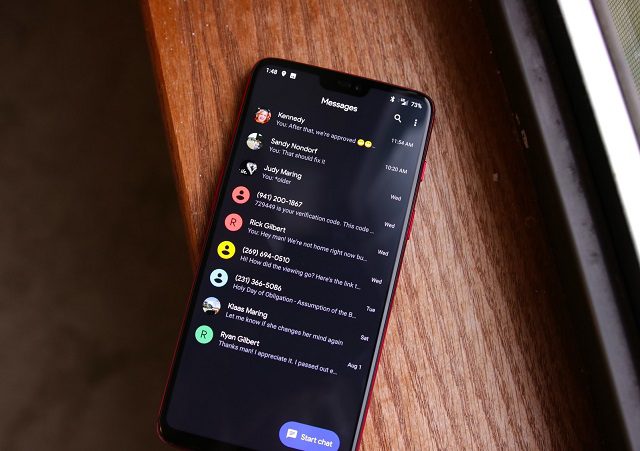
Dark mode on Android may seem like it’s the most requested feature by all tech enthusiasts. But beyond the eye-soothing aesthetics that seem like a natural step in the evolution of Android, dark mode has benefits that can save your battery life too. To enable dark mode on Android for different apps, therefore, becomes an essential tool for every Android user, that accounts to about 2 billion in the world.
Before diving into the various aspects and the ways in which you can activate the dark mode, let us first look at the essential prerequisites. Start by checking if you run Android version 10 or greater, in which case you just have to get on your phone and go to Settings > Themes > Dark Theme. This would cause a system-wide application of the dark theme. If you are using lower Android versions, you have limited choices as not all app developers offer dark mode on Android yet. In these cases, it’d be best to rely on individual app settings to enable dark mode. For example, dark mode on WhatsApp
How To Enable Dark Mode On Android For All Popular Apps
Fortunately, most popular apps on Android have workarounds to activate dark mode manually. Here’s a list.
Dark Mode on WhatsApp
The most popular instant messaging platform in the world – enabling dark mode on WhatsApp is as easy as most other settings in the app. Android users can head to the Settings section from the dotted menu, and then:
Tap Chats > Theme > Dark

You could stick to System Default as well if you’re already running dark mode on your Android 10 device.
Dark Mode on YouTube
The top video sharing platform provides its Android users with a dark mode option under the Settings Tab.
Tap your Profile photo> Settings > General > Dark Theme
The theme is customized for night viewing as it reduces glare.
Dark Mode on Google Maps
Maps automatically switch the colour scheme depending on the time of day on Android. But of course, you want to use its night mode at noon as well. Fortunately, you can. On the Maps Android app, the Settings are located all the way down after you tap on the hamburger menu.
There’s a caveat to this: it only changes the map to night mode during navigation, not during a regular view. Again, it’s better than nothing. That’s how you can use maps in dark mode on Android
Dark Mode on Facebook
The social networking site is already working on the development of a stylish Black User interface. The glitch-free version is still to arrive. Until then, you just have to wait.
Dark Mode on Skype
The premier app for video calling lets you use the dark mode under its Chats page. Head over to the Settings menu and choose Appearance, and then select “Dark”.
Dark Mode on Twitter
Tap your profile photo and a slide bar appears. Select Settings and Privacy. Under the General Settings, tap on Display and Sound. Select Dark Mode under Display. There is also an option to select Automatic Dark mode at sunset.
Dark Mode on Pinterest
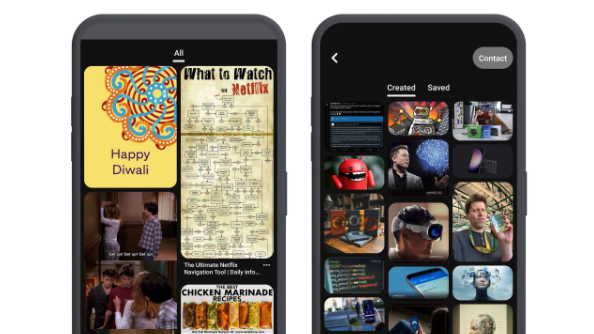
To use Pinterest on dark mode, open the Pinterest app and tap on your profile picture. Next, select the Settings icon. Go to Edit Settings and then choose Dark Theme under App Theme. That’s it! Now, enjoy Pinterest on dark mode. Doesn’t Pinterest look good in dark mode on Android?
Dark Mode on Reddit
Tap on the profile photo and choose A Crescent moon beside Settings icon. Ta da! you can now browse the creative content as much as you want even at night.
Dark Mode on WPS Office
A simple tap on the screen results in the popping up of Tools option. Select the tools option and scroll down. Activate the night mode from there, and then you can simply start using WPS Office in dark mode on Android
Dark Mode on UC Browser
Open UC Browser in your Android smartphone. Now tap on the menu button. Tap on the crescent moon to activate the night mode.
If in case you find that there is no way to activate the dark mode in an app, don’t lose hope. Not yet. Simply open the app from its website and in a new tab write chrome://flags. A search bar will open up. Type dark in the search flag bar.
Select Force Dark Mode for Web Contents
The option will automatically render all web contents using a dark theme: Mac, Windows, Linux, Chrome OS, Android. The option forces all these websites to switch to their dark mode.
