


A few months ago, news broke that over 16 billion passwords across Google, Facebook, and other social media accounts were exposed in a record-breaking data breach. I’ll admit, that number made me pause and rethink how I’ve been managing passwords. Like many of you, I’ve reused the same password across multiple accounts – it’s convenient, but it also means one weak link can compromise everything from emails to banking apps.
Managing passwords isn’t just about convenience anymore; it’s about protecting your digital identity. Managing passwords means creating, storing, and organizing unique, secure passwords for all your accounts. The best way to manage passwords is by using a password manager, enabling two-factor authentication, and updating your credentials regularly. In this detailed guide, I’ll walk you through some simple but effective ways to manage multiple passwords safely.
We’ll look at some smart habits and how a good password management tool or even a free password manager can protect your accounts online. If you’ve been meaning to set secure passwords or explore a multi-password manager, this piece is for you.
Key Learnings
- Have you ever reused the same password across multiple accounts? It’s one of the most common mistakes that leads to serious security issues.
- Managing passwords manually is exhausting and risky. A multi-password manager keeps everything organized, encrypted, and easy to access across devices.
- Password management tools like NordPass, RoboForm, and Proton Pass allow you to back up and recover your credentials securely.
- Starting with a free password manager gives you hands-on experience before committing to premium plans.
Common Mistakes to Avoid When Managing Passwords
I’ve made almost every password mistake in the book – using my birthday, repeating the same password across multiple accounts, and even saving them in plain text on my phone. It feels harmless until one account gets compromised and the rest follow.
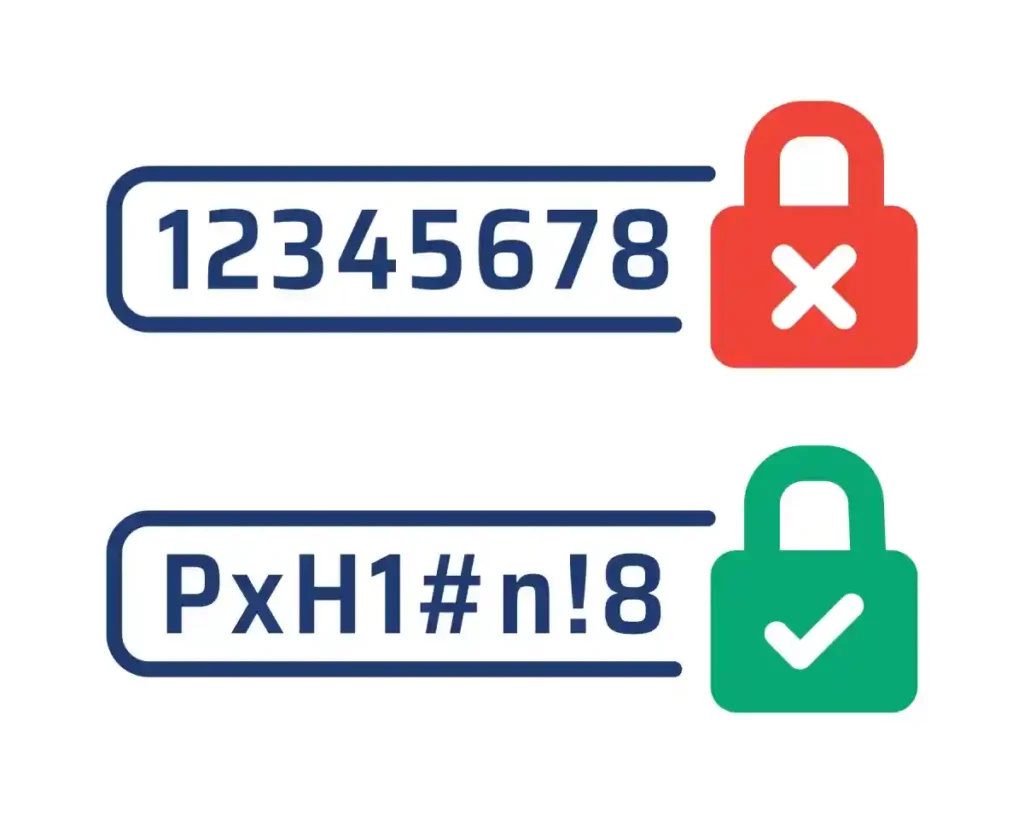
- Reusing passwords across platforms is one of the biggest security issues people overlook.
- Weak combinations like “123456”, “password123”, and birth dates are still among the most common, and hackers know that.
- Another habit that puts us at risk is avoiding updates or sticking to predictable patterns.
- Managing passwords isn’t about making them complicated; it’s about making them secure and unique.
I’ve learned that using a multi-password manager helps reduce these risks and makes it easier to set secure passwords. Whether you prefer a free password manager or a paid one, it is safer than reusing the same old password everywhere.
Simple Best Practices for Managing Passwords Safely
Most security issues start with small oversights, like weak or common passwords or storing them in easily accessible places. Over time, I’ve picked up a few reliable practices to manage passwords effectively:
- Use unique passwords for each account. One leak shouldn’t expose everything else.
- Set secure passwords with a mix of letters, numbers, and symbols – but avoid patterns that are easy to guess.
- Use a reliable multi-password manager to handle multiple passwords without relying on memory.
- Choose a trusted password management tool. Even a free password manager works well if you’re starting out.
- Turn on two-factor authentication (2FA) wherever possible.
- Update passwords regularly, especially after data breaches.
These small steps help me stay organized and confident about my online security. Would you try them too?
Why Using a Password Manager Simplifies Managing Passwords
A password manager stores all your multiple login credentials in one encrypted place, helping you create and manage multiple passwords without relying on memory or sticky notes.
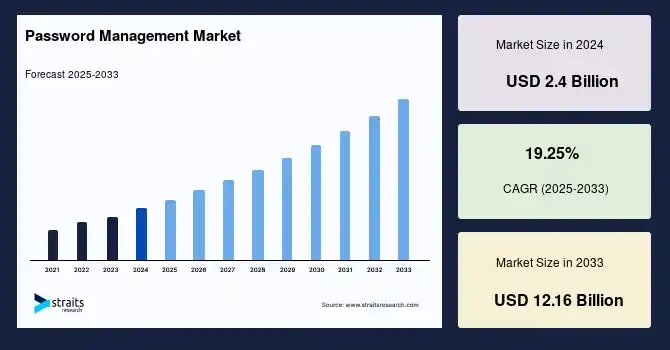
It’s like having a trusted assistant who safely remembers everything. Today, we see the growing demand for such tools – the global password management market is valued at ~$3 billion in 2025 and is expected to exceed $12+ billion by 2033, growing annually at the rate of 19.25%. This growth comes from rising cyber-attacks, cloud adoption, and the constant need for safe online access.
I use Apple’s built-in Passwords app on my device – it syncs multiple passwords across platforms and fills them automatically. It saves time and keeps me safe from reuse mistakes.
Whether you try a free multi-password manager or a premium password management tool, the idea is the same – make security effortless and consistent.
Top Password Management Tools for Managing Passwords
Based on the market research, here are the multiple password management tools which will help you in managing passwords:
1. NordPass
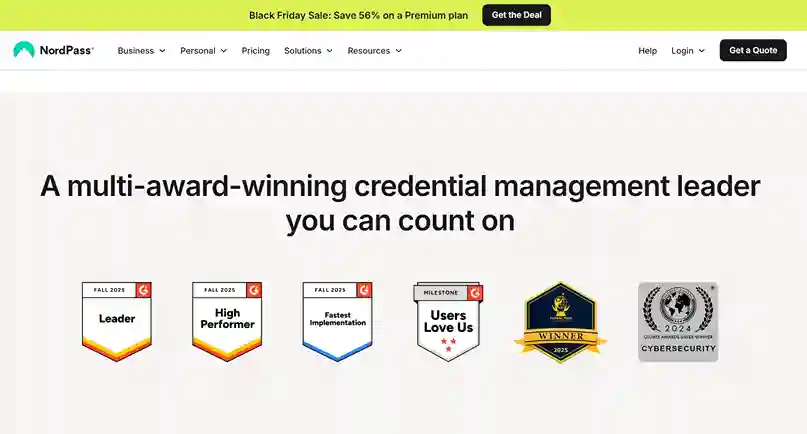
I’ve used NordPass for quite some time, and it stands out for how clean and straightforward it feels. Built by the NordVPN team, it’s one of the most user-friendly password managers I’ve tried. It lets me manage multiple passwords securely across devices – desktop, mobile, or web.
What makes it reliable is the detailed breach monitoring, encrypted cloud storage, and password health insights that help me set secure passwords and spot weak ones instantly.
Features:
- NordPass includes credit card and email breach scans.
- You can track password health, email masking, encrypted storage, and emergency access.
- It also offers secure password sharing and automatic form-filling.
Pricing:
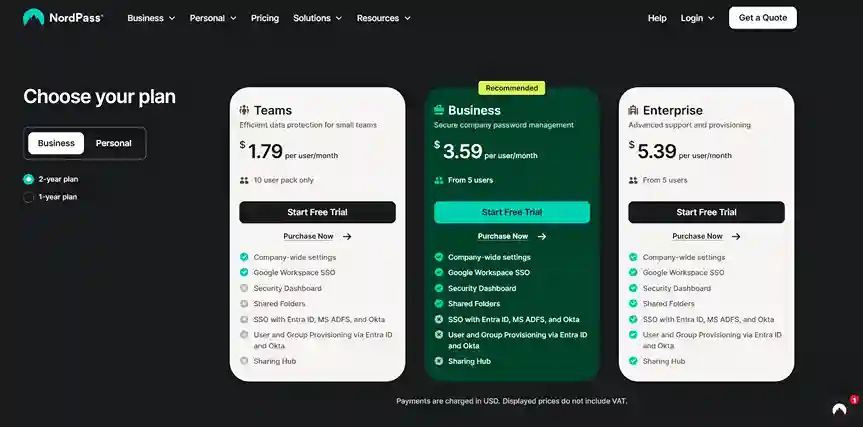
You can opt for a one or two-year plan for either Personal (Premium and Family), Teams, Business, or Enterprise setups to manage passwords.
Pros:
- Customer-friendly password sharing features make collaboration easy.
- Breach scans for credit cards and emails improve awareness of security issues.
- Password health tools highlight weak or reused passwords.
- Emergency access and email masking add privacy and convenience.
Cons:
- The free plan has fewer features than the premium version.
2. RoboForm
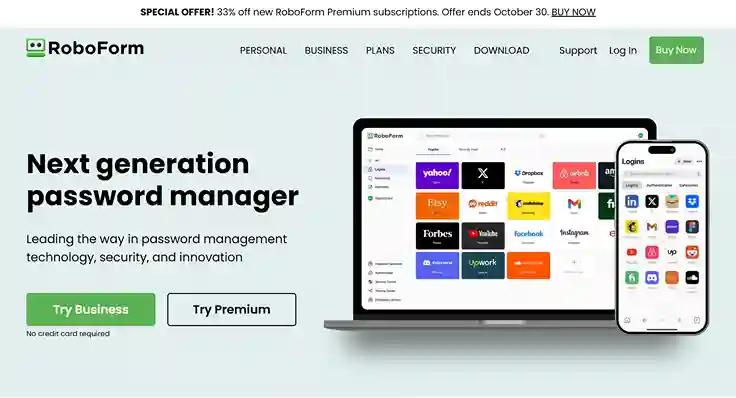
RoboForm manages multiple passwords across my devices and is found to be both affordable and functional. It’s a solid password management tool that handles the basics – like storing logins, suggesting strong passwords, and syncing across devices – while also including features that help guard against common security issues.
Features:
- RoboForm supports unlimited password storage, a built-in password generator, one-click logins, form filling, cloud backup or local-only mode, and alerts for compromised passwords.
- Two-factor authentication (2FA) is offered via email, SMS, authenticator apps, or security keys.
- It supports secure sharing and emergency access for trusted contacts.
Pricing:
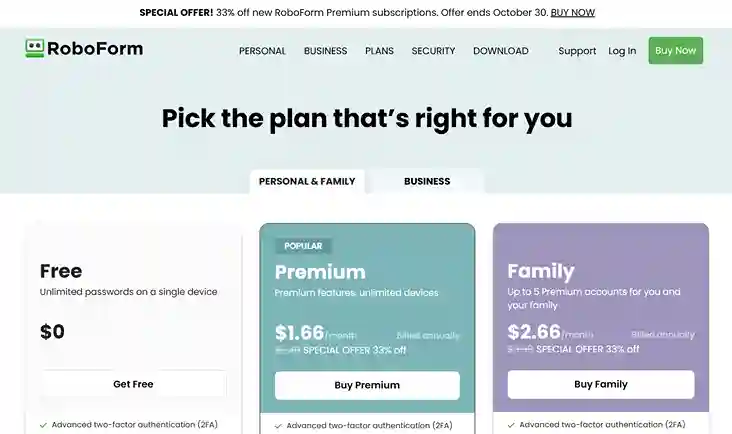
- Free version available with upgrades – Premium and Family plans.
- Business and Enterprise plans are available for businesses and large organizations.
Pros:
- Premium plans are very budget-friendly, making it simple to upgrade from a free plan.
- Generates and saves secure entries and switches between devices.
- It gives alerts for compromised credentials and supports both local-only and cloud backup modes.
Cons:
- The free plan restricts usage to a single device.
- Sharing passwords and using the web portal are features locked behind the premium tier, so you’ll likely need to pay to get full value.
3. Proton Pass
I tried Proton Pass after hearing how much value it packs into its free version, and I wasn’t disappointed. It’s one of the few password managers that let you manage passwords across devices without holding key features behind a paywall.
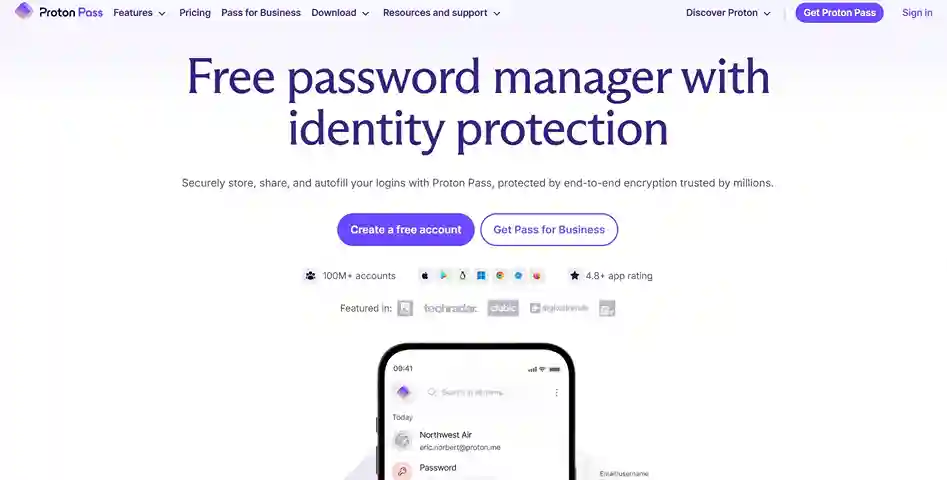
The interface feels clean, fast, and intuitive, so you don’t waste time figuring things out. What caught my attention most is its focus on privacy, giving a real sense of control over personal data.
Features:
- Proton Pass’s hide-my-email aliases keep your identity private and safe.
- You can focus on password health, dark web monitoring, and autofill credentials wherever needed.
- It allows secure password sharing, file attachment, and encrypted cloud storage.
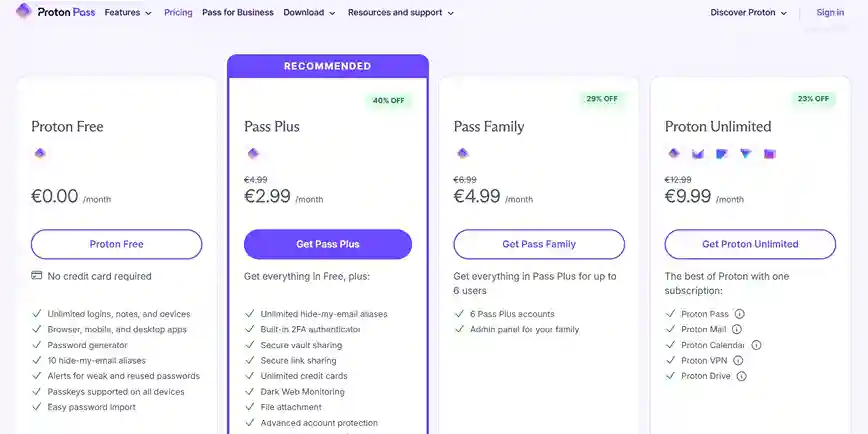
Pricing:
- Free version available, without credit card details.
- Pass Plus with unlimited hide-my-email aliases.
- Pass Family and Proton Unlimited for higher prices and more advanced features.
Pros
- Email aliasing adds an extra privacy layer.
- Password health alerts help you set secure passwords across platforms.
- Dark web monitoring identifies potential security issues on time.
Cons
- Secure link sharing and card storage require a paid plan.
4. 1Password
1Password is another popular password management tool that helps me stay genuinely organized. Whether I’m logging into accounts on my laptop or phone, it syncs seamlessly across platforms.
For anyone tired of juggling multiple passwords, 1Password makes it surprisingly manageable without complicating things.
Features:
- Automatically captures and fills login details with impressive accuracy.
- Travel Mode hides sensitive vaults when you’re on the move.
- Password strength and hygiene reports help you set secure passwords.
- Cross-platform compatibility for Windows, macOS, Linux, Android, and iOS.
Pricing:
- Multiple paid plans available – Individual, Families, Teams Starter Pack, and Business – all of which you can try free for 14 days.
- You can also request a quote for extended access management for your business.

Pros
- Clean, intuitive interface simplifies navigaton and onboarding new users.
- Smooth syncing across all devices with regular password hygiene alerts.
- Travel Mode adds real security value for frequent travelers.
Cons
- No permanent free plan available.
- You need to upgrade your plans for email masking and digital legacy options.
- Doesn’t include automatic email breach scanning.
5. Dashlane
Dashlane always feels a bit more premium in how it handles both usability and security. It’s built for those who find it difficult to manage passwords across accounts and want something beyond basic autofill.
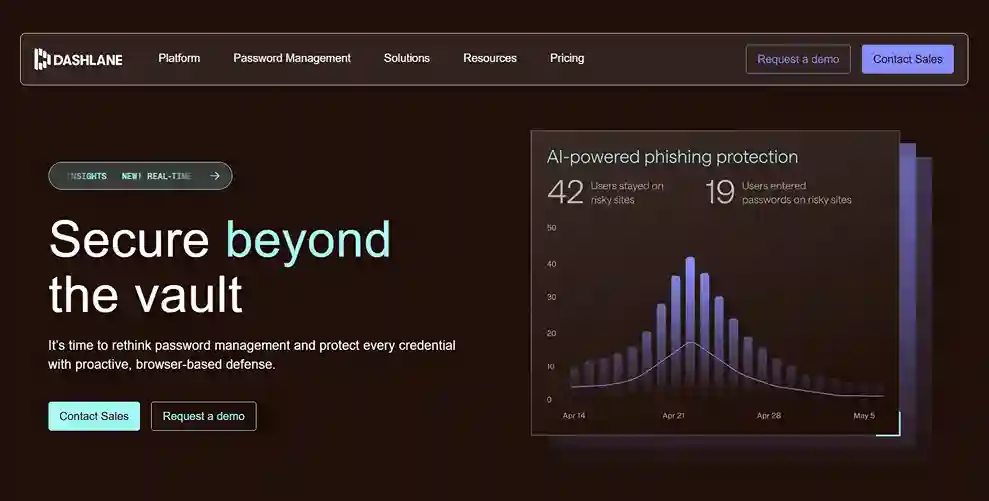
What makes Dashlane interesting is how it pairs password security with privacy tools like a VPN and dark web monitoring – giving users an extra layer of comfort against security issues.
Features:
- Built-in VPN service for private browsing and secure online access.
- Real-time phishing alerts and dark web monitoring to detect compromised credentials.
- Auto-fill and auto-login functions that make managing passwords effortless.
- End-to-end encrypted storage through Dashlane Secure Cloud.
Pricing:
- Personal plans are available $2.5 and $3.75 per month for Premium and Family plans.
- Business plans are also available – you can try a demo or try free for 14 days based on the plans you choose.

Pros:
- Smooth password capture and replay that works across browsers.
- Alerts for weak or reused passwords improve long-term security hygiene.
- Trusted by over 25,000 organizations for its zero-knowledge architecture.
Cons:
- The free plan has been discontinued.
- Premium pricing is on the higher side compared to other password management tools.
Free vs Paid Password Managers: Which One’s Better in Managing Passwords?
Here’s a quick comparison between free and paid password managers:
| Specifics | Free Password Manager | Paid Password Manager |
| Storage and sync | Usually limited to one device, making it harder to manage multiple passwords across platforms. | Syncs seamlessly across all devices for quick access anywhere. |
| Security features | Basic encryption and auto-fill; limited breach or dark web monitoring. | Advanced encryption, breach alerts, password health reports, and multi-factor authentication. |
| Sharing options | Restricted or unavailable for shared accounts. | Secure password sharing with family, team, or trusted contacts. |
| Support and backup | Basic community support with minimal recovery options. | Priority customer support, cloud backup, and account recovery options. |
| Extra tools | Often lacks features like VPN access, masked emails, or secure file storage. | Includes extras like VPNs, dark web scans, file storage, and password health insights. |
Alternatives to Password Management Tools
If you’re not ready to rely on a password management tool, there are a few other ways to manage passwords – though each comes with its own risks:
- Browser-based storage: Built-in password storage from Chrome, Safari, or Edge can work for light use, but it’s limited in terms of encryption and recovery options.
- Manual methods: Writing passwords in notebooks or saving them in spreadsheets can be convenient but risky if anyone gains access to your device.
- Biometric authentication: Using passkeys (face ID or fingerprint) helps reduce password use but doesn’t replace the need to set secure passwords for sensitive accounts.
Smart Ways to Recover, Back Up, and Manage Passwords
- Recovering passwords on Mac: Use the iCloud Keychain to restore saved passwords securely across all Apple devices.
- Recovering on Android: Google’s Password Manager allows you to recover and sync your passwords, making managing multiple accounts less stressful.
- Offline backups: Export encrypted password vaults from your multi-password manager for extra safety.
- Cybersecurity compliance: Regularly updating and backing up passwords ensures you maintain good cybersecurity standards for personal or professional accounts.
Combining these methods helps me confidently set secure passwords and manage credentials without worrying about losing access.
Final Thoughts
Managing passwords across various platforms doesn’t have to be stressful or risky. Using a reliable password management tool like NordPass, Proton Pass, or 1Password simplifies security, keeps your credentials organized, and helps prevent security issues.
Start with a free password manager or invest in a premium option – the key is consistent password management and regular updates. I’ve found that combining secure storage with recovery options gives me peace of mind across devices.For more insights on consumer tech, software, and tips to protect your digital life, visit Yaabot and explore our latest guides.
Frequently Asked Questions (FAQs)
The safest way to manage passwords online is by using a trusted password manager. It securely stores all your login details in an encrypted vault, so you don’t have to remember each one. Combine that with two-factor authentication (2FA) and regular password updates to keep your accounts fully protected.
Some of the best tools for managing passwords in 2025 include NordPass, RoboForm, Proton Pass, 1Password, and Dashlane. Each offers encrypted storage, password health checks, and secure sharing features. The right choice depends on your needs.
Yes, free password managers can be safe as long as you choose a reputable one. Tools like Proton Pass or the free version of NordPass use strong encryption even in their free tiers. However, premium plans usually include advanced security features like breach alerts, secure sharing, and cloud backup.
Managing multiple passwords securely starts with creating unique, strong passwords for each account. Use a multi-password manager like NordPass, Proton Pass, or 1Password to organize and autofill them safely across devices. Avoid saving passwords in notes or browsers, as they can be easily compromised.
