


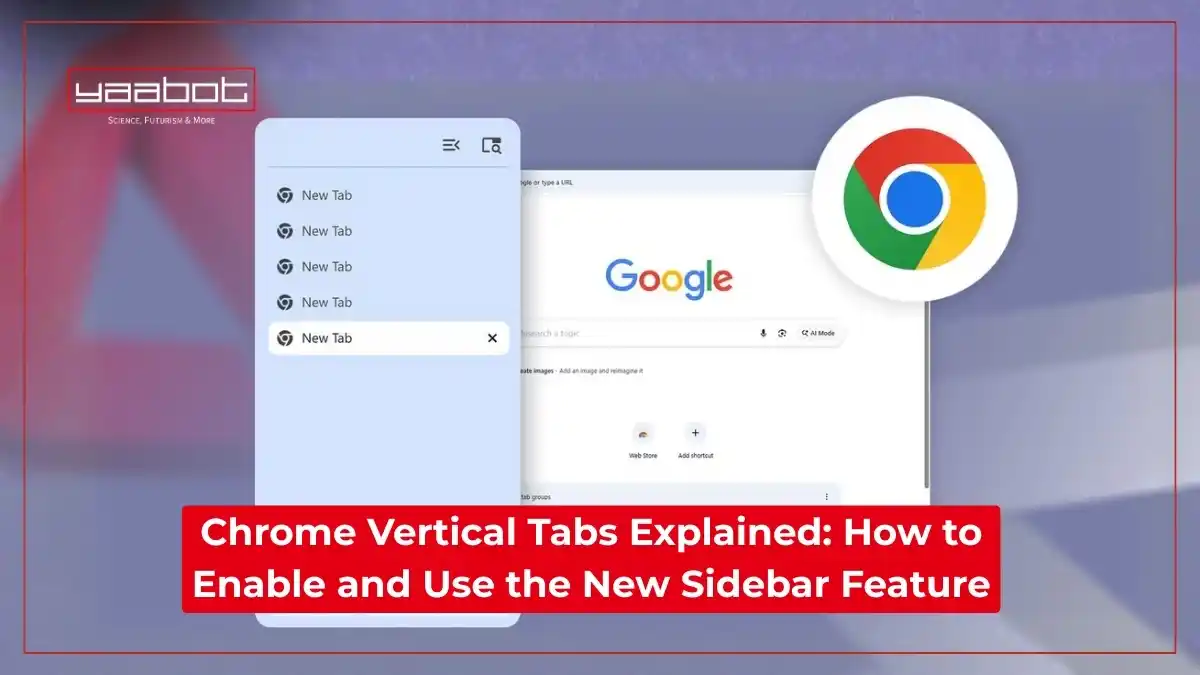
On April 7, 2026, Google began rolling out native vertical tabs in Chrome 146 – a feature Edge users have had since 2021 and one of Chrome’s most requested UI changes. The chrome vertical tab feature moves your tab strip from a horizontal bar to a collapsible left sidebar, displaying full page titles instead of compressed icons.
In this guide, I’ll cover how it works, how to enable it, and where Chrome’s implementation still falls short compared to competitors.
Also read: How to Install and Use Chrome Extensions
Key Takeaways
- Google Chrome officially began rolling out native vertical tabs on April 7, 2026, as part of the latest Chrome update.
- You can enable vertical tabs in Chrome simply by right-clicking any Chrome window and selecting “Show Tabs Vertically.”
- The chrome sidebar tabs layout displays full page titles, making it far easier to manage large tab sessions.
- Chrome vertical tabs support tab groups, and the sidebar is fully resizable.
- The feature is currently rolling out in phases – not every user sees it immediately.
How Chrome Vertical Tabs Work

The chrome vertical tab feature moves your tabs from the traditional horizontal strip at the top of the browser window to a collapsible sidebar on the left. Instead of cramped little icons that tell you nothing, you get a clean, vertical list where each tab shows its full page title.
The sidebar itself is resizable – you can drag the edge to make it wider or narrower depending on your screen and workflow. If you want to reclaim every pixel of screen space, you can minimize the sidebar entirely and it collapses into a slim strip of favicons. And when you need it back, it’s one click away.
This is what the chrome sidebar tabs experience looks like in practice:
- Each open tab displays its full page title – no more hovering to read a tab name.
- You can scroll through your tab list vertically instead of hunting across a crowded top bar.
- A tab search bar sits at the top of the sidebar so you can jump to any tab instantly.
- The sidebar integrates with tab groups – more on that below.
- You can collapse the sidebar to just favicons for a minimal look.
Differences between horizontal and vertical tabs
The core problem with horizontal tabs is a geometry issue. Modern monitors are widescreen – there’s plenty of horizontal real estate, but vertical space (screen height) is what websites actually use. Every pixel of the horizontal tab bar you’re “saving” is wasted width that could be doing something useful.
Here’s a quick comparison of chrome vertical tabs and horizontal tabs layouts:
| Feature | Horizontal Tabs | Vertical Tabs (Chrome Sidebar) |
| Tab title visibility | Shrinks as tabs multiply | Always fully visible |
| Tab count before crowding | ~10-12 tabs | 30+ comfortably |
| Screen space used | Top bar (vertical height) | Left sidebar (horizontal width) |
| Tab group visibility | Collapsed and cluttered | Clear, labeled, scrollable |
| Navigation speed | Hover to identify | Read at a glance |
The google chrome vertical tabs layout wins on legibility and organization for anyone running more than 10 tabs at a time – which, let’s be honest, is most of us.
How tab grouping works in vertical layout
Tab groups were already a useful feature in Chrome – you could color-code and label groups of tabs. In the vertical layout, they work even better. Your groups are displayed as labeled, collapsible sections inside the sidebar. So if you’ve grouped tabs by project, client, or topic, you can fold up entire sections you’re not actively using while keeping them easily accessible.
This is a meaningful upgrade from the horizontal version, where tab groups still felt cramped once you had enough open tabs.
In the vertical tabs in Chrome sidebar, each group label is always visible, you can expand or collapse entire groups with one click, and the hierarchy is immediately clear at a glance.
How to Enable Vertical Tabs in Chrome
How to turn on vertical tabs in Chrome settings
This is the simplest method if the latest chrome update (Chrome 146 or later) has already reached your device:
- Open Google Chrome on your desktop.
- Right-click on any tab or anywhere on the tab bar.
- Select “Show Tabs Vertically” from the context menu.
- Your tabs will instantly move to the left sidebar.
That’s it. Once enabled, this layout becomes your default until you change it back. To disable vertical tabs in Chrome, simply right-click the sidebar and select “Move tabs to top” – you’re back to horizontal in seconds.
You can also access this from Settings > Appearance > Tab position if you prefer navigating through menus.
Enabling vertical tabs using Chrome flags
If you don’t see the “Show Tabs Vertically” option yet – the rollout is still phased, so this is common – you can force it on using Chrome’s experimental flags:
- Open a new tab and type chrome://flags in the address bar. Hit Enter.
- In the search bar at the top of the flags page, type “Vertical Tabs.”
- Find the Vertical Tabs flag in the results.
- Click the dropdown next to it and change it from Default to Enabled.
- Click “Relaunch” when Chrome prompts you to restart.
- After restarting, right-click the tab bar and you should now see “Show Tabs Vertically” in the menu.
Please note: On some builds, after enabling the flag, the context menu option may read “Move tabs to side” rather than “Show Tabs Vertically” – both do the same thing. If Chrome still shows the old layout after the first restart, fully close and reopen the browser once more.
Requirements for the vertical tabs feature

Before you try to enable vertical tabs in Chrome, check these boxes:
- Chrome version: You need Chrome 146 or later. Earlier versions, including Chrome 145 Beta, had the feature behind flags only.
- Desktop only: The google chrome vertical tabs feature is currently rolling out for the desktop version of Chrome (Windows, macOS, Linux, ChromeOS). It is not available on Chrome for Android or iOS yet.
- OS compatibility: Works on Windows, macOS, and ChromeOS. macOS users should note that in full-screen mode, the right-click option to switch layouts may not appear – exit full screen first.
- Up-to-date installation: Go to Chrome menu > Help > About Google Chrome to check your version and trigger an update if needed.
User Experience Benefits of Vertical Tabs in Chrome
Improved tab organization
The most immediate win with chrome sidebar tabs is simply being able to read your tab names. When tabs shrink in a horizontal bar, they collapse to just a favicon – which is nearly useless when you have multiple tabs from the same site, or when a site’s favicon is a generic grey square.
With google chrome vertical tabs, the full title is always there. You’re no longer playing “mystery tab roulette.” Beyond titles, the sidebar’s visual hierarchy makes organizing tabs intuitive:
- Color-coded tab groups are clearly labeled and collapsible.
- A built-in search lets you filter through all open tabs by keyword.
- Related tabs stay together instead of drifting apart as you open new ones.
- The sidebar can be resized to your preference – wide enough for long titles, or narrow if you just need the basics.
Better productivity for multitasking
Here’s something I noticed quickly: the chrome vertical tab sidebar changes how you mentally navigate your work session. With horizontal tabs, your workflow degrades as tab count grows – you start losing track of what you have open, you open duplicate tabs, and switching context becomes friction-heavy.
The vertical layout reduces that friction because your entire session is always visible and labeled. You’re not hunting – you’re scanning a list you can actually read. For multitasking specifically:
- Project switching becomes faster because tab groups let you segment work visually.
- Reference tabs (documentation, articles you’re working from) are easy to spot and revisit.
- Fewer duplicate tabs get opened because you can see what’s already there.
- The favicon-only collapse mode lets you keep all tabs accessible while maximizing your reading area.
Easier navigation for large tab sessions
Anyone who regularly runs 20, 30, or 40+ tabs knows that horizontal Chrome becomes genuinely unworkable at scale. Tabs compress into tiny chips with no readable text. Even with tab groups, finding a specific tab means hovering over every candidate.
The vertical tabs in Chrome sidebar are built for exactly this scenario. Since tabs are listed in a scrollable column, the sidebar handles large tab sessions gracefully.
You can have 50 tabs open and still navigate to any of them in under three seconds – because you can read the titles and search them. The sidebar scrolls smoothly, and the search function at the top means you can jump to any open tab by typing a word from its title.
Chrome Vertical Tabs vs Other Browsers
Let’s be direct: Chrome is late to this party. Here’s how the chrome vertical tab implementation stacks up against competitors that have offered this for years:
| Browser | Vertical Tabs Since | Key Differences |
| Microsoft Edge | 2021 | More mature, supports peek/auto-collapse, deeply integrated |
| Firefox | 2024 (native) | Sidebar-based, also relatively new native implementation |
| Arc | 2022 | Tabs as the core UI – most opinionated implementation |
| Vivaldi | 2015 | Highly customizable, most feature-rich tab sidebar |
| Safari | Limited | Tab overview exists but lacks true vertical stacking |
| Chrome | 2026 | Clean and simple, still early, fewer customization options |
Also read: AI Browsers: Smarter, Faster, and More Personal Ways to Explore the Web
Who Should Use Chrome Vertical Tabs
Developers and researchers
Developers juggling documentation, GitHub issues, and working tabs simultaneously will find the chrome vertical tab sidebar cuts context-switching significantly. Labeling a “reference” group and collapsing it while staying in a “build” group is exactly the kind of clarity that how to turn on vertical tabs in chrome unlocks.
Power users with many open tabs
If your tab bar looks like a row of identical grey stamps by 9am, google chrome vertical tabs will feel like a relief. Full titles, scrollable list, built-in search – this is precisely what the chrome sidebar tabs feature was designed for.
Productivity-focused workflows
Anyone managing multiple projects or deep research sessions benefits here. Vertical tabs in chrome make existing tab groups far more usable – always visible, labeled, and collapsible – so you can focus on one workflow context without losing track of the others.
Limitations of Chrome Vertical Tabs
Feature availability and rollout status
The biggest current limitation is simply that not everyone has it yet. The rollout started with Chrome 146, meaning you need to ensure you’re on the right version. Even on Chrome 146, the feature is being rolled out in phases, so it may not appear in your right-click menu immediately.
The Chrome flags workaround exists for this reason, but it involves using an experimental feature path that Google cautions is still being refined.
Missing customization features
Chrome’s implementation is clean but sparse compared to what browsers like Vivaldi and Edge offer:
- No auto-collapse or peek mode: The sidebar doesn’t hide automatically when you’re not using it, unlike Edge’s more refined version.
- No tab alphabetical sorting: You can’t sort tabs by name, only search them.
- Favicon-only mode has a bug: In the collapsed/minimized sidebar view, clicking a tab closes it instead of switching to it on some builds. This is a significant usability issue that hasn’t been patched broadly yet.
- No right-panel option: The sidebar only appears on the left side, which may not suit all monitor setups.
- Limited appearance settings: You can’t set a custom sidebar width that persists, and color theming options are minimal.
Compatibility considerations
- Mobile is excluded: Vertical tabs in chrome only apply to desktop Chrome. Android and iOS Chrome users are not getting this in the current rollout.
- macOS full-screen quirk: As mentioned above, the layout switch option doesn’t surface in full-screen mode on Mac. You need to exit full-screen, switch layout, and then re-enter.
- Extension compatibility: Some tab management extensions may conflict with or behave unexpectedly alongside the new chrome sidebar tabs layout, since the DOM structure of the tab strip changes.
- Sync behavior: Your tab layout preference (vertical vs horizontal) does not currently sync across Chrome profiles on different devices.
The Bottomline
The chrome vertical tab feature is genuinely useful, not just a cosmetic update. For anyone who regularly runs more than 10-15 tabs, switching to vertical tabs in chrome will make your browser sessions cleaner, faster to navigate, and less mentally taxing.
That said, Chrome’s implementation is still early.
Compared to Edge’s mature chrome sidebar tabs-style vertical layout, or Arc’s opinionated full-sidebar approach, Chrome is playing catch-up. The collapsed sidebar bug, the lack of auto-hide, and the limited customization mean power users accustomed to Edge or Vivaldi’s offerings may find it feels unfinished.
Still, trying it costs you nothing. If you’re on Chrome 146 or later, right-click your tab bar right now and hit “Show Tabs Vertically.” You’ll either love it immediately or be back to horizontal within the day. Either way, you’ll know.
For more info and updates related to tech, visit Yaabot.
Frequently Asked Questions (FAQs)
Yes, especially for heavy tab users. Full tab titles are always readable, tab groups stay visible, and switching between sessions is significantly faster than with horizontal tabs.
Yes. Right-click the vertical sidebar and select “Move tabs to top.” Chrome instantly reverts to the standard horizontal layout with no flags changes needed.
Yes. Tab groups work fully in the chrome vertical tab sidebar – each group is labeled, color-coded, and collapsible, making multi-project browsing far easier to manage.
