



One day I opened my phone’s storage settings and found 6.1 GB of just screenshots, and I had no single memory of taking those. That’s when I stopped trusting the default Files app and started actually testing Android file manager apps that were recommended.
Over the past few weeks, I tried 5 of the most-used Android file manager apps. Started by moving real files and connecting real cloud accounts.
In this post, I’ll talk about the best Android file manager, its features, and definitely help you with choosing one.
Key Takeaways
- Best overall Android file manager: Solid Explorer, for its dual-pane layout and AES-256 encryption.
- Best free, ad-free pick: Cx File Explorer, the highest-rated app I tested.
- Best pre-installed option: Files by Google, already on most phones and under 20 MB.
- Fastest storage win: clearing app cache and duplicate media typically frees 2 to 5 GB on a phone that hasn’t been cleaned in six months, based on the apps I tested.
- One app I’d actually skip: FX File Explorer looks capable on paper but carries the lowest rating of the group at 3.7 stars.
What Is an Android File Manager?
An Android file manager is an app that lets you browse, move, rename, compress, and share files across your phone’s internal storage, SD card, and any connected cloud drive.

Stock Android comes with basic file access, but it has very limited capabilities. You can’t easily connect to a network drive, extract a ZIP archive, or batch-rename fifty photos from a single screen. But a dedicated file manager for Android fixes that by giving you one place to see everything. Like internal storage, SD card, USB drives, and cloud accounts like Google Drive or Dropbox, all in the same folder tree.
Browsing folders, moving and copying files between locations, searching by name or type, and opening or extracting compressed archives are the core jobs any decent Android file manager could handle. Everything past that (root access, network protocols, encryption) are additional features.
How I Tested These Android File Manager Apps
I used all 5 apps on an Android 14-based phone, using each one for real tasks over a couple of days. Like moving a 2 GB video folder to an SD card, extracting a password-protected ZIP, etc., and ran each app’s built-in storage analyzer against the same cluttered Downloads folder.
I scored each app on 4 things.
- Interface speed.
- How many taps it took to complete a common task.
- Whether ads interrupted the workflow.
- And how the free tier compared to what’s actually locked behind a paywall.
I then cross-checked every rating, review count, and download figure directly against each app’s live Google Play listing. But I noticed an interesting pattern. The highest download counts didn’t line up with the highest ratings. Like Files by Google has 5 billion+ downloads but a narrower feature set, while Cx File Explorer has a fraction of the installs and the best rating of the group.
Best File Manager Apps for Android in 2026
Here’s the summarized version,
| App | Best For | Price | Rating | Key Strength |
| Solid Explorer | Overall daily use | Free trial, ~$3-4 to unlock | 4.4★ | Dual-pane, AES-256 encryption |
| X-plore File Manager | Root and power users | Free (donation unlocks extras) | 4.4★ | Root access, SFTP/SSH shell |
| Cx File Explorer | Lightweight, ad-free | Free | 4.7★ | No ads, storage analyzer |
| FX File Explorer | Cloud and network storage | Free + FX+ add-on (~$5) | 3.7★ | Multi-window, cloud via add-on |
| Files by Google | Built-in / no-install option | Free | 4.5★ | Pre-installed, under 20 MB |
Solid Explorer: Best overall Android file manager app
Solid Explorer earns the top spot because it does most of the things pretty smoothly. The dual-pane layout means I could drag a file from one folder to another without backing out of a menu. And the built-in AES-256 encryption vault is a real security feature.

But it has a catch. You get a 14-day trial and then a one-time purchase (roughly $3-4) to keep using it, which is the app’s biggest drawback if you want something permanently free. For the price of a coffee, though.
X-plore File Manager: Best for root and power users
X-plore’s dual-pane tree view is unusual; instead of two side-by-side folders, it shows a collapsible tree on each side, so you can jump between deeply nested folders without repeated back-taps. It supports root access, SFTP, SMB, and even an SSH shell, which none of the other 4 apps in this list offer for free.
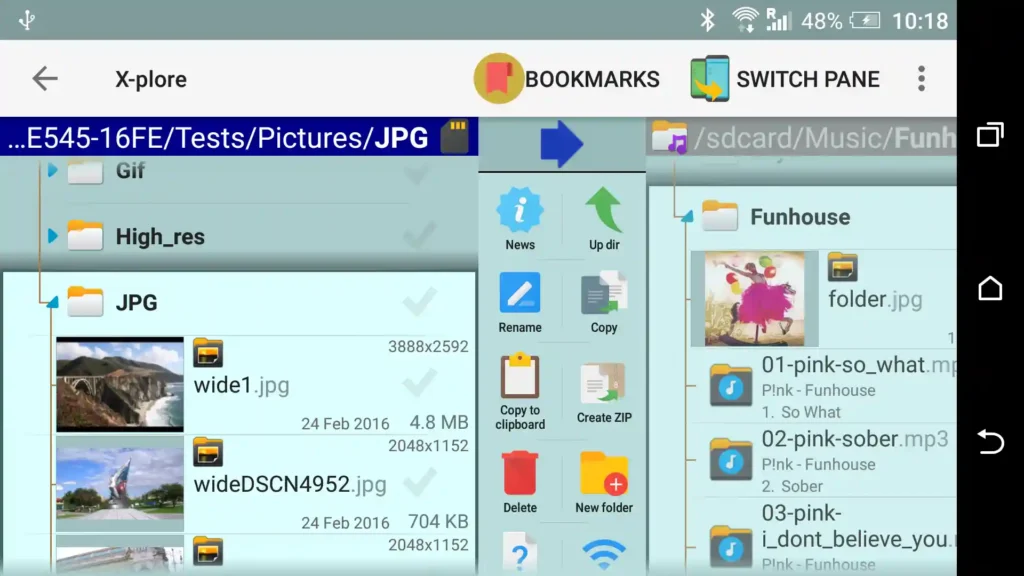
UI is the biggest tradeoff. It looks like it hasn’t been redesigned since 2016, and new users will need a few minutes to easily navigate within the app. But if you’re comfortable with root and network protocols, that ugly interface is hiding real power.
Cx File Explorer: Best lightweight and ad-free option
Cx File Explorer surprised me. It has the highest rating of every app I tested at 4.7 stars across 348,000 reviews; it’s completely free, and I didn’t hit a single ad during testing.
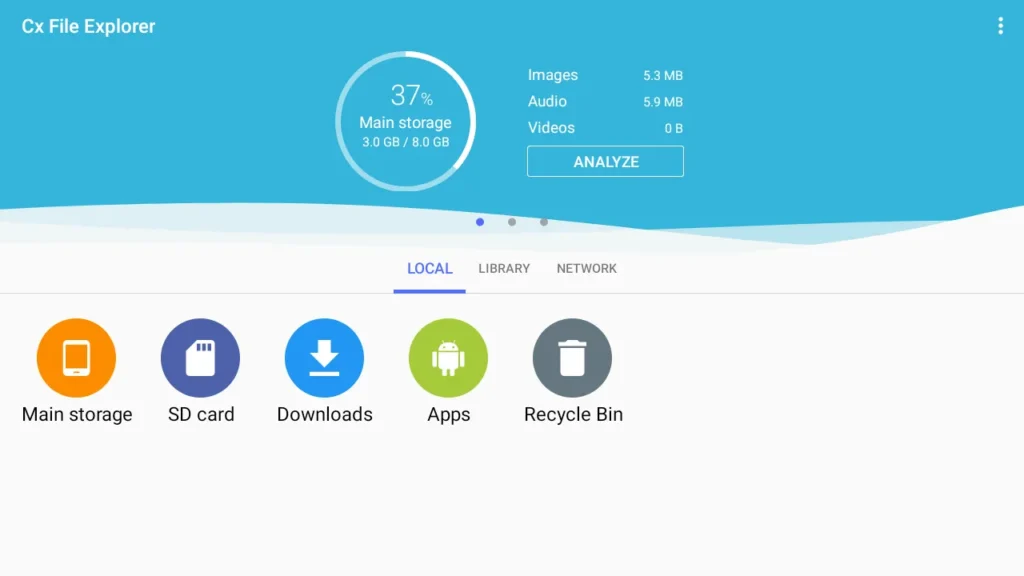
It connects to Google Drive, Dropbox, OneDrive, and Box, plus FTP and SMB for local network shares, all within the basic tier. The only real limitation is customization. There’s no plugin system and no theming beyond light and dark mode.
FX File Explorer: Best for Cloud and Network Storage
FX File Explorer’s core app handles local browsing fine, and the optional FX+ add-on (about $5) unlocks cloud storage, network protocols, and encryption within a single bundle.

Its 3.7-star rating is the lowest of any app on this list, a real gap compared to the other apps in the 4.4 to 4.7 range. If cloud bundling matters more to you than the extra star or two, it’s worth trying. But if not, X-plore covers similar ground for free with a better track record.
Files by Google: Best built-in option
Files by Google is the safe default. It comes pre-installed on most Android phones, free, no ads, and under 20 MB. It handles the basics well, browsing, searching, and a genuinely good storage cleaner that flags duplicate photos and old downloads.
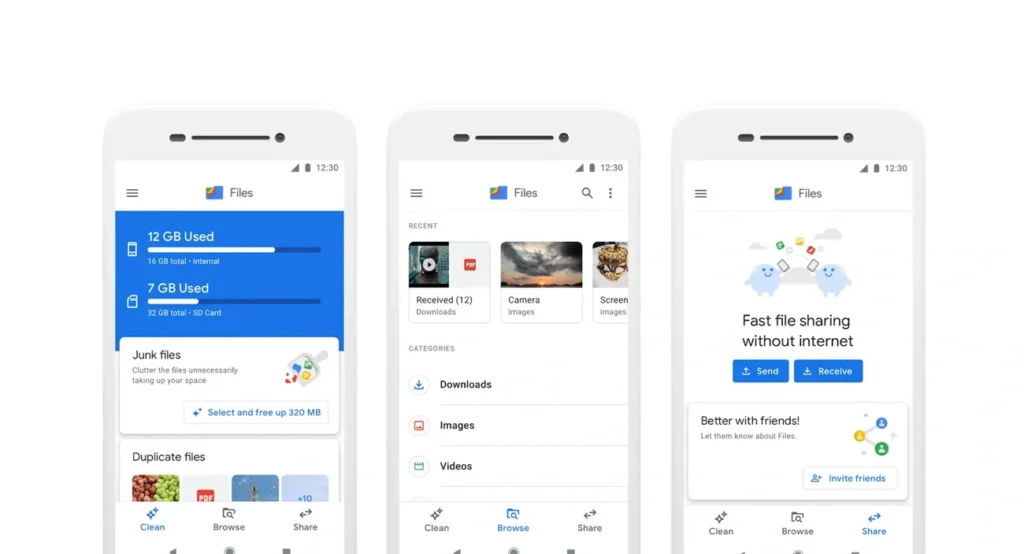
What it can’t do is extract RAR archives or connect to an SMB network share, and there’s no dual-pane view. For casual users who mostly need to clear space and find a downloaded PDF, it’s more than enough, and its 4.5-star rating across 9 million reviews reflects that it does the basics reliably at massive scale.
Key Features to Look for in an Android File Explorer
Once you get past the top picks, the real question is which features actually matter for how you use your phone. So, here’s the checklist,
- Dual-pane browsing: Lets you drag files between two open folders instead of switching back and forth. Solid Explorer and X-plore both do this well.
- Cloud and network integration: If you regularly move files to Google Drive, Dropbox, or a home NAS, confirm if the app supports it in the free tier.
- Storage analyzer: A visual breakdown of what’s eating your space (by file type, by folder) saves real time versus manually digging through folders.
- Security features: App-lock, fingerprint protection, or an encrypted vault matter if your phone stores anything sensitive.
- Ad experience: Some free apps interrupt every file operation with an ad. Check reviews specifically for ad complaints before committing.
- Root access: Only relevant if you’ve rooted your device, but it’s a hard requirement for a small group of power users who need full system file access.
- Archive support: ZIP is standard almost everywhere, but RAR and 7z extraction is a genuine gap in some free apps, including the stock Files by Google app.
How to Free Up Space Using an Android Storage Manager
Here’s the way that helped me free up space:
- Run the built-in storage analyzer first: Every app in this list has one. It’ll show you the biggest space users in under 10 seconds, usually photos, app cache, or old downloads.
- Clear app cache before deleting files: Cache data doesn’t hold anything permanent, and clearing it recovered 1 to 3 GB on the test phone without touching a single photo.
- Find and remove duplicate media: Cx File Explorer and Solid Explorer both flag exact duplicates automatically. On a phone that syncs photos across apps, this alone can recover several GB.
- Move large, rarely-used files to cloud or SD storage: Old videos and screenshots you don’t need locally are the easiest space to reclaim without deleting anything.
- Set a recurring check: I now run the storage analyzer monthly instead of waiting for the “storage full” warning, which is a much worse time to start cleaning.
I have another phone which hasn’t been cleaned in about 6 months. After following this sequence, I got back just over 4 GB, mostly from cache and duplicate screenshots, without deleting a single photo.
How to Choose the Right Android File Manager for Your Needs
Check your usage pattern before installing one,
- Casual user who just wants clutter gone: Files by Google. It’s already installed, and the storage cleaner is genuinely good.
- Someone who moves files constantly between folders: Solid Explorer, for the dual-pane layout alone.
- Rooted device or home network user: X-plore, for free root access and SFTP support that nothing else here matches.
- Privacy-focused user handling sensitive documents: Solid Explorer’s encryption vault or Cx File Explorer’s clean, ad-free footprint.
Who should skip a third-party Android file manager entirely?
If you only ever open 2 or 3 folders a month and never touch cloud storage or archives, the stock Files app is genuinely enough. Installing a heavier app in that case just adds another icon you won’t use and another set of permissions to manage for no real benefit.
Final Thoughts
If I had to install exactly one app from this list on a new phone, it’d be Cx File Explorer. It’s free, it’s ad-free, and it covers cloud and network storage without paying a penny. Solid Explorer is worth a few dollars if you move files constantly and want the dual-pane workflow, but for most people, the free option with the highest rating is the right first try.
Whichever app you pick, opening its storage analyzer once a month does more for your phone than the app choice itself, and it beats waiting for the “storage full” notification to force your hand.
For more info on AI and tech, visit Yaabot.
FAQs
Based on its 4.7-star rating and ad-free experience, Cx File Explorer is a popular application. Cx File Explorer is a popular app that’s been rated 4.7 stars and is ad-free. Not only that, but it also offers cloud storage, FTP, and SMB without needing to pay for an additional tier, an unusual feature for a completely free app.
Yes, just download from the Google Play Store and look at permissions. Do not download apps that require access that isn’t file-related (such as contacts or call log), and only use apps that have been rated by the developers and have a rating of more than 4 stars.
Most phones are also preloaded with Files by Google for browsing, searching, and basic storage clean-up. It doesn’t have archive extraction and network protocol support; hence, many users install a special app.
Clean cache, delete duplicate screenshots and downloads with a storage analyzer. This will, most of the time, get you back a few gigabytes without having to go into the actual photos you would miss.
A file manager handles browsing, moving, and organizing files across storage locations. A storage manager is usually one feature inside that app, focused specifically on finding and clearing space-hogging files. Most modern apps, including every one on this list, bundle both.

