A missing text is never just a missing text. It’s the appointment reminder that showed up an hour late, the verification code that expired before it arrived, or a friend who now thinks you’re ignoring them. If you keep checking your phone and wondering why you’re not receiving text messages, the fix is usually a couple of taps in Settings.
The ten fixes below start with the checklist and end with the ones worth trying only after everything simpler has failed.
Key Takeaways
- Most missing-text issues trace back to one of these three things: a weak connection, a blocked contact, or a filter hiding the message from you. Check those first.
- A new iPhone not receiving texts almost always means the number isn’t fully linked under Send & Receive yet. It’s rarely a hardware problem.
- A phone that stays silent and a phone where messages never arrived at all are two different problems. Filters and Focus modes explain the first. Network and iMessage settings explain the second.
- Group chats with Android contacts run on MMS, not iMessage. Turn that setting off, and the whole conversation goes quiet on your end, including messages from the other iPhone users in the thread.
Identify What’s Going Wrong
Before changing settings, check whether the messages are missing entirely or arriving without an alert. Those symptoms point to different causes. iMessage uses an internet connection, while SMS, MMS, and RCS depend on your carrier and device support.
- No texts from anyone
- Texts from one person are missing
- A group chat is missing.
- Messages appear later, but you get no alert
- You recently switched iPhones
Once you know which symptom matches, try the fix below that addresses it first.
10 Fixes to Try
1. Check Your Network Connection
SMS, MMS, RCS, and iMessage all need a stable connection to reach you. Start here:
- Look at the status bar for signal bars or a Wi-Fi icon.
- Open Control Center and confirm Airplane Mode is off.
- Turn cellular data off, wait a few seconds, then turn it back on.
- If you’re on Wi-Fi, try mobile data instead, or vice versa, to see which one is the problem.
A weak signal alone explains a lot of late or missing texts. Apple’s own support guide on messaging issues starts with the same check.
2. Toggle Airplane Mode and Restart Your iPhone
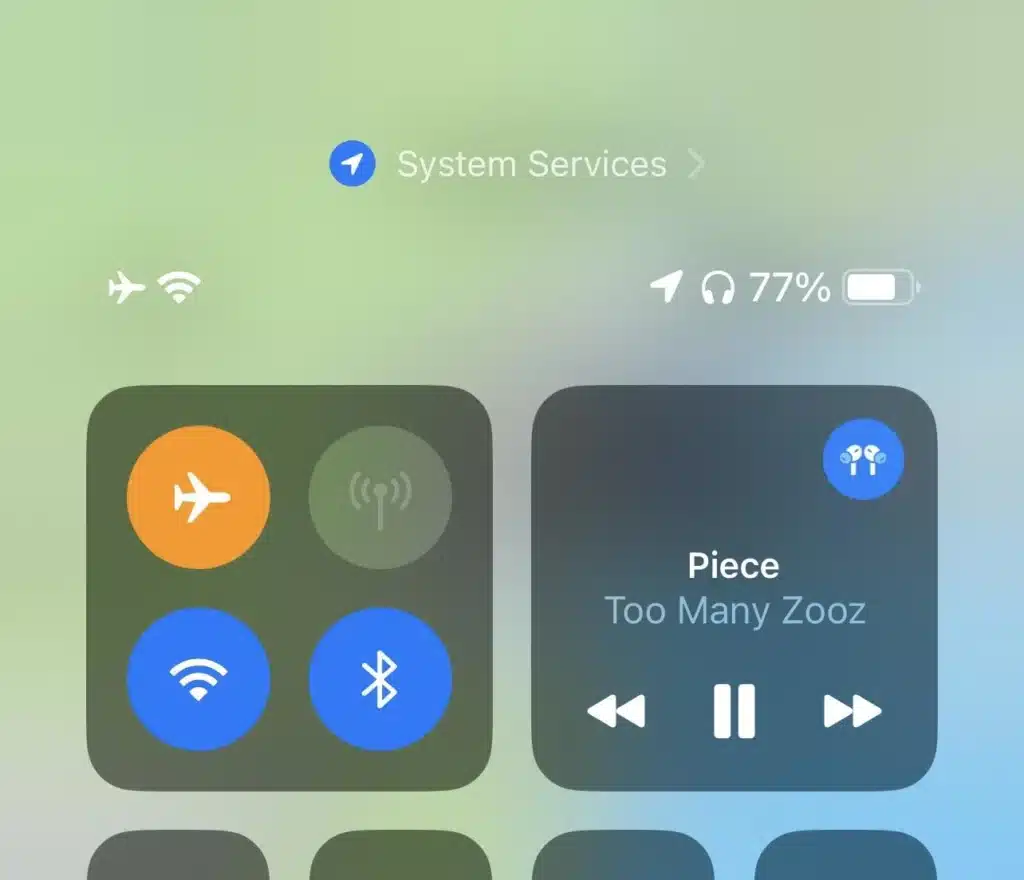
If the connection looks fine but nothing’s coming through, force the phone to reconnect from scratch. Turn Airplane Mode on, wait 15 to 30 seconds, then turn it off. That drops and reconnects you to the carrier network. If it doesn’t help, do a full restart: hold the Side button and a Volume button, slide to power off, wait 30 seconds, then turn it back on.
Many “iPhone not receiving texts” complaints turn out to be nothing more than a stuck background process that a restart clears.
3. Review Your iMessage and “Send & Receive” Settings
If you have a new iPhone not receiving texts, or if you own more than one Apple device, do this. Go to:
Settings > Apps > Messages > Send & Receive
Confirm your phone number is selected and checked here, alongside your Apple ID email. If you recently switched phones, your account may still be sending messages to the old one, or your number might not be listed at all; in that case, click to sign in again and link it.
Toggling iMessage off, waiting a moment, then turning it back on also forces it to re-register with Apple’s servers. Apple walks through this exact scenario- separate threads, messages showing green instead of blue- in its guide for messaging issues after setting up a new device.
4. Check Whether the Contact Is Blocked
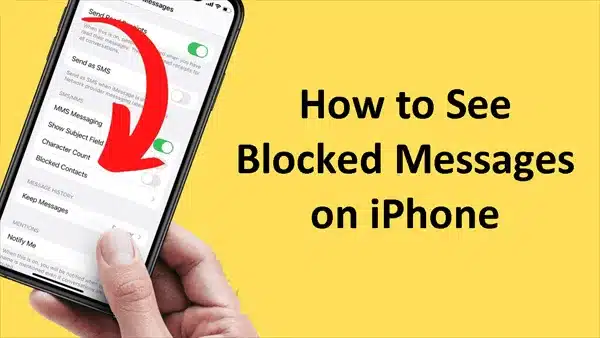
If it’s one person whose texts aren’t landing on your chats, check your blocked list before assuming it’s a bigger issue:
Settings > Apps > Messages > Blocked Contacts
Swipe left on any number you don’t recognize and tap Unblock. Numbers get blocked by accident more often than people expect, usually from a stray “Report Junk” click. It’s also one of the checks Apple Support Community moderators recommend in threads about missing iMessages, alongside making sure Apple’s own service hasn’t been blocked.
5. Look Inside Message Filters
If your iPhone is not receiving notifications for texts but the messages eventually turn up, this is usually why. The iPhone can sort messages from senders outside your contacts into a separate “Unknown Senders” list without any alert, banner, or badge on your lock screen.
- In Messages, tap the back arrow (top left), then choose All Messages to see everything unfiltered.
- To turn this off entirely, go to Settings > Apps > Messages and disable Filter Unknown Senders.
While you’re there, check that Message notifications are actually on under Settings > Notifications > Messages, and that a Focus mode like Do Not Disturb or Work isn’t muting them without your noticing. iDownloadBlog’s troubleshooting list covers the same scenario: the texts are there, just sorted out of view.
6. Turn On MMS and Group Messaging
If you’re not receiving group texts from Android users, or photos and videos are missing from a thread, check MMS before you check anything else. Group chats with Android participants can’t run on iMessage, so they fall back to MMS. Turn that off and the whole thread becomes out of view.
Go to Settings > Apps > Messages, turn on MMS Messaging, and make sure Group Messaging and cellular data are both enabled. Restart the phone afterward so the change takes effect. Apple’s support page also notes that if you don’t see a Group Messaging or Send as Text Message toggle at all, your carrier likely doesn’t support the feature, and no settings change will fix that.
7. Update Carrier Settings
Carriers push small updates that keep your iPhone talking to their network correctly, and a missed one can break message delivery without any obvious error. Go to Settings > General > About and wait a few seconds. If an update is available, you’ll get a prompt to install it. Restart the phone once it’s done.
8. Update iOS
An outdated iOS can cause bugs in the Messages app, especially right after a carrier changes something on their end. Check Settings > General > Software Update and install anything pending. It’s worth doing even if you’ve already noticed the update and put it off.
9. Reset Network Settings
If nothing above has worked, this is the last strong option before calling your carrier. It clears out any corrupted network configuration that could be blocking your message delivery.
Settings > General > Transfer or Reset iPhone > Reset > Reset Network Settings.
This erases saved Wi-Fi passwords, Bluetooth pairings, and cellular preferences. It won’t touch your texts, photos, or apps, but you’ll need to rejoin Wi-Fi networks afterward. According to iDownloadBlog and Coolmuster’s guide, it is one of the most effective network fixes available.
10. Contact Your Carrier (or Apple Support)
If you’ve worked through every fix above and you’re still stuck, the problem probably is from your carrier’s end: a suspended line, an unpaid bill, a SIM issue, or a block on short-code numbers (a common cause of missing verification codes). If you can, put your SIM in another phone. If messages come through there, the issue isn’t the iPhone. If they don’t, call your carrier.
If it’s clearly an iMessage-specific problem that survives everything else, Apple Support can check account-level activation issues that don’t show up anywhere in the Settings app.
Related reading: Yaabot’s iOS 26 Features: What’s New and Should You Update covers the full menu and interface changes in iOS 26, including where several Messages settings moved.
Bottom Line
Most of the time, an iPhone that isn’t receiving texts has a settings problem behind it: a filter hiding messages, a blocked number, a Send & Receive setting still pointing to an old device, or MMS switched off for group chats. Consider the fixes mentioned above and choose the one that can diagnose the particular challenge.
Check the connection and restart first, then the specific setting that matches your symptom (blocked contact, filtered notifications, group messaging), and save network reset and carrier calls for when the simpler checks don’t add value. Once you’ve reset network settings, confirmed the SIM works in another phone,, and you’re still stuck, that’s when it’s a carrier or account issue, and no further tinkering on the iPhone itself will fix it.
For more information on AI, Tech, Science, Futurism, and more, check Yaabot.
FAQs
If you are not receiving a text message at all, it is usually a connection problem (no signal, Airplane Mode, Wi-Fi with no cellular fallback), a Send & Receive misconfiguration, or a carrier-side account issue. Work through fixes #1, #3, and #9 first. That covers most cases.
If it’s happening across the board, start with connection, Send & Receive, and a network reset (fixes #1, #3, #9). If it’s just texts from one person, check your blocked list before assuming it’s bigger than that (fix #4), and ask them to confirm they have your correct number. A single wrong digit fails silently on their end.
Almost always a Send & Receive configuration issue (fix #3). Your number isn’t fully linked yet, or messages are still routing to your old device. Give iMessage activation a few minutes after toggling it; it doesn’t always confirm instantly.
The message is arriving; it just isn’t alerting you. Check Filter Unknown Senders and your Focus mode settings (fix #5), and confirm notifications are enabled for Messages specifically under Settings > Notifications.
Group threads with a mix of iPhone and Android participants run on MMS, not iMessage. If MMS or Group Messaging is switched off on your end (fix #6), the entire conversation disappears- every participant’s messages, not the Android side alone.
No. It removes saved Wi-Fi passwords, VPN configurations, and Bluetooth pairings, but your texts, photos, and apps stay untouched.