



It’s a nice Saturday morning, and you are out for a run. Your iPhone is in your pocket, AirPods plugged into your ears. Everything is going perfectly. But suddenly, something unforeseen happens (probably an accident). You can’t unlock your phone, and someone else saw you, but they don’t know who to call.
That’s where your emergency contact comes in. It’s a tiny feature, but it can save lives.
Here’s what an emergency feature user said: ‘I was in a car crash off 89 once during a freak storm. My car flipped, and my phone went flying somewhere in the car, and I couldn’t find it. The nearby cell tower was down because of that storm, and I later learned that no one nearby had a signal. My phone must have used a satellite to connect, and it apparently told all my emergency contacts and 911 that I was in a crash. It was very helpful!’
So, let’s set your emergency contact today (if you haven’t already). I’ll walk you through the steps below.
Key Takeaways
- Adding an emergency contact on your iPhone is a matter of a few minutes. Go to Health, Medical ID, Edit, Add Emergency Contact, and choose someone you trust.
- Your emergency contacts can be notified after an Emergency SOS event.
- Turn on “Show When Locked” for Medical ID on iPhone. This allows someone who is trying to help you to access important emergency information without unlocking your iPhone.
- You must update your emergency contacts. Check your contacts, medical details, and Emergency SOS settings regularly so everything is ready when you need it.
How to Set Up an Emergency Contact on iPhone
Open the Health App, tap your profile picture, navigate to Medical ID, tap Edit, add an emergency contact, and tap Done. You must pick someone who will be able to help you, or at least inform someone else who can reach out to you at that moment.
Step 1: Open Your Health App
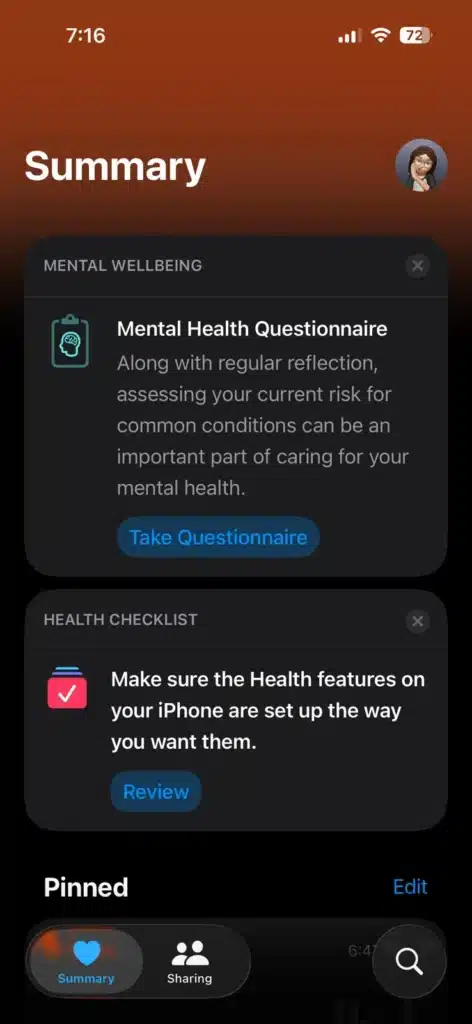
This app may be sitting in one corner of your phone, counting how many steps you covered each day. But for setting your emergency contact, this app is your door to the next step.
Step 2: Open Medical ID
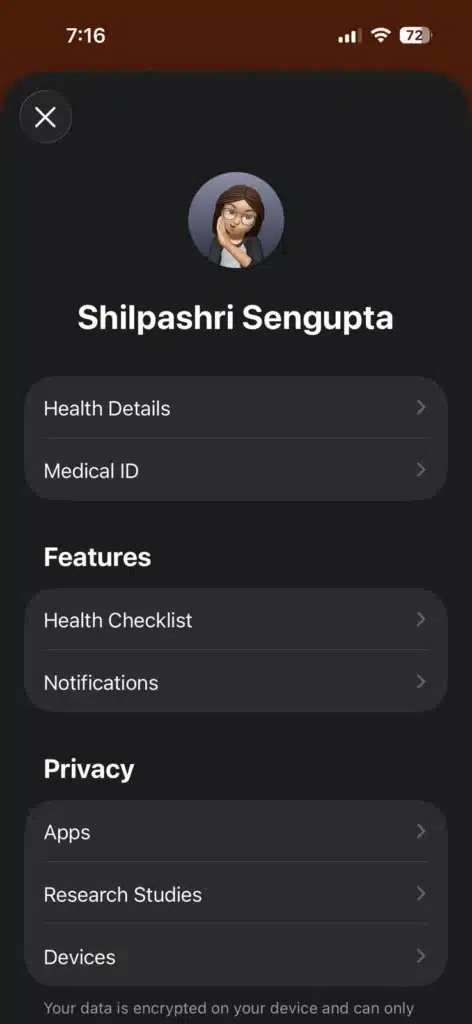
Inside your Health app, tap on your profile picture and then click Medical ID. This information hub includes details like medications, allergies, emergency contacts, conditions, etc.
Step 3: Scroll to Emergency Contact and Tap Edit
This is where you’ll add your emergency contacts.
Step 4: Add Your Emergency Contact
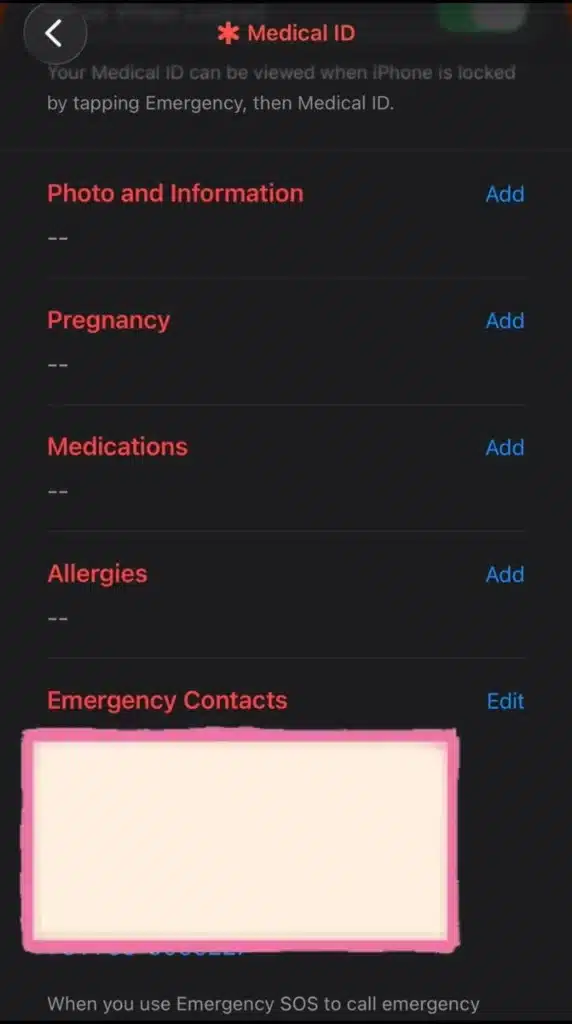
You’ll see your saved contacts; it’s up to you who you want to add as your emergency contact. Make sure you choose someone who can help in a situation like that.
Step 5: Select Your Relationship

Once you’ve chosen one or two emergency contacts, select your relationship with them. The person will be listed based on your relationship (father, mother, brother, partner, friend, etc.)
Step 6: Click on Done
This is the last step; tap Done.
That’s it, you’ve set your emergency contact, maybe within 2-3 minutes?
Your emergency contact will get connected directly to Emergency SOS on the iPhone. If you use Emergency SOS, your iPhone will automatically call emergency services. After that call, your emergency contacts will receive a notification.
Additionally, Apple also shares your current location with your emergency contacts after an SOS event takes place.
Here’s the basic mechanism:
Emergency SOS-Emergency Services-Notification to Emergency Contact
How Can You Make Your Emergency Contact on iPhone Accessible from Your Lock Screen?
If you are unwell or unable to communicate properly and someone else has your phone but it’s locked, Medical ID can be a lifesaver. You can set up a Medical ID on your iPhone. It lets the other person access the information without unlocking your phone.
Follow these steps to turn it on:
- Open the Health app
- Click on your profile picture.
- Click on Medical ID
- Tap Edit
- Turn on ‘Show When Locked’
- Click on Done
This will show your emergency information on the lock screen, which can help you without unlocking the phone.
What Can Someone Trying to Help You See on Your Screen?
Whatever you have added to your medical ID, the person helping will be able to see it. It can include allergies, medical conditions, your emergency contacts, etc.
Make sure you are cross-checking all information before making it available on your lock screen. Make sure you consider this alongside other iPhone privacy and security features.
How Does Emergency SOS Work on Your iPhone?
By now, you might be wondering how Emergency SOS works.
Well, Emergency SOS helps you contact emergency services. You can initiate the call with your phone’s side buttons, or check your model yourself.
Emergency SOS is like a backup team that connects you with emergency services and helps you reach your emergency contacts.
And please don’t experiment with Emergency SOS right now.
Can You Add More than One Emergency Contact on iPhone?
You can add 2 or more contacts, and it is better to add more than 1 emergency contact anyway.
Give it some thought.
If you’re in trouble and the only emergency contact is now on a flight, what difference will it make? That’s why I recommend adding multiple trusted contacts. You can choose a parent, one of your friends, a sibling, and your partner. Make sure you let your emergency contacts know you’ve listed them. Otherwise, on a random day, these people will suddenly end up thinking, “Why am I getting this message?”
Can Your Emergency Contact See Your Location?
In certain Emergency SOS situations, yes.
Apple has a feature that shares your current location with your emergency contacts during unforeseen circumstances. However, this is not the same as permanent location sharing like ‘Find My’.
Your emergency contacts can only track your location in times of emergencies; they will not have permanent access and can’t track where you are having coffee on a Friday night.
What Happens if Your Emergency Contact on iPhone Isn’t Notified?
Sometimes, your emergency contacts might not get notified. There can be many reasons for that.
Check the following things right now (because, of course, you can’t check your iPhone settings in an emergency):
- Recheck the emergency contact and make sure all the information is correct.
- Check your emergency SOS settings.
Sometimes, even if you have done everything correctly, other issues can interfere, like connectivity problems. Emergency SOS availability depends on your network, region, and settings.
What is the Difference Between an Emergency Contact and Emergency Service?
| Emergency Contact | Emergency Services |
| You choose your contacts personally | They are your official emergency responders |
| A friend, family, or partner | Ambulance, police, fire services, etc. |
| They will be notified AFTER the SOS event | They are directly contacted through emergency SOS |
| Your near and dear ones get to know if something is wrong | Calls for emergency assistance |
Also Read: https://yaabot.com/40547/ios-26-features/
The Bottom Line
All this time (including me), we kept thinking of our iPhones as wallets, maps, cameras, tiny computers, entertainment hubs, etc. But we never really focused on this feature, which will come in handy when you’re in a tough spot (physically). Sometimes, when we can’t save ourselves, this iPhone feature acts like a real-life lifesaver. However, I really hope you never have to use Emergency SOS.
But then, life is pretty much unpredictable, and it’s always better to think ahead.
By adding emergency contacts, you now know you will be in safe hands, and that’s what matters the most, isn’t it?
For more information on AI, tech, Science, Futurism, and more, check Yaabot.
FAQs
Open the Health app, tap your profile picture, select Medical ID, tap Edit, and choose Add Emergency Contact. Select someone from your Contacts, choose your relationship with them, and tap Done.
They’re stored in your Medical ID, which you can access through the Health app. Go to Health, tap your profile picture, then Medical ID to view or edit them.
Yes. You can add multiple people to the Emergency Contacts section of your Medical ID. It’s a good idea to choose trusted people who are likely to respond quickly if something happens.
Open Health, go to your profile picture, tap on Medical ID, and click Edit. From there, you can remove an existing emergency contact and add a new one. Tap Done when you’re finished.
Open the Health app, go to Medical ID, tap Edit, find the person under Emergency Contacts, and remove them. Save your changes when you’re done.
Yes. If Show When Locked is enabled for your Medical ID, someone can access the emergency information you’ve chosen to provide without unlocking your iPhone.
Yes. After an Emergency SOS call ends, your iPhone can notify the emergency contacts you’ve added. Apple says the notification can include your location when available and may include location updates afterward.
During certain Emergency SOS situations, your emergency contacts can receive your current location when available and may receive updates afterward. This is part of the emergency notification process.
No. Emergency services are official responders contacted through Emergency SOS. An emergency contact is someone you personally choose to be notified about the emergency.
Medical ID is a feature in the Health app that lets you store important emergency information, including medical conditions, allergies, medications, and emergency contacts. You can also make this information available from the Lock Screen.
