



Most tools that call themselves a free PDF editor can’t edit text at all. They just let you draw a box on top of the old words and type inside it, which isn’t the same thing. So, I went through the popular free options and split them into two segments. The ones that change the actual words in your file, and the ones that only let you mark it up.
Here’s what a free PDF editor can really do in 2026, and which one I would open first.
Key Takeaways
- For real text editing for free, PDFgear is the one I would install first. It edits existing text, runs on Windows, Mac, and the web, and adds no watermark.
- The best free PDF editor for offline work is LibreOffice Draw, as long as your PDF has a simple layout.
- The best online PDF editor for a quick fix is Sejda, but the free tier caps you at 3 tasks and 200 pages or 50MB per file.
- Smallpdf, Mac Preview, and Microsoft Edge are markup tools, not text editors. They add text on top and leave the original words untouched.
- If your PDF is a scan, no free tool edits it cleanly until you run OCR first.
Can You Actually Edit Text in a Free PDF Editor?
Yes, but only a few free tools actually do it. Real text editing means changing the words already directly into the PDF. Like fixing a typo, updating a price, deleting a line. But most of the free options only add a text box over the page, which is annotation, not editing.
An actual PDF text editor reflows or replaces the original characters. But a markup tool leaves them in place and stacks new content on top. And the difference is visible when you print the file or when someone selects the text later. So, if your goal is to edit a PDF text rather than decorating it, that one factor is enough for you to decide.
How I Evaluated These Tools
I did not run every tool through one identical test file. Instead, I checked each product’s own free-tier terms, cross-referenced independent reviews from PCWorld, PDNob, and UPDF, and verified the claims that matter most: does the tool change existing text, does it add a watermark, and what is the actual daily or hourly limit. Where sources disagreed, I went with the number stated on the vendor’s own pricing page. Claims without a clear source got left out rather than guessed at.
Best Free PDF Editors Compared (2026)
Here are the free PDF editing tools worth your time, sorted by whether they touch real text. The table is the fast version. The notes under it are where the catches live.
| Tool | Edits real text? | Platform | Free limits | Watermark | Best for |
| PDFgear | Yes | Windows, Mac, Web | None | No | Free everyday text edits |
| LibreOffice Draw | Yes | Windows, Mac, Linux | None (offline) | No | Offline edits on simple PDFs |
| Sejda | Yes | Web + desktop | 3 tasks/day, 200 pages or 50MB | No | Occasional quick browser edits |
| Smallpdf | No (annotate only) | Web, Windows, Mac | 2 documents/day | No | Signing, compressing, converting |
| Mac Preview | No (annotate only) | Mac | None | No | Markup and signatures on Mac |
| Microsoft Edge | No (annotate only) | Windows | None | No | Quick markup on Windows |
PDFgear: Free text editing with no watermark
PDFgear is the rare free PDF editor that edits existing text and doesn’t stamp a watermark on your file. It runs on Windows, Mac, and in the browser, and it bundles an AI assistant for search and summaries.

To be honest, it’s a newer product with a shorter track record than Adobe or Foxit, so some users are cautious about trusting it with sensitive files. On native, text-based PDFs, it does the job. But on scanned pages, it needs OCR first, like every tool here. So, if you want one free option to start with, this is it.
LibreOffice Draw: The offline workhorse
LibreOffice Draw is one of the best free desktop options when you want to edit PDF text offline and keep the file on your own machine. It opens a PDF as an editable canvas, so you can click into a paragraph and retype it easily.
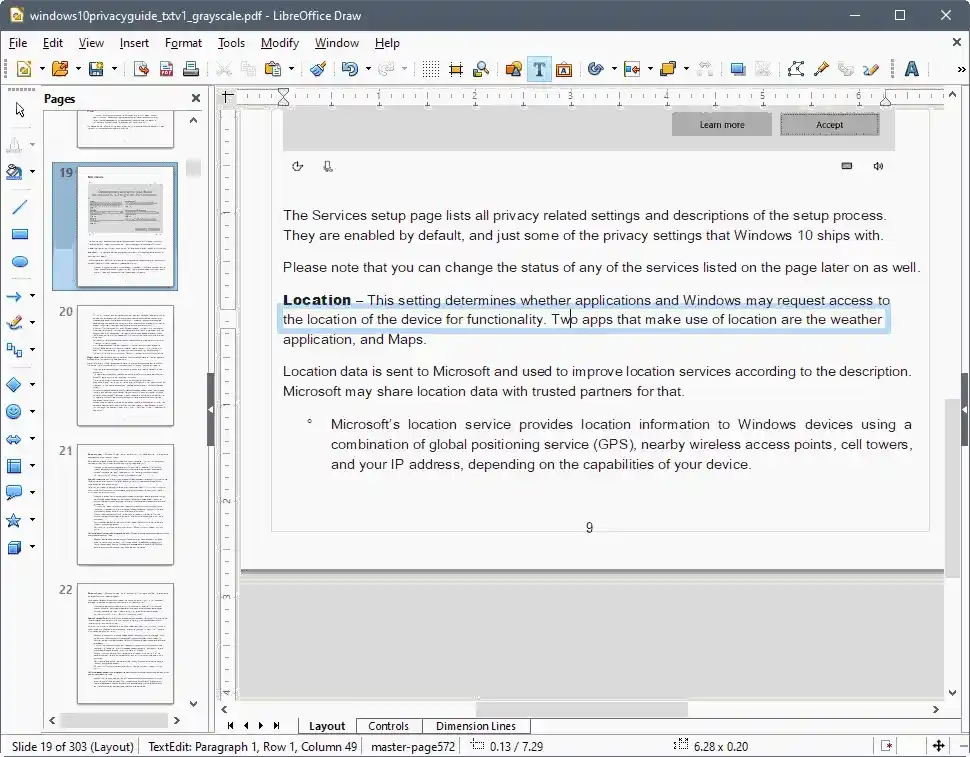
But the friction is its layout. On complex PDFs, text reflows, fonts fail to match, and spacing drifts. It works best on simple, native documents like a one-page letter or a basic form.
The interface is clunky and dated, which is the honest trade-off for a genuinely free, no-limits desktop editor that runs on Windows, Mac, and Linux.
Sejda: Quick browser edits with a ceiling
Sejda is a browser-based PDF text editor. Here, you can add text and edit existing text without installing anything. But the only downside is its free tier. PCWorld clocked it at 3 processing tasks per day, with documents capped at 200 pages or 50MB, one file at a time.

That makes it great for a fast, occasional fix and frustrating for daily work. It also runs as a desktop app with the same free limits.
Smallpdf and Xodo: Good tools, but wrong job
People assume Smallpdf and Xodo just edit text. But mostly, they annotate. Smallpdf’s free version lets you add text, images, shapes, highlights, and drawings. But it can’t rewrite anything, and it also limits you to 2 documents a day. Reviewers describe it as a basic tool for basic tasks, which is kind of fair.

Where these tools earn their place is signing, compressing, converting, and merging. For those jobs, they are fast and clean. But for changing a sentence already in the PDF, they’ll waste your time.
Best Online PDF Editor
An online PDF editor wins on convenience. You don’t have to install anything; it works on any OS. But it comes with some trade-offs,
- Speed: The browser tools are perfect for a one-off edit on a locked-down or shared computer.
- Limits: Most free online editors cap tasks, pages, or file size. Sejda’s 3-task-per-day ceiling on the free plan is typical of the category.
- Privacy: You’re sending your file to someone else’s server.
For actual text editing in the browser, Sejda is the best pick that changes real words instead of layering new ones on top. iLovePDF and Smallpdf feel smoother for signing, compressing, and converting, but they’ll not rewrite your sentences.
But follow a simple rule, don’t upload a contract, an ID, or anything with personal data to a free online PDF editor you haven’t vetted yet. Run that edit offline in PDFgear or LibreOffice Draw, where the file never leaves your machine.
Best Free PDF Editor for Windows
The best free PDF editor for Windows depends on whether you need real editing or quick markup.
- For real text editing: Install PDFgear or LibreOffice Draw. Both are free, both run natively on Windows, and both can edit the text directly.
- For quick markup only: Microsoft Edge is already on your PC. It opens any PDF and lets you highlight, draw, and add notes.
But here’s the catch. Its built-in tool can view and annotate a PDF, but it can’t edit existing text. So Edge is fine for signing off on a document or leaving comments.
A downloaded PDF editor for Windows keeps your file on your machine and doesn’t cap you at a few tasks per day the way the free online tools do. So, if you edit PDFs more than occasionally, that alone is worth the install.
Best Free PDF Editor for Mac
On a Mac, the free PDF editor you already own is Preview, and most people overestimate it. Preview is excellent for markup. You can add text boxes, signatures, highlights, and shapes in seconds. But what it can’t do is edit the text already in the PDF.
You click on a printed sentence, and Preview will only let you cover it with a new box, not change the original words.
So the honest split for a PDF editor for Mac:
- Markup, signing, filling simple forms: Use Preview. It’s fast, free, and already installed.
- Changing existing text: Use PDFgear on Mac, which does real text editing at no cost.
The moment your task is editing PDF text rather than annotating it, you’ll need a dedicated free PDF editor instead.
What You Give Up With Free PDF Editing Tools
Free PDF editing tools are genuinely good now, but they are not paid tools, and knowing the ceiling saves you a bad surprise mid-task.
- Scanned files: A free editor treats a scan as an image. You need OCR first to make the text selectable, and free OCR quality varies.
- Batch work: Most free tiers process a single file at a time and cap your daily count. Sejda’s 3-task limit and Smallpdf’s 2-document limit are examples.
- Watermarks and locked features: Some free tools stamp your output. PDFgear and LibreOffice Draw are the notable exceptions that do neither.
- Layout fidelity: Complex, multi-column PDFs reflow badly in free desktop editors, and fonts often fail to match.
- Privacy: Free online editors upload your file to their servers.
When is paid worth it?
If you edit PDFs daily or handle sensitive documents, the paid version will work perfectly fine for you. But for everything else, a free PDF editor covers it.
How to Choose the Right Free PDF Editor
4 quick rules:
- Native PDF, simple layout: For any real editing work, start with PDFgear’s free text editing feature.
- Native PDF, complex layout: LibreOffice Draw is your best free shot, or a paid editor if the job’s critical.
- Scanned PDF: Run OCR first, then edit. Don’t expect a free tool to read a scan cleanly out of the box.
- Sensitive document: Stay offline. Use PDFgear or LibreOffice Draw, not a free online PDF editor.
Roundups like Zapier’s tend to lead with the paid heavyweights such as Acrobat and Foxit, and those are the right call for heavy daily use. For occasional editing, the free options above do the job without the subscription.
Final Thought
Free tools can edit real PDF text in 2026, which wasn’t the case a few years ago. The catch is that half the products calling themselves a free PDF editor still only annotate. So, sort them according to that.
Ask yourself, can this change the actual words? And the choice gets much simpler; PDFgear for most people, LibreOffice Draw for offline, and Sejda for a quick browser fix.
For more info on tech and AI, visit Yaabot.
FAQs
Yes. PDFgear lets you edit the text and export it with no watermark for free, and LibreOffice Draw is totally free and open source, with no watermarks or restrictions on tasks.
Yes. You’re not required to use Acrobat to edit PDF text. PDFgear, LibreOffice Draw, and Sejda are all free to edit current text, and both Windows and Mac versions are available.
For true text editing, PDFgear or LibreOffice Draw. Microsoft Edge is available as a built-in app, but it can only annotate PDF documents and not rewrite existing text.
Use caution. The free online PDF editors upload your file to their servers. Instead, use PDFgear or LibreOffice Draw for contracts, IDs, or financial documents.
Perform OCR first and then edit the text. Some free software has minimal OCR capabilities, and the quality of the result varies with the quality of the scan.
