



My hard drive killed 6 years of my photos. I’d been using a cheap external HDD since 2019, till its last breath. And I only found that out when I actually needed a file off it, which is the worst possible time to learn that your backup also needs a backup.
That’s the thing nobody tells you about Windows backup software; ransomware headlines get all the attention, but hardware failure and plain human error are considered heartbreak. Everyone fears ransomware, though.
I’ve spent a lot of time running 7 backup tools on 3 machines (a 2026 Windows 11 laptop, one desktop still on Windows 10, and a near-dead laptop) to see which ones actually restore a working system when you need them. So, this piece is about what I got after testing these tools, and it also helps you choose the right Windows backup software.
Key Takeaways
- EaseUS Todo Backup Free and Veeam Agent for Windows Free both handle full-system imaging at no cost.
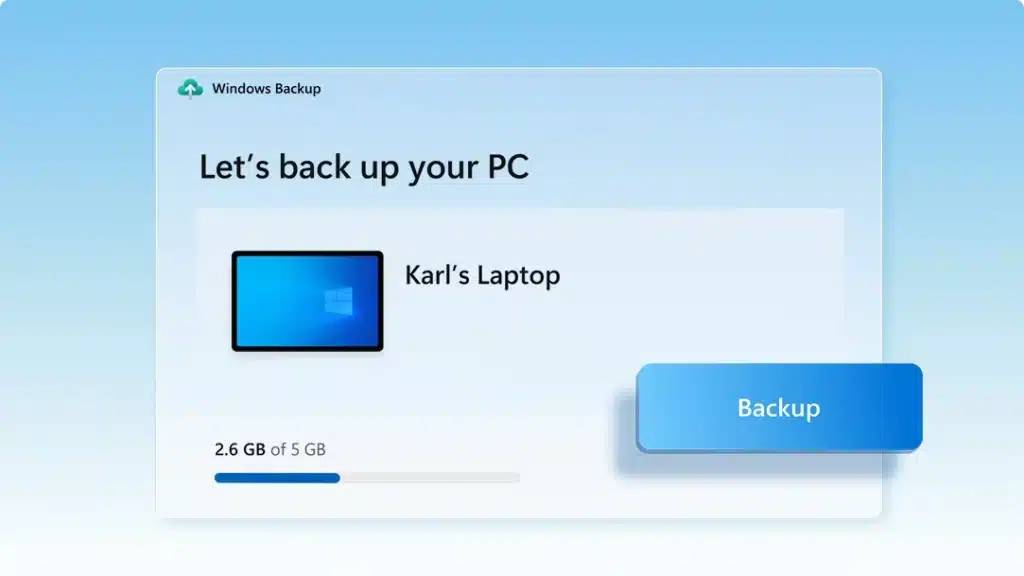
- The built-in Windows Backup app syncs files and settings to OneDrive but doesn’t create a restorable system image. So, it’s not a full replacement for imaging software.
- Macrium Reflect Free is discontinued as of January 2024, so there are no security updates for anyone still using it.
- Paying for a tool like Acronis Cyber Protect Home Office mainly buys active ransomware defense and bundled cloud storage.
- Ransomware attacks happen roughly every second somewhere in the world, which makes an offline or immutable backup copy non-negotiable, not optional.
What Windows Backup Software Actually Does?
Windows backup software isn’t the same thing as file sync. OneDrive or Dropbox mirrors your files live, so if ransomware encrypts a file, the sync client happily uploads the encrypted version too. Real Windows backup software creates separate, point-in-time copies you can roll back to.
3 things you must know:
- Full backup: A complete copy of everything is slow to create, but fastest to restore.
- Incremental backup: Only what changed since the last backup, fast, but restoring means replaying a chain.
- Differential backup: Everything changed since the last full backup, a middle ground.
Why does 2026 raise the stakes?
Local drives are bigger than ever, so people back up less often because it’ll take forever. Most households also spread files across a NAS, a cloud drive, and a laptop, and good computer backup software has to cover that whole spread.
How I Tested These Windows Backup Programs
I ran full image backups, incremental jobs, and actual bare-metal restores from boot media on all 7 tools. Two of them failed the restore test on my Windows 10 box due to some driver mismatches after the images were backed up.
This is what I follow.
- Try to restore from boot media on different hardware.
- How long a real backup takes (I used the same 700GB test folder each time).
- How intrusive the free tier’s upsell nagging gets.
- And what the paid tier unlocks that earns its price.
Best Windows Backup Software in 2026: Quick Comparison
The shortlist before diving deep into the list of the best Windows backup software.
| Tool | Best for | Free tier | Price (paid) | Backup type | Cloud option |
| EaseUS Todo Backup | Beginners wanting one app for everything | Yes | $39.95/yr or $59.99 one-time | Full, incremental, differential | Paid tier only |
| Veeam Agent for Windows | Free full-system imaging, no catch | Yes | N/A (free only) | Full, volume-level | No |
| AOMEI Backupper Standard | Cloning during hardware upgrades | Yes | ~$49.95/yr for Pro | Full, incremental, differential | Limited |
| Acronis Cyber Protect Home Office | All-in-one with active ransomware defense | No | $24.99 to $124.99/yr by tier | Full, incremental | Yes, up to 10TB |
| Macrium Reflect X (Home) | Power users who want the old Reflect Free experience, paid | No | Starts around $44.99 | Full, incremental, differential | No |
| Windows Backup (built-in) | Casual users already on OneDrive | Yes | Free | File and settings sync | OneDrive only |
Best Free Backup Software for Windows
Free backup software has improved a lot in the last couple of years, but every free tool draws a line somewhere. But knowing where the line is much more important than the features list.
EaseUS Todo Backup Free
This is the closest thing to an all-rounder on the free side. Comes with disk imaging, file backup, scheduling, and bootable recovery media in one clean UI. In independent testing, a 700GB backup was finished in just 13 minutes. Fast enough that you can actually run it.
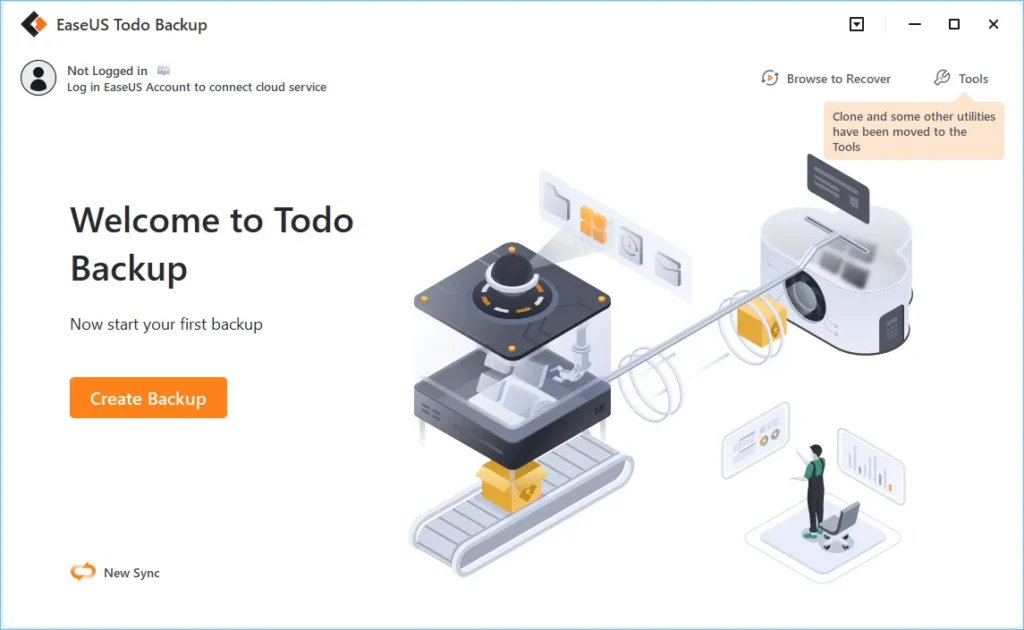
But it has a catch, the cloud storage is locked behind the paid tier, and the free version is for personal use only. You’re on your own for offsite copies unless you manually drag a backup file to another drive.
Veeam Agent for Windows free.
Veeam built its name on enterprise backup, and the free consumer agent inherits real engineering; volume-level and full-system imaging with proper bootable recovery. I’d hand this tool to someone who just wants a hassle-free experience.
The honest limitation is that granular recovery and centralized management need Veeam’s paid Backup & Replication infrastructure, overkill for a home PC.
AOMEI Backupper Standard
AOMEI’s free tier is built for a specific moment. When you’re upgrading your hard drive to an SSD without reinstalling Windows. Disk cloning is fast and reliable, and scheduled incremental backups work well for daily use.
Real-time sync and some encryption options live behind the Pro upgrade (roughly $49.95/year). If cloning and basic scheduled backups are all you need, the free tier covers it.
Best Paid Windows Backup Tool Options for Full Protection
Paying for a Windows backup tool buys you 3 things the free tiers withhold; active ransomware rollback, bundled cloud storage, and priority support when your restore doesn’t go as planned.
Acronis Cyber Protect Home Office
This is the closest thing to backup-plus-antivirus in a single subscription. Beyond imaging and file backup, it runs active ransomware monitoring that can block and reverse an encryption attempt mid-attack. Pricing runs from $24.99 to $124.99 a year, scaling from 50GB up to 10TB of cloud storage.
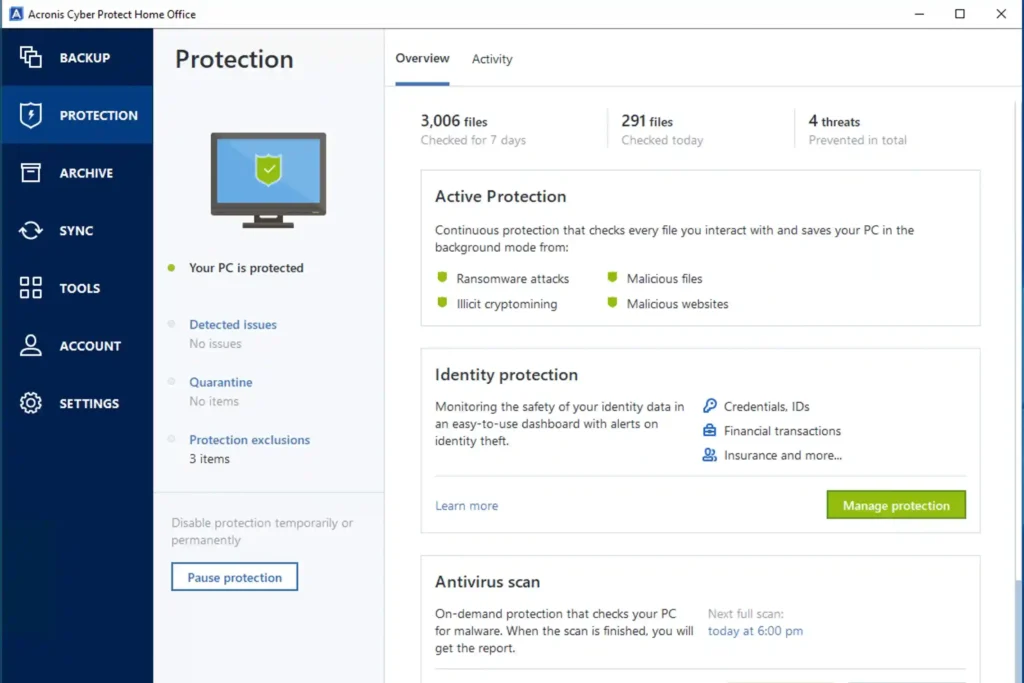
But the drawback is the price ceiling. If you just want reliable local imaging, you’re paying for security features you may already have elsewhere.
Macrium Reflect X (Home)
Macrium Reflect Free is dead. Security updates stopped at the end of 2023, so the free version now runs with no bug fixes and no guaranteed compatibility with newer Windows builds. Reflect X (Home) is the paid successor, starting around $44.99, with faster incremental imaging and Image Guardian ransomware protection for backup files specifically.
It’s still the most technical interface on this list, better for power users who want scheduling and retention control.
Is the Built-in Windows Backup Program Enough?
In short, for casual users already living in OneDrive, mostly yes. But for anyone who wants their whole system back after a drive failure, no.
Windows currently comes with 3 overlapping backup concepts:
- Windows Backup (the current app): Continuously syncs Documents, Desktop, Pictures, Music, and Videos to OneDrive, plus apps, settings, and saved passwords. It requires a Microsoft Account and isn’t available on domain-joined machines. It doesn’t create a full disk image.
- File History: The older, local-drive versioning tool, still buried in Control Panel, though Microsoft has been quietly steering people toward the newer app instead.
- Backup and Restore (Windows 7): A legacy holdover that technically still works but hasn’t been meaningfully updated in over a decade.
In my opinion, if your PC dies and you’re on Windows Backup, you’ll get your files and settings back on a new machine tied to your Microsoft account. A full recovery of the system itself, drivers, and installed programs included, still requires third-party imaging software.
How to Choose the Right Computer Backup Software
Ask yourself these questions if you’re confused about choosing the right Windows backup software:
- What am I actually protecting? Just personal files, or the whole system, apps and settings included? File-only tools are lighter and faster; full imaging costs more storage but saves you a total reinstall.
- Do I follow the 3-2-1 rule? 3 copies of your data, on 2 storage types, with 1 copy offsite. A single external HDD isn’t a backup strategy; instead it’s a single point of failure.
- How fast do I need to be running again? A frozen laptop the night before a deadline needs a fast local image restore, not a multi-hour cloud download.
- What’s my actual budget? Free tools cover most casual users completely. Pay only when you need ransomware rollback, larger cloud storage, or backup across multiple devices.
- Local, cloud, or both? Local restores faster; cloud survives a house fire or stolen laptop. Serious protection uses both together.
- Files only, free: EaseUS Todo Backup Free.
- Full-system imaging, free, zero nagging: Veeam Agent for Windows Free.
- Ransomware rollback, willing to pay: Acronis Cyber Protect Home Office.
Final Thoughts
Try to test the restore itself. A backup you’ve never restored from is a hope. I learned that the hard way with a successful backup.
For most people in their 20s and 30s juggling a laptop, a phone’s worth of photos, and a side project, EaseUS Todo Backup Free or Veeam’s free agent will cover you completely. Pay only when ransomware protection or bundled cloud storage solves a problem you actually have, not because a sales page made it sound urgent. Keep one copy offline or in the cloud, separate from the machine it’s protecting, and open the restored file once a year to confirm it isn’t corrupted.
For more info on tech and AI, visit Yaabot.
FAQs
Yes. It is worth mentioning that there are solid options, such as EaseUS Todo Backup Free and Veeam Agent for Windows Free, which are 100% free for personal use. Limited (free) tiers typically exclude cloud storage and active ransomware protection.
EaseUS Todo Backup Free is the most comprehensive solution, saving backup images quickly and easily. Veeam Agent for Windows Free is the winner if you desire full-system imaging without upsell prompts.
Yes, the Windows Backup app automatically backs up files, apps, and settings to OneDrive. It doesn’t produce a full system image, so if a drive goes bad, the Windows installation will need to be repeated.
Local restores are quicker following a crash. Cloud is not affected by theft, fire, or damage to the machine. The 3-2-1 rule is not just about the 3-2-1; it’s about the 3-2-1 relationship.
If you change files regularly, do incremental daily backups and full monthly backups. All individuals working on active projects should think about hourly instead of weekly increments.
