


Your inbox and your holiday photos fight for the same Google storage. Google’s 15 GB free limit is for Gmail, Drive, and Photos. So if you get a notification that your account’s full, that doesn’t necessarily mean you’ve taken too many pictures.
Right now, before paying for more space, I’d rather compare Google Photos alternatives that fit my list. Like, iCloud Photos suits an Apple household; Ente and Proton Drive offer encrypted storage. Existing subscriptions may also make OneDrive or Amazon Photos a good option.
But for me, the priorities would be automatic backups, easy photo sharing, and access to the RAW photos. So, in this guide, we’ll talk about 8 Google Photos alternatives that are best for backup and sharing.
Key Takeaways
- Choose based on your workflow. Like, iCloud is for Apple users, Ente for encrypted photo storage, or OneDrive if your existing Microsoft subscription already covers your storage needs.
- Compare photos and videos separately. Unlimited photo allowance doesn’t mean that the video storage would be free.
- Try to test uploads, sharing, and downloads before shifting to another storage.
How I Selected These Photo Management Apps
My comparison of these photo management apps is based on their actual features list, pricing, and support documentation. My shortlist prioritizes automatic uploads, multi-device access, privacy controls, and many other things.
Google Photos Alternatives Compared
Here’s the comparison.
Note: Prices and allowances were checked on October 7, 2026.
| Service | Best fit | Free storage | Paid example or benefit | Main restriction |
| iCloud Photos | Apple households | 5 GB | 50 GB for $0.99/month | Storage also serves other iCloud data |
| OneDrive | Microsoft subscribers | 5 GB | 100 GB for $1.99/month | Shared allowance for photos and other files |
| Amazon Photos | Eligible Prime members | Check account eligibility | Unlimited photos plus 5 GB for videos, included with eligible Prime membership | Country and membership conditions apply |
| Ente Photos | Encrypted photo organization | 10 GB | 50 GB for $29.88/year, paid annually | Recovery credentials need careful handling |
| Proton Drive | Encrypted photos and files | 5 GB | 200 GB Drive Plus; check current checkout price | Photos share capacity with other files |
| Flickr | Photography communities | 1,000 items, including at most 50 non-public items | Pro for $82/year | Free private storage is limited |
| pCloud | Photos alongside general files | 2 GB initially, unlockable up to 10 GB | 500 GB for €219, displayed lifetime offer | Upfront cost and separate Crypto protection |
| Adobe Lightroom | Editing and photo galleries | 5 GB for free album sharing | Plans from $11.99/month, annual commitment billed monthly | Editing subscription may exceed casual needs |
A monthly bill can carry an annual commitment, as Lightroom’s example shows. So, compare the total obligation.
8 Google Photos Alternatives for Backup and Photo Sharing
These Google Photos alternatives cover different jobs. The profiles below explain where each fits and the trade-offs you must consider.
1. iCloud Photos
iCloud Photos would be my starting point for a library used mainly through Apple’s Photos app. Photos and edits stay available across connected devices, so I don’t have to maintain a separate gallery.
The concept of Shared Albums from Shared Photo Library is different. A shared album is useful for selected holiday pictures; a shared library supports a more collective collection.
Apple now documents upgraded Shared Albums with full-resolution uploads and browser participation, including contributions without an Apple device. Older albums may need upgrading to receive those features.
- Choose it for: Keeping an Apple photo workflow familiar.
- Check first: The album type and software requirements your recipients need.
2. Microsoft OneDrive
Microsoft OneDrive makes sense when your Microsoft subscription already provides unused storage. You can upload your photos from your mobile and access them on your PC.
There’s a useful operational detail: Microsoft says its iOS camera uploads in one direction. Deleting an uploaded photo from the phone does not remove the OneDrive copy through that feature.
- Choose it for: Photos alongside your existing computer files.
- Check first: Upload completion and the sharing permissions on each folder.
That deletion behavior applies to camera upload specifically. Other integrations and synchronization settings need their own checks.
3. Amazon Photos
Amazon Photos deserves a look if you’ve it with your Prime membership.
It offers automatic saving, album sharing, and access through its apps. You can also send photos to someone who doesn’t have an Amazon Photos account.
I’d use it to share a family trip album without requiring anyone to have a membership.
- Choose it for: Making use of an eligible membership you already pay for.
- Check first: Country eligibility and how much video storage you need.
For readers in India, confirm the benefit in your account before relying on U.S. Prime terms. An Amazon Prime membership alone doesn’t make you eligible for every regional service.
4. Ente Photos
Ente Photos combines end-to-end encrypted storage with features associated with photo management apps: automatic uploads, albums, memories, and search.
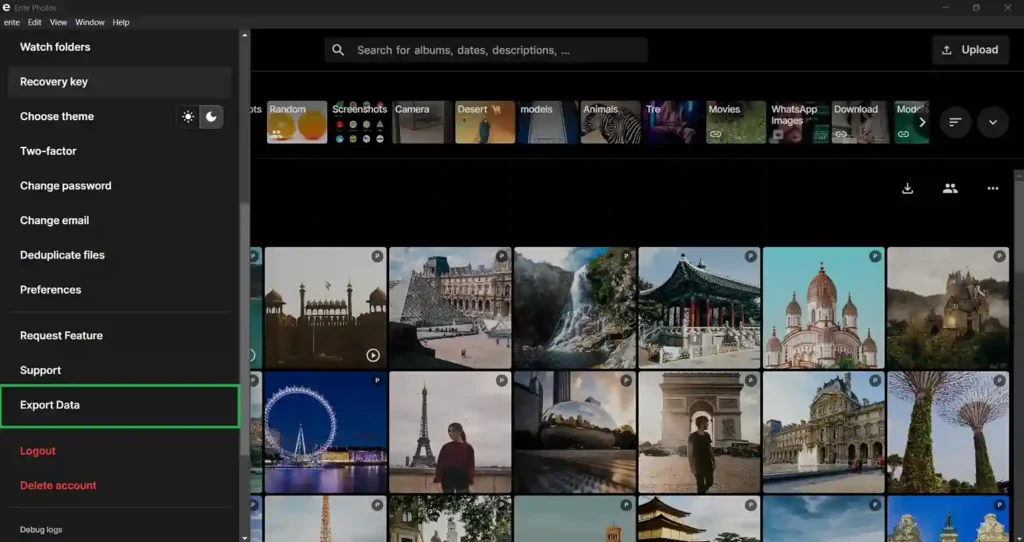
The app includes on-device recognition, and shared album links can work without recipients installing the app. That makes it a useful option for private photo sharing across different phones.
I’d go for Ente when I need privacy and a browsable photo library.
- Choose it for: Photo organization with encrypted storage and sharing.
- Check first: Account recovery before importing your library.
Ente’s recovery guidance explains the role of your recovery key.
5. Proton Drive
Proton Drive works for someone who wants online photo storage that’s encrypted and also stores documents and other files. I’d consider it when I want everything in a single place, but right now having a photography-focused workspace works for me.
It offers document and mobile photo backup, album organization, and sharing through encrypted links. It also comes with password protection and expiration dates.
- Choose it for: Photos and files within a single encrypted storage account.
- Check first: Whether its current search and editing tools cover your daily habits.
The storage allowance must accommodate everything you upload. Documents and videos can reduce the room available for new photos.
6. Flickr
Flickr is a community-oriented option. So for me, if I had to publish photographs, organize albums, and participate in photography groups, I’d go for Flickr.
Its free tier needs a closer look considering a private archive. The non-public upload restriction includes private and friends-and-family content.
- Choose it for: Displaying photography and sharing with a wider audience.
- Check first: Privacy settings, supported formats, and whether you need the Pro version.
But keep in mind that Flickr’s upload requirements exclude RAW files.
7. pCloud
pCloud supports automatic mobile uploads and file storage. Its premium features include photo browsing through timeline and map views. I’d consider it for a mixed archive of pictures, videos, and other files.
- Choose it for: Combining photo storage with a broader file archive.
- Check first: Whether an upfront lifetime purchase suits your budget.
Standard storage and the optional Crypto folder use different encryption tech. So, buying Crypto doesn’t make every folder protected by it.
8. Adobe Lightroom
Adobe Lightroom is a really good option when editing’s already part of your daily routine. I personally use it for organizing camera photos and adjusting RAW images.
Lightroom Classic centers on a local catalog. For a Lightroom cloud library, check that originals have actually been uploaded; the desktop app also supports local editing.
Adobe’s gallery controls include access and metadata settings.
- Choose it for: Editing and sharing photographs within the same workflow.
- Check first: Cloud capacity, download settings, and subscription commitments.
Cloud Photo Backup: What Happens When You Delete a Photo?
What happens after deleting depends on the app and the features you get. A backup creates another copy, and syncing carries multi-device deletion.
For example, deleting a photo from an iCloud Photos library also deletes it from other devices signed into that Apple Account. Even though Apple provides a 30-day recovery window through Recently Deleted.
Before clearing phone storage, please verify:
- The upload has finished, and you can access your images from another device.
- A downloaded file has the expected resolution and plays correctly if it’s a video.
- The command removes a local copy, a shared-album item, or the cloud original.
Personally, I’d prefer keeping irreplaceable photos on a separate drive.
Note: Check your recovery route before testing deletion on anything valuable.
How to Move Your Google Photos Library to Another Service
Google supports transferring a copy to compatible services.
I’d move the library in this order:
- Check destination capacity: Include videos and other files already using the account.
- Choose the transfer route: Use a supported direct transfer or follow the destination’s Takeout import instructions.
- Try a representative album: Include an edited photo, an older image, a video, and a Live Photo or motion photo if you use them.
- Verify the result: Check capture dates, album placement, duplicates, image quality, and video playback.
- Finish and preserve a second copy: Confirm the full import before removing Google’s copies or changing your storage subscription.
A migrated album doesn’t replace the link you previously sent to friends.
Ente publishes migration guidance, while other services have their own routes. Follow the instructions for your chosen destination.
Final Thoughts
I’d go for an alternative if that fits the way I take, find, and share pictures, then give it a small trial. Upload a mixed album, download an original, and open the sharing link on another device.
For more information on AI, tech, Science, Futurism, and more, check Yaabot.
FAQs
Policies differ. Your allowances may be reduced, and if you go over, you might be limited on uploads or account functions. Microsoft clarifies its cancellation and storage policy. Before the end of the paid period, I would export and/or reduce the library.
Sharing a storage subscription doesn’t necessarily share your photos. Both provide private areas for family members, unless they make an explicit request to share files. Compare family billing, shared albums, and library sharing.
In most cases, yes, if both apps have the necessary permissions for it. They are uploaded individually, which can lead to higher data consumption, storage requirements, and battery consumption. I would check the status of each app and not take it for granted that they both finished at the same time.
Yes. Synology Photos supports mobile backup to a compatible NAS. You take responsibility for hardware, updates, access, and another backup. I’d consider it if I were comfortable maintaining a home storage system.
Review the export tools before signing up. The downloading of images may leave behind album, edit, and sharing permissions without recreating them. I would try an export sample and verify that the export target can read the exported files.
