


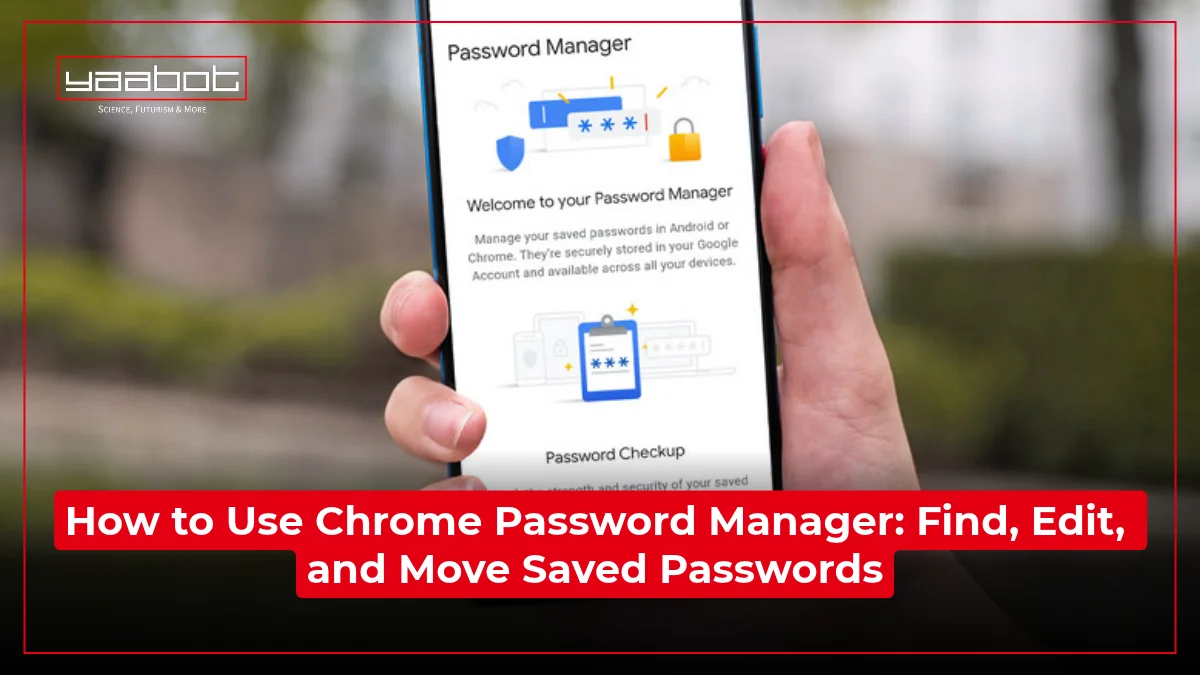
A few years ago, I accidentally deleted a saved password while clearing an autofill suggestion. I hadn’t kept a copy anywhere else, and getting back into the account took a week. After that, I paid more attention to what I was deleting in Chrome Password Manager.
Chrome handles saved logins quietly until you need to look up a password or correct an outdated one. This guide explains where to find your saved passwords, how to edit or delete them, and how to move them to another password manager. You’ll also see the name Google Password Manager, which is the service Chrome uses to manage your saved logins.
But keep in mind that Chrome Password Manager and Google Password Manager are the same tool, but with different names.
Key Takeaways
- Find saved passwords through Chrome’s menu or go straight to passwords.google.com.
- Editing a password inside Chrome updates only what Chrome remembers. It doesn’t change your password on the actual website.
- Deleting a saved password removes it from every device signed into that Google Account.
- Exporting creates a plain-text CSV file. So, try to delete it the moment you finish importing it somewhere else.
- Password Checkup flags weak, reused, and breached passwords, but your Google Account password is still the single point of failure for everything it protects.
What Is Chrome Password Manager and How Does It Relate to Google Password Manager?
Chrome Password Manager is the credential vault built into Google Chrome. Google Password Manager is the exact same vault, renamed and given a life outside the browser.

Four things decide how your passwords actually behave:
- Signed in to Chrome: Passwords save to your Google Account and get synced across every device that’s logged in to that account.
- Not signed in: Chrome stores passwords locally on that one device only. It’s important if you share a computer or avoid syncing on purpose.
- On Android: Google Password Manager exists as a standalone app, separate from Chrome, for anyone who wants password access without opening a browser tab.
- From any device: Manage every saved password at passwords.google.com, no matter which browser you’re using.
How to Find and View Saved Passwords in Chrome
The fastest route is typing passwords.google.com into any browser while signed in. But to actually reveal the characters of a saved password requires confirming it’s really you, through your device password, fingerprint, or Windows Hello.
On desktop (Windows, Mac, Chromebook)
- Click the three-dot menu in Chrome’s top right corner.
- Select Passwords and autofill, then Chrome Password Manager.
- Click the saved entry you want.
- Select the eye icon to reveal the password, and confirm with your device credentials.
If you’ve turned on biometric unlock under Chrome Password Manager’s Settings tab (Windows Hello on PC, your screen lock on Mac), that same prompt covers revealing, copying, or editing a password.
On Android and iPhone
Android gives you three ways in:
- The Chrome app’s menu
- The standalone Google Password Manager app
- Or your phone’s system Settings under Google.
Once you’re inside, you can filter results by Passwords, Passkeys, or Network devices, which helps once your list gets long. But you still need to verify your identity before you can see a password.
On iPhone, open Chrome, tap the three-dot menu, then Password Manager. Tap any entry, then Show password, and authenticate with Face ID or Touch ID. But here’s a small catch, Chrome’s saved passwords don’t automatically autofill in other iOS apps. You’ve to turn that on separately by selecting Chrome as a password source.
How to Edit or Update a Saved Password in Chrome
If you rely on Chrome password manager, you’ll need this right after changing a password directly on a website.
- Open Chrome Password Manager (Passwords and autofill, then Chrome Password Manager, or go to passwords.google.com).
- Find and select the saved entry.
- Select Edit.
- Update the username or password field.
- Select Save.
Editing the entry inside Chrome only changes what Chrome remembers. It does nothing to the actual password on the website itself. If you changed your Netflix password on Netflix’s own site, Chrome keeps offering the old one until you manually correct the saved entry, or until Chrome’s automated password change feature catches the mismatch on a compatible site and offers to update it for you in one tap.
But outside that automated flow, editing in Chrome and changing the password on the site are two separate actions.
How to Delete Saved Passwords in Chrome
To remove a single entry, open Google Password Manager, select the saved password, and choose Delete. For a full wipe, go to Settings inside Google Password Manager and select Delete all Google Password Manager data, which clears every saved password and passkey at once.
A few things worth knowing before you click Delete:
- Removing a password syncs across every device signed into that Google Account, so the password gets removed from your phone and laptop at the same time.
- Once done, you can’t undo it. Now, you’ve to rely on your memory.
- If you’re clearing passwords for privacy reasons on a shared or borrowed computer, export a backup first if you still need those logins anywhere else.
How to Export and Move Chrome Passwords to Another Manager
People export passwords for two reasons. When they want to switch to a dedicated password manager, or to keep an offline backup before a factory reset. Either way, the output is a plain-text CSV file, which means anyone who opens that file can read every password in it with no further effort.

Export your passwords from Chrome
- Open Chrome Password Manager.
- Select Settings.
- Next to Export Passwords, select Download file.
- Authenticate when prompted, and choose where to save the CSV.
Delete that file the moment you’ve finished importing it somewhere else. Leaving it sitting in your Downloads folder defeats half the point of using a password manager at all.
Import Passwords into a New Password Manager
Most dedicated password managers accept the same CSV format Chrome exports, so the import flow usually looks like this:
- Open the new app’s settings
- Find an import option
- Point it at your downloaded file
- And confirm.
Some managers skip the file step entirely and import straight from Chrome through a browser extension. Either path gets your logins into a tool built specifically around sharing, auditing, and generating passwords, something Chrome’s manager was never fully designed to do.
How to Change Your Chrome Password Settings
Every password setting in Chrome lives in one place. Get into the Chrome Password Manager’s Settings tab, and you’re ready to go.
Things you must keep in mind:
- Offer to save passwords and passkeys: Controls whether Chrome prompts you at all when you log into a new site.
- Sign in automatically: When on, Chrome logs you into saved sites without asking you to confirm first. But when off, you get a quick confirmation step each time, which is safer on a device other people use.
- Use Windows Hello / your screen lock when filling passwords: Turns on biometric confirmation before Chrome reveals, copies, or edits a saved password. It’s off by default.
- Checkup: Runs a scan of every saved password against known data breaches and flags weak or reused ones.
Turn the save-password prompt on or off
- Open Chrome Password Manager.
- Select Settings.
- Toggle Offer to save passwords and passkeys.
People usually turn this off on their non-personal system, so Chrome stops suggesting it on those machines.
Is Chrome Password Manager Safe? Security Features Explained
Yes, but there are a few things you must consider before you start using it.
- Encryption on your Google Account: Every saved password is encrypted, and Google offers an optional on-device encryption layer that ties certain data to a key on your device or recovery phrase.
- Password Checkup: Cross-references your saved logins against known data breaches and flags anything weak, reused, or already exposed.
- Automated password change: Updates a compromised password for you on supported sites, without you leaving the tab.

The whole system is based on how strong and secure your Google password is. If that’s weak, reused, or phished, everything underneath is exposed at once. A dedicated password manager with a separate master password adds a layer of isolation Chrome’s model doesn’t have, since Chrome’s vault and your email, photos, and everything else in your Google Account effectively share the same front door.
Chrome Password Manager vs. Standalone Password Managers
Chrome’s built-in manager is technically a default feature. But a dedicated password manager usually costs money and asks you to install another app.
| Feature | Chrome Password Manager | Dedicated Password Manager |
| Cost | Free with any Google Account | Often a free tier; paid plans typically $2 to $5 a month |
| Works outside Chrome | Limited; needs separate autofill setup on iOS | Yes, across most browsers and apps by default |
| Secure sharing | Family group members only | Often supports sharing with anyone, with permission controls |
| Password generator | Yes, built into the save prompt | Yes, usually with more customization |
| Master credential | Your Google Account password | A separate master password, isolated from other accounts |
| Breach monitoring | Password Checkup | Usually included, often with ongoing monitoring rather than on-demand checks only |
If you rely totally on Chrome, you rarely share logins outside your immediate family, and trust the security of your Google Account itself, the built-in manager works for you perfectly.
But if you use multiple browsers, need to share credentials with coworkers, or want a password vault that doesn’t live inside the same account as your email, a dedicated manager earns its subscription fee.
Final Thoughts
Chrome Password Manager is enough for most people most of the time. It’s free, it’s already running, and the steps above cover every scenario you’re likely to hit. Where it stops being enough is the moment your passwords need to be shared outside a single Google Account. Like shared team logins, a separate browser at work, etc.
For me, after that locked-out email scare thing happened, I keep Chrome’s manager for everyday browsing, but export a backup every few months and store it somewhere encrypted and offline.
For more information on AI, tech, Science, Futurism, and more, check Yaabot.
FAQs
They sync to your Google Account and are accessible from any signed-in browser at passwords.google.com, or locally on your device if you’re not signed in to Chrome.
No. Revealing, copying, or editing a saved password always requires your device password, fingerprint, or screen lock first.
Yes. Removing a saved password clears it from every device signed into that Google Account, not just the one you deleted it on.
Yes, it’s included with any Google Account at no extra cost.
Open Chrome Password Manager, go to Settings, and turn off Offer to save passwords and passkeys.
