

A holiday album can outlive the friends’ travel group chat. The trip ends, everyone moves on, but the link still works. You can add more pictures to that album later, and your friends with access can see those too.
Google Photos privacy starts with knowing where your pictures go and who can access them. Your library is private by default, but the sharing links, account access, and connected services can give access to your photos.
In this piece, I’ll review Google Photos privacy settings without switching off useful features out of habit.
Key Takeaways
- Check the backup account and selected folders. Google Photos backup can include screenshots and other app images, depending on your settings.
- Review album members and active links. To stop album sharing completely, remove members and disable link sharing.
- Inspect Partner Sharing separately. It can share photos automatically as they upload, including your future pictures.
- Use Locked Folder deliberately. Its backup is optional, and unbacked items can be lost if the app is uninstalled. Turning your ordinary backup off leaves existing uploads intact.
Is Google Photos Private? Who Can Access Your Photos?
Yes, Google Photos is private by default. It doesn’t upload your pictures automatically or give your contacts access to your images. Your sharing choices and account access depend on you.
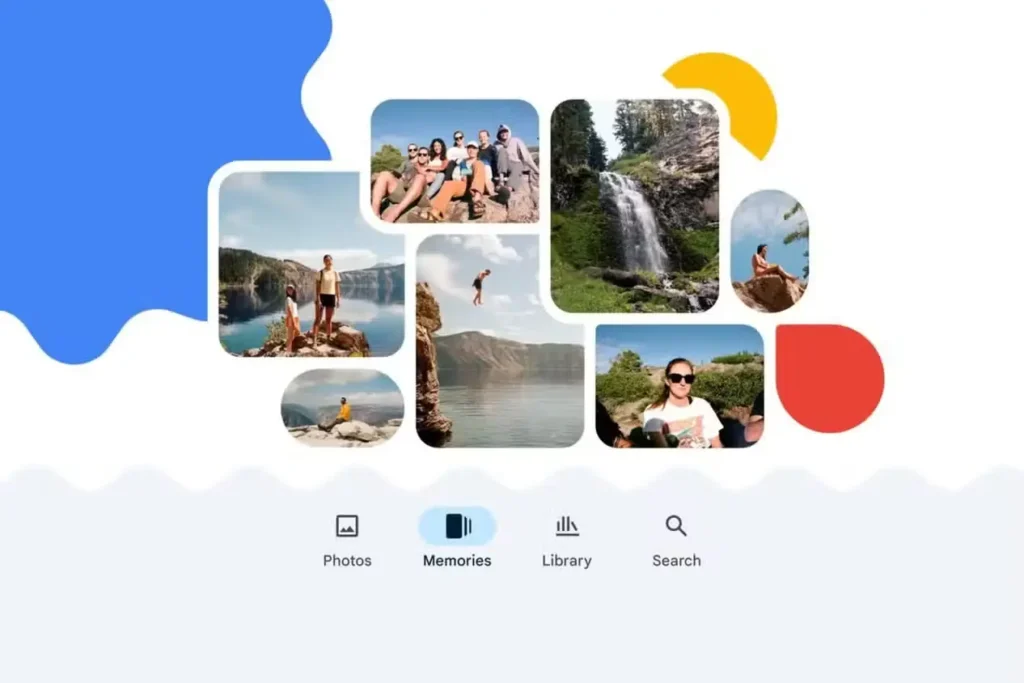
Here are three questions:
- Other people: Have I shared the photo, its album, or my library through Partner Sharing?
- Account access: Can someone open my signed-in account or unlock my device?
- Google’s processing: What does the service do with photos and their associated information?
Google’s Safety Center describes encryption during transfer and at rest. It doesn’t sell your photos or use photos and videos for advertising. But those commitments don’t mean Google doesn’t perform any analysis. It raises a stricter privacy concern, and it also promotes a competing service.
If keeping the storage provider from reading photo content is your requirement, go for a service with explicitly documented end-to-end encryption.
Google Photos Backup Settings: Check What Gets Uploaded
Google Photos backup uploads media to the selected Google Account. The pictures visible in the app can include local files, so appearance alone doesn’t establish that something has reached the cloud.
Before changing anything, I’d confirm which account receives uploads, especially on a phone with personal and work accounts.
On Android, open your profile picture, then Photos settings > Backup. Check Account & Storage, followed by Back up device folders. Google’s backup instructions explain that selected folders upload alongside camera photos.
- Review screenshots, downloads, and messaging folders individually.
- Check Back up all device folders. When enabled, it also covers newly created folders.
- Open a sensitive image and inspect its backup status in the details. Google Photos Help
On iPhone, inspect Google Photos’ photo permission under Settings > Privacy & Security > Photos. Apple’s permission controls govern app access; Google Photos settings separately govern backup.
| Control | What it governs | What to check |
| Photo permission | Access to local media | Which photos the app can access |
| Backup | Uploads to your Google Account | Account, status, and eligible folders |
| Sharing | Access for other people | Recipients, links, and automatic sharing |
For me, I’d keep the camera backup with my Google Photos, but I wouldn’t prefer doing that for temporary documents. If you want to stop automatic uploads to Photos, then turn off the backup option, but it keeps the previously uploaded photos.
Google Photos Sharing Permissions: Review Links, Albums, and Recipients
Google Photos sharing can grant access to selected pictures or a growing album. So keep an eye on whom you’re sharing your photos with, especially if it automatically adds photos.
| Sharing method | Access follows |
| Named Google Account recipients | The accounts added |
| Link sharing | Possession of the active link |
Find shared photos and check album permissions
Open your profile picture, then Photos settings > Sharing > Manage sharing activity to review shared links, memories, and conversations. For albums, check Collections > Albums, then open the relevant album’s sharing controls. Though the labels can differ across Android, iPhone, and web, use the instructions matching your device.
Check these things inside every album:
- Members: Who has been added, and who needs to be removed?
- Link sharing: Could a forwarded link give someone access?
- Collaborate: Can other people add photos?
- Comments and likes: Can the viewers interact with the album?
- Automatic additions: Will photos of selected people appear without another manual selection?
I’d disable collaboration on an album meant only for viewing. That setting won’t allow anyone to contribute, but they can see your content. For Google Photos sharing, I’d also check the album’s access controls after adding pictures. Google also says people with album access can add others, even when you initially choose named recipients.
And an album containing someone’s face can automatically collect future photos when configured that way.
Stop sharing and remove someone’s access
To stop sharing an album completely, remove its members and turn link sharing off.
For an album you own:
- Open the album and its sharing settings or Options menu.
- Remove the people who should no longer have access.
- Turn Link sharing off.
- Recheck the member list and link settings.
Removing someone while leaving the link active can let them rejoin through that link. And turning collaboration off also leaves viewing access in place.
To understand link behavior safely, create a test album containing an ordinary object photo. Open its link in a signed-out browser, disable link sharing, then reload.
Partner Sharing: Check Which Photos Are Shared Automatically
Partner Sharing automatically sends eligible backed-up photos to your chosen partner. Once configured, it can continue sharing new pictures automatically. That suits a shared family collection too.
In Photos settings > Sharing > Partner sharing, check:
- The partner account: Confirm the actual email address.
- The starting date: Check how far back the shared collection reaches.
- The people selected: Review whether sharing covers everyone or particular face groups.
- Other Android apps: Inspect whether to include content from other Android apps.
Content from other Android apps is excluded by default unless enabled. Edited device photos can still be shared, so folder origin alone isn’t a complete filter.
Removing a partner stops that continuing access. Copies already saved to their account can remain, including after you delete your original or move it into Locked Folder.
Location Privacy: Check What Your Photos Reveal
A shared picture can reveal its location through metadata or through the image itself. I’d inspect both before posting a home, office, or regular meeting spot.
Google Photos distinguishes between:
- Locations recorded by your camera.
- Locations you add manually.
- Locations Google estimates from landmarks and other photos.
Estimated locations aren’t shared through Google Photos. Camera locations and manually added locations may be shared, depending on the sharing controls. Check Share photo locations for the relevant album or conversation. Partner Sharing includes location details, with exceptions for some older configurations.
Google Photos can edit manually added or estimated locations. But it can’t remove camera-recorded location metadata through those controls. Downloading and emailing the original image carries the camera’s location data even if you change the location.
Also review Estimate missing locations. Turning it off leaves earlier estimates in place. And a street sign or address on a delivery label can identify your home even after every location tag is removed.
Locked Folder vs. Archive: Where Should Sensitive Photos Go?
Locked Folder restricts access to sensitive items and hides them from ordinary browsing. But you can access the archived photos elsewhere in Google Photos.
| Feature | Archive | Locked Folder |
| Main photo grid | Hidden | Hidden |
| Search and albums | Can still appear | Hidden |
| Extra access protection | None | Device lock or account authentication |
| Backup | Ordinary backup rules | Optional Locked Folder backup |
Locked folder uses the service’s standard encryption. Someone who knows your device unlock credentials can open it.
Check Photos settings > Backup > Back up Locked Folder. With backup enabled, backed-up items are accessible from other signed-in devices through Locked Folder.
Unbacked items stay on the device and can be lost if you uninstall the app or change your handset, clear app data, or lose the device.
Google Photos Settings for Face Groups and Memories
Face Groups organize pictures by recognized faces, while Memories affect which pictures resurface. In Google Photos settings, look for Group similar faces. And disabling that option deletes your face groups, the face models used to create them, and your labels. Face labels remain private, even when the photos are shared.
For Memories, use Show less or Blocked to manage people you don’t want resurfacing. Google’s Memories controls also let you manage dates and memory types.
Ask Photos and Gemini: Review AI Privacy Controls
Ask Photos has privacy controls for queries, feedback, and Gemini features inside Photos. Connecting your library to another service introduces that service’s policies too. Personal data in your Google Photos isn’t used to train generative AI models. But that sounds weird because it doesn’t promise the same for every AI-related use.
If available, open Photos settings > Preferences > Gemini features in Photos and review:
- Search with Ask Photos: Disable conversational search if unwanted.
- Use Gemini in Photos: Review the broader feature toggle.
- Help us improve photos: Turn off Allow us to access your queries off to opt out of query review.
Try to inspect any Photos connection to Gemini or Search separately. Connected services may process summaries, inferences, and generated content under their own rules. And the availability varies by account and region.
Secure the Google Account That Holds Your Photo Library
Google Photos privacy also depends on account security. Someone with an active account session may reach your library even when you’ve shared no albums.
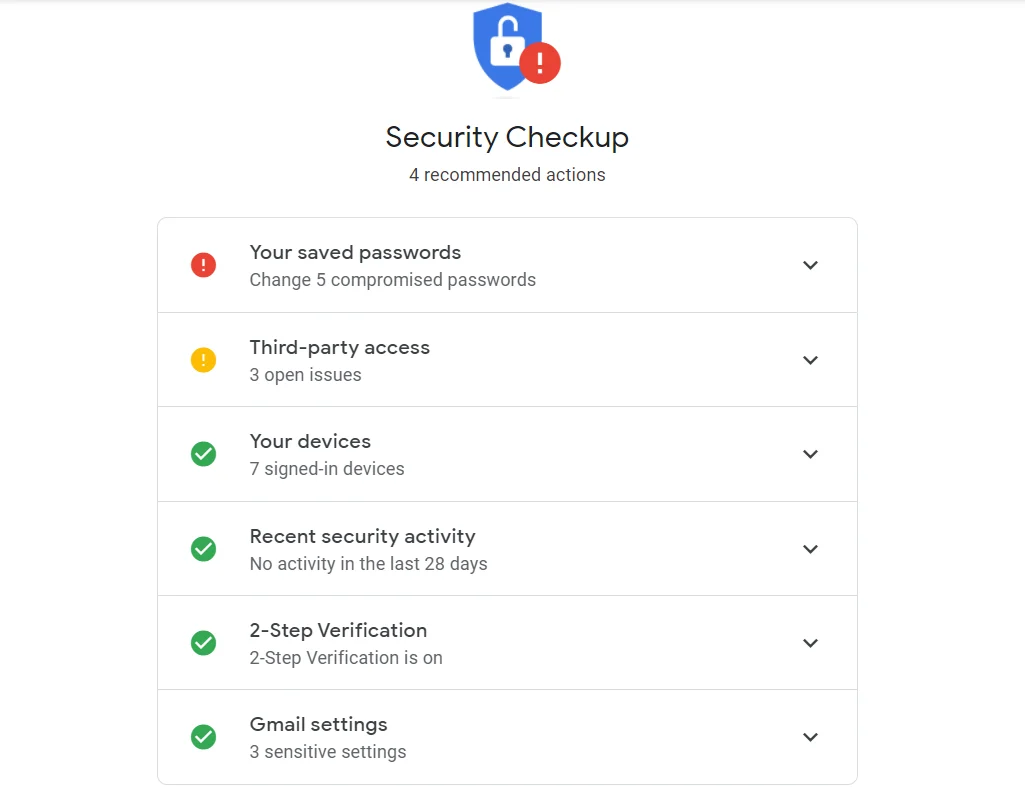
Open Google’s Security Checkup and review the above things:
- Devices and sessions I recognize.
- Recovery email and phone details.
- Passkeys or two-step verification.
- Relevant connections to third-party services.
Remove unfamiliar sessions and permissions you no longer need. On a shared computer, sign out when finished and check whether the browser has retained any account access. And Google warns that anyone who can unlock a device with your passkey may access your account.
Final Thought
I’d start this Google Photos privacy review with an unopened album. Check its members, its link, and whether it adds new photos automatically.
Then choose what from those albums deserves a space in my cloud storage. Family pictures, work screenshots, and identity documents deserve different decisions, even if they appear together in the same app.
For the next sensitive picture you save, check its backup status and sharing destination before it becomes another file you forget to review.
For more information on AI, tech, Science, Futurism, and more, check Yaabot.
FAQs
No, you can’t access photos just by sharing Google One storage. Even if family members have access to storage usage, the photos must be shared separately.
No. Cloud photos will not be deleted from your account. Items in the unbacked Locked Folder will be removed, though, when you uninstall the app.
Yes. Profile indicators will show the items viewed, and activity will show the items shared.
No. Photos stay in your photo library until deleted from there. Deleting the album does not delete the album’s underlying library photos, but only the album itself.
Yes. Use Google’s instructions to remove the cloud, which includes testing to see if there is a backup on the affected devices first. Backup can be re-enabled to upload files again.
