


NotebookLM did one job well for three years: turn a stack of messy PDFs into sourced, readable answers. But on July 16, 2026, Google renamed it Gemini Notebook. Your notebooks, sources, and the old web address stayed exactly where they were; what changed is what the tool can now do with them, from writing code against your own data to building Slides and Video Overviews through a guided review step.
In this guide, I’ll cover what Gemini Notebook is, how to use Gemini Notebook for research, Audio Overviews, Mind Maps and Slides, plus some tips to help you out.
Also read: Gemini Intelligence Explained: How Google is Turning Android Into an AI Agent
Key Takeaways
- Gemini Notebook is the new name for NotebookLM as of July 16, 2026. Old notebooks, sources, and the web address all carried over.
- Every output, chat answers, Audio Overviews, Mind Maps, Slides, Reports, is grounded only in the sources you upload.
- Audio Overviews now support 80+ languages; Mind Maps remain desktop and web only.
- Slide Decks and Video Overviews gained a guided review-and-proceed creation flow in October 2026.
- Free accounts get 50 sources per notebook; paid Google AI plans raise that to 600.
- Usage now runs on a shared compute budget rather than flat daily counts, since September 2, 2026.
What Is Gemini Notebook? A Quick Overview

Gemini Notebook is Google’s AI research assistant. You upload your own documents, links, audio or video as sources, and it answers questions using only that material, with citations pointing back to the exact passage.
The product was called NotebookLM from its 2023 launch until July 2026, when Google folded it into the Gemini brand. Google’s announcement says Gemini Notebook “remains a standalone product focused on being your premier research tool,” now syncing with the Gemini app and, soon, AI Mode in Google Search.
Putting it in a gist: Gemini Notebook is NotebookLM’s new name, plus a secure cloud computer that can write and run code against your sources. Google states that more than 30 million people and over 600,000 organizations were already using the tool before the renaming.
From NotebookLM to Gemini Notebook: What Changed in 2026
People who still search for NotebookLM are looking for the same product under a new name. Here is what actually changed, and what carried over.
What changed:
- New name and a blue-purple gradient logo, replacing the old NotebookLM wordmark.
- A secure cloud computer that lets notebooks write and execute code against your sources, for Google AI Ultra users and Workspace customers first, with Pro access rolling out after.
- Cross-app sync, so notebooks created inside the Gemini app now sync with the standalone Gemini Notebook.
- A guided review flow for Slide Decks and Video Overviews, added on October 19, 2026.
What stayed the same:
- The web address notebooklm.google still works and redirects to Gemini Notebook.
- Existing notebooks, sources and sharing settings were untouched by the rename.
- The underlying research workflow, upload sources, then chat, is unchanged from the NotebookLM era.
Key Features Inside Gemini Notebook
Once you know what is Gemini Notebook for, the next step is knowing what it can produce from your sources. Every output is grounded in the material you upload, not the open web, which limits made-up answers compared with a general chat tool.
- Chat with citations: Ask questions, get sourced answers with links back to the exact passage.
- Audio Overviews: Two AI hosts discuss your sources like a podcast, in more than 80 languages.
- Mind Maps: A branching diagram of the themes and ideas across your sources.
- Slide Decks and Video Overviews: auto-built presentations with a step-by-step review flow.
- Reports, flashcards, quizzes and study guides: Generated from the Studio panel.
- Secure cloud computer: Writes and runs code on your sources for deeper data analysis.
- Notebook sync: The same notebook works inside the Gemini app, and soon in AI Mode in Search.
I think knowing how to use Gemini Notebook well mostly comes down to picking the right Studio tool for the job in front of you.
Also read: iOS 27 New AI Features: Siri Gemini Integration Opens Siri to Multiple AI Models
‘Expert Intelligence’: Adding Books to Gemini Notebook
On August 27, 2026, Google added Expert Intelligence to Gemini Notebook. It lets you add ebooks you already own on Google Play Books straight into a notebook as a source, then ask questions grounded directly in that book’s text.
The feature launched with more than 100,000 titles from publishers including Penguin Random House, Macmillan and O’Reilly Media, plus Featured Notebooks curated with bestselling authors such as Steven Pinker and Michael Pollan. You can mix an Expert Intelligence book with your own files, for example combining a management book with your own meeting notes to get advice grounded in both.
Two rules worth knowing: you must own the book through Google Play Books to use it this way, and if you share that notebook, collaborators are prompted to buy their own copy before they can read the book’s content inside it.
Getting Started
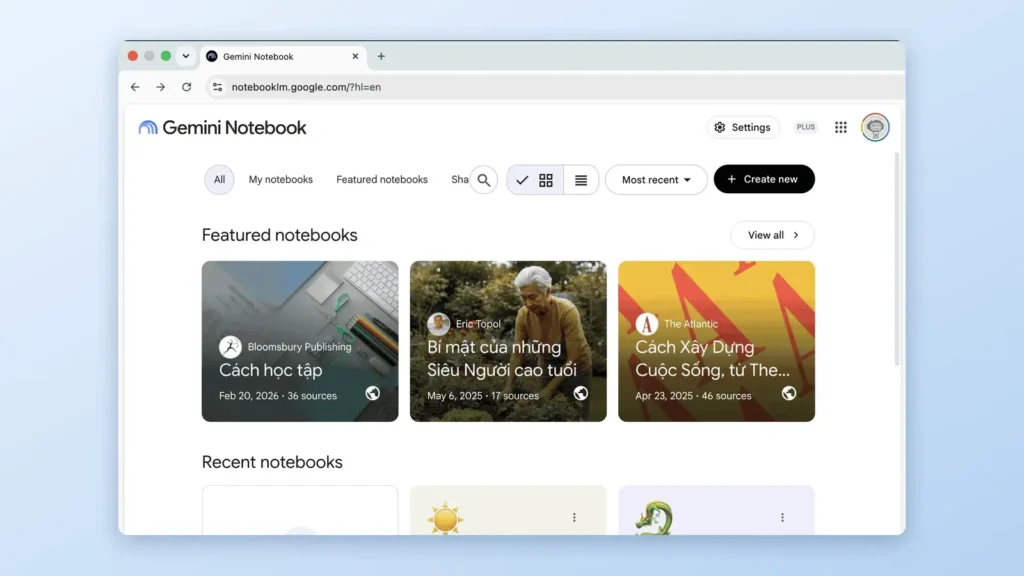
- Sign in: Go to notebooklm.google (it redirects to Gemini Notebook) and sign in with any Google account. No separate signup is needed.
- Create a notebook: Select “New notebook” and give it a name.
- Add sources: Upload PDFs, Google Docs, Slides, websites, YouTube links, audio files or pasted text. Free accounts can add up to 50 sources per notebook, each up to 500,000 words or 200MB.
- Let it read them: Gemini Notebook indexes the sources and suggests starter questions.
- Open the Studio panel: This is where Audio Overviews, Mind Maps, Slides, Reports and more live.
A notebook can mix sources in different languages. Gemini Notebook still works across them once you pick one output language for chat and generated audio.
How to Use Gemini Notebook for Research
- Ask direct questions in the chat box. Answers cite specific sources inline.
- Click a citation to jump straight to the sentence or timestamp it came from.
- Ask follow-up questions to go deeper. Gemini Notebook keeps context inside that one notebook only.
- Save a useful answer as a Note. Notes can become sources themselves for later summaries.
- Turn on the secure cloud computer on Plus, Pro or Ultra: Gemini Notebook can write and run code to calculate, chart or cross-reference numbers from your own data instead of only summarizing it.
- Share a notebook with collaborators for group research. Permissions control who can add sources and edit versus who can only ask questions.
This is the basics of using Gemini Notebook for serious research, since every other output, Audio Overviews, Mind Maps, Slides, is built from the same grounded source base.
How to Use Gemini Notebook to Create Audio Overviews
Audio Overviews are deep-dive discussions between two AI hosts that summarize the key topics in your uploaded sources.
- Open a notebook that has at least one source.
- In the Studio panel, select Audio Overview.
- Choose a format, and optionally type a prompt to focus the discussion on one topic or adjust the expertise level.
- Generate. It can take a couple of minutes for the two hosts to build the discussion.
- Set your output language before generating. Gemini Notebook supports Audio Overviews in more than 80 languages, defaulting to your Google Account’s preferred language.
- Play it, change playback speed, or keep listening in the background while you ask follow-up questions in chat.
- Share a link to the audio alone, or share the whole notebook so collaborators can reload the same overview. Public sharing only works on personal accounts, not Workspace Enterprise or Education accounts.
Google’s help page notes that Audio Overviews reflect only your source content, not the hosts’ opinions, and that the audio can occasionally glitch or misstate a detail. Learning how to use Gemini Notebook’s Audio Overview effectively mostly means writing a sharper focus prompt before you click generate, not after.
How to Use Gemini Notebook to Create Mind Maps
Mind Maps turn your uploaded sources into a branching visual diagram of topics and sub-topics.
- Open a notebook that already has sources added.
- In the Studio panel, select Mind Map.
- Gemini Notebook generates a diagram showing main topics and related ideas branching outward.
- Select any node to ask the chat a question about that specific topic.
- Download the map as an image, or share the whole notebook so others can load the same map.
Mind Map creation has daily limits that scale with your plan:
| Plan | Mind Maps per day |
| Gemini Notebook Standard | 10 |
| Gemini Notebook in Plus | 20 |
| Gemini Notebook in Pro | 100 |
| Gemini Notebook in Ultra (20 TB) | 500 |
| Gemini Notebook in Ultra (30 TB) | 1,000 |
By the way, the Gemini Notebook mobile app does not support Mind Map creation or viewing; this tool is desktop and web only. For visual thinkers, this is one of the quickest ways to learn how to use Gemini Notebook without reading long blocks of generated text.
How to Use Gemini Notebook to Create Slides
Since October 19, 2026, building a Slide Deck or a Video Overview works as a short guided conversation instead of one single prompt-to-output jump.
- In the chat, ask Gemini Notebook to create a slide deck from your sources.
- It suggests topics to include, based on your sources. Review and edit the list before confirming.
- Turn on the Review toggle for full control. Select “Review outline notes” in the Studio panel to see the plan, then ask for changes, for example, adding an executive summary at the start or reordering two sections.
- Select Proceed once the outline looks right, and Gemini Notebook renders the final deck.
- Prefer speed over control? Skip the Review toggle, select the Slide Deck option in the Studio panel, and let it generate a deck in one pass.
- Download or share the finished deck from the Studio panel.
The same review-and-proceed flow applies to Video Overviews.
Gemini Notebook Plans and Usage Limits
Please note that Google’s official plans page lists these limits as “subject to change”:
| Plan | Notebooks | Sources per notebook |
| Gemini Notebook Standard (free) | 100 | 50 |
| Gemini Notebook in Plus | 200 | 100 |
| Gemini Notebook in Pro | 500 | 300 |
| Gemini Notebook in Ultra (20 TB) | 500 | 500 |
| Gemini Notebook in Ultra (30 TB) | 500 | 600 |
Every source is capped at 500,000 words or 200MB, regardless of plan. Paid plans also get earlier access to new features, and Pro and above remove the visible watermark on generated images and video, except automatically in India, South Korea and Vietnam.
Since September 2, 2026, Google replaced flat daily counters with a shared compute budget: longer chats, more sources and heavier Studio features like Audio Overviews or code execution all draw from the same allowance. A first report, flashcard set, infographic, slide deck, audio or video overview generated automatically when sources are added doesn’t count against that budget.
Also read: Gemini for Google Workspace: Features, Pricing, Setup & Real-World Use Cases
Is Gemini Notebook Free, and Is Your Data Private?
Yes, the Standard plan is free for anyone with a Google account. On data handling, Google’s plans page states that uploads, queries and responses are not used to train Gemini Notebook unless you submit feedback, in which case a human reviewer may see that full interaction.
Workspace and Workspace for Education accounts get a stricter rule: uploads, queries and responses are never reviewed by humans or used for AI training, even when a user submits thumbs up or down feedback. Google also says it may process data separately to prevent fraud, abuse and technical issues.
If privacy matters for your use case, a school or company Google account carries firmer guarantees than a personal one.
Practical Tips for Getting More Out of Gemini Notebook
- Keep one notebook per project, not per document, so Audio Overviews and Mind Maps stay focused on a single topic.
- Write a specific prompt instead of just clicking generate. Gemini Notebook follows the focus instructions you type before an Audio Overview or Slide Deck renders.
- Mix source languages freely, then pick one output language for chat, audio, and generated artifacts.
- Save a strong chat answer as a Note so it can feed future summaries as a source of its own.
- Check the Studio panel right after uploading sources. Gemini Notebook sometimes auto-generates a first report, flashcard set or overview, and that first draft does not count against your usage limit.
- Double-check citations before quoting Gemini Notebook in formal work. Google itself states the tool can be inaccurate.
These habits are really what separate casual use from knowing how to use Gemini Notebook efficiently.
That’s a Wrap
Gemini Notebook is still the same grounded research assistant that NotebookLM users built habits around, just carrying Google’s main AI brand and a few new tools. Once you know what is Gemini Notebook and where the Studio panel lives, the actual workflow barely changes: upload sources, ask questions, then pick whichever output fits how you want to review the material, an Audio Overview, a Mind Map, a Slide Deck or a Report.
To summarize how to use Gemini Notebook well is to treat your source list as the real product, since every summary, diagram and podcast it generates is only as good as what you feed it. It also now reaches into Google Play Books through Expert Intelligence and keeps Workspace data off-limits to human review, two details worth knowing before you pick a plan.
For more info on AI and tech, visit Yaabot.
FAQs
Gemini Notebook is Google’s renamed NotebookLM, an AI research tool that answers questions and builds summaries, Audio Overviews, Mind Maps, and Slides only from sources you upload.
Not under that name. Google renamed NotebookLM to Gemini Notebook on July 16, 2026; the old web address still works and redirects automatically.
Sign in with any Google account at notebooklm.google, create a notebook, and upload up to 50 sources. No payment is required for the Standard plan.
Over 80 languages, based on your account’s preferred language or a manual output language setting inside Gemini Notebook.
The Standard plan is free. Higher source limits and earlier access to new features require a Google AI Plus, Pro, or Ultra subscription.
Yes. Google states Gemini Notebook can be inaccurate, so citations and generated summaries should always be checked against the original source.
There is no separate “Plus” product anymore. Higher limits now come bundled into the Google AI Plus, Pro, and Ultra subscription plans.
A feature launched on August 27, 2026 that lets you add ebooks you own on Google Play Books into a notebook as a grounded, citable source.
