


Last year, when I decided to upgrade to a newer iPhone, I became much more careful with the one I was using back then, because I was about to sell it. It still had my active number, and I needed that to approve my eSIM during transfer.
To transfer an eSIM to your new iPhone, you’ve to use the eSIM Quick Transfer during setup, or you’ve to go through Settings if your carrier supports it. If not, then ask your carrier to activate a replacement profile through a notification, QR code, or another supported method.
Here’s how I’d choose the route, complete the iPhone eSIM transfer, and check that my number works before handing over the old phone.
Key Takeaways
- Check your carrier’s transfer support first: Supporting eSIM doesn’t automatically mean a provider supports eSIM Quick Transfer for your line or device combination.
- Keep the old iPhone available: Nearby transfer requires approval on that device.
- Use carrier activation when necessary: A missing transfer option or unavailable old phone may require the provider to issue and authorize a replacement eSIM.
- Test service before calling it finished: I’d check calls, mobile data, and SMS separately, allowing for any carrier restriction that temporarily affects text messages.
What You Need Before an iPhone eSIM Transfer
An iPhone eSIM transfer requires an eSIM-compatible iPhone, a supported mobile plan, and access to the internet. And for eSIM Quick Transfer, you also need to keep your old iPhone handy.
I’d use this checklist before starting:
- Compatible iPhone: Confirm that the destination model supports eSIM. Check its regional specifications if you bought it from abroad.
- Eligible mobile plan: Your carrier must support eSIM activation on the new device. And for nearby transfers, check if it supports eSIM Quick Transfer.
- Internet connection: Connect the new iPhone to your Wi-Fi or a hotspot.
- Supported software: To activate eSIM, both devices should have at least iOS 18.4 or later.
- Account and device access: Sign in to both phones with your Apple Account, unlock the old iPhone with its passcode, and keep both devices nearby with Bluetooth enabled.
Which eSIM Transfer Method Should You Use?
The method you choose must depend on the phone you use and the carrier’s supported workflow.
| Your situation | Suitable method | Old phone needed? | Carrier involvement |
| Both iPhones work, and nearby transfer is supported | eSIM Quick Transfer | Yes | Usually no support contact |
| Nearby transfer isn’t supported | Carrier-issued activation | Depends on verification | Provider authorizes the profile |
| Old phone is lost, broken, or unavailable | Replacement eSIM | No nearby-device approval | Account verification required |
| Moving from Android | Supported Android transfer or carrier activation | Yes for direct transfer | Depends on devices and provider |
Quick Transfer would be my starting point for an eligible iPhone upgrade. I’d use the carrier route immediately if the old phone can’t approve the move.
How to Transfer eSIM to New iPhone Using eSIM Quick Transfer
eSIM Quick Transfer moves your existing mobile number between supported iPhones. You can start during initial setup or after reaching the Home Screen.
Transfer your eSIM during the new iPhone setup.
Apple’s Quick Start guidance includes mobile activation within the broader setup process.
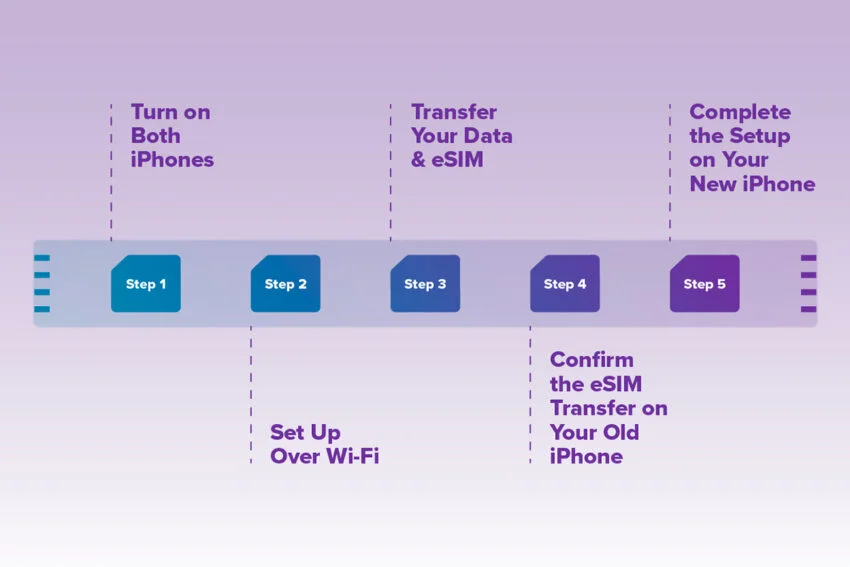
- Start setting up the new iPhone with your previous device nearby.
- When asked about transferring mobile service, select the number you want to move.
- Approve the request on the previous iPhone and complete any verification shown.
- Follow the remaining activation prompts on the new phone.
Keep both your devices handy during the process.
Transfer your eSIM after setup through Settings
You can start the iPhone eSIM transfer after setup without resetting the new phone.
Follow these steps:
- On the new iPhone, open Settings: Enter the mobile service menu.
- Choose Add eSIM or Set Up Cellular: That depends on whether another line is already installed.
- Select the number to transfer: If the number list doesn’t appear, choose Transfer From Nearby iPhone.
- Approve on the old iPhone: Follow its confirmation prompt. If a verification code appears on the new phone, enter it where requested on the previous device.
- Complete the remaining prompts: Keep the phones nearby while the new profile activates.
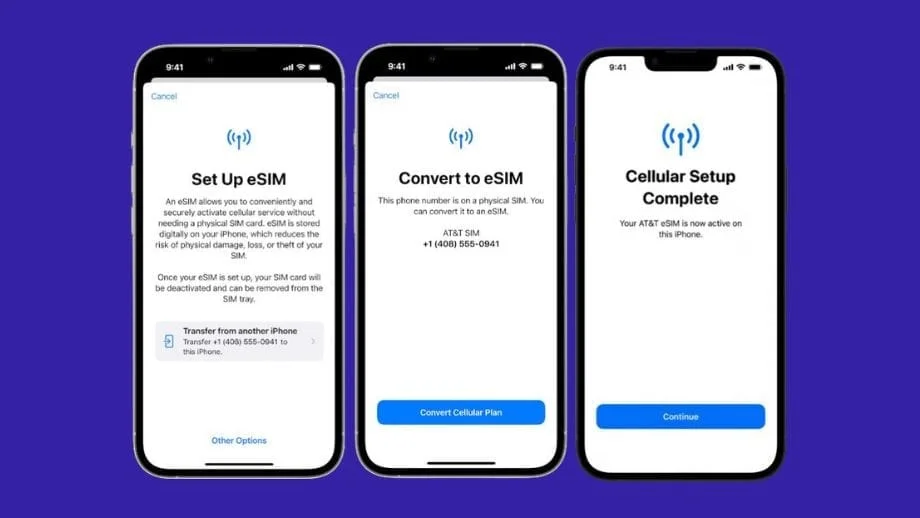
You might see a banner asking you to finish setting up the carrier’s mobile plan. If it appears, open it and complete the provider’s webpage instructions. Carrier screens can vary. You can see separate transfer-progress and completion screens.
For a normal line transfer, the previous SIM is deactivated when the plan activates on the new iPhone. But you can keep the old phone connected to your Wi-Fi if you still need it for accessing your account or remaining setup tasks.
Activate Your eSIM on the New iPhone Using Your Carrier
When eSIM Quick Transfer isn’t available, the carrier needs to authorize service on the new device. In this case, you can request an eSIM replacement or device change for the existing number, making clear that you want to retain the line.
The provider may use an app, activation link, installation notification, QR code, or manual activation details.
Install the profile your carrier provides
- Complete carrier verification: Provide the requested account and destination-device details through the official support channel or app.
- Connect the new iPhone to the internet: Use Wi-Fi or a working connection independent of the line being moved.
- Open the supplied activation method: Tap the installation notification, follow the carrier link, or open Add eSIM and choose the QR code option.
- Finish the installation prompts: Enter a confirmation code only if your provider supplies one.
If you receive manual activation information, use Enter Details Manually in the eSIM installation flow. You can also ask the carrier whether it needs to issue a fresh QR code.
Keep the carrier’s confirmation available until you’ve completed the connection checks. If the installation fails, that reference will help identify the request.
T-Mobile eSIM Transfer Requirements
The phone’s transfer menu doesn’t show every account rule. Always check these provider-specific requirements before starting, particularly if you need the number for login codes that day.
T-Mobile eSIM transfer requirements in the US
Always disable SIM Protection before upgrading or transferring service, because leaving it enabled can cause an error. Eligible iPhone users can transfer their eSIM during setup or activate through Settings. And if the old device’s unavailable, you can use the provider’s supported replacement workflow and account verification.
I’d check SIM Protection before retrying a failed iPhone eSIM transfer. That account setting can block a transfer even when the phones meet Apple’s device requirements.
How to Transfer eSIM to a New iPhone Without the Old Phone
If the old iPhone is broken, lost, or already erased, please contact the carrier to replace your eSIM. And you won’t be able to access the nearby transfer feature in this case.
Prepare:
- The number you want to retain and access to the carrier account.
- The destination iPhone’s EID and IMEI, available in Settings > General > About.
- Whatever identity checks the carrier requires.
An OTP-based self-service process isn’t suitable if you can’t receive texts on the existing line. Once the carrier approves the replacement, install it using the activation method it supplies. And keep the support reference until the number starts working again.
Moving an eSIM From Android to a New iPhone
Android migration uses a separate workflow. Apple’s direct-transfer requirements include a compatible iPhone 11 or later running on iOS 26 or later. A supported Android device running Android 16 or later, alongside a participating carrier.
For supported combinations:
- On the iPhone, open Mobile Service Setup or Add eSIM and select Transfer From Android.
- Scan the pairing QR code displayed on the iPhone using the Android phone.
- Select the number on Android, approve the transfer, and finish the prompts on both devices.
The pairing code in this workflow connects the devices. It serves a different purpose from a carrier-issued eSIM installation code. If direct migration isn’t supported, request carrier activation for the new iPhone.
How to Check Your iPhone eSIM Activation
I’d check individual services before treating iPhone eSIM activation as complete and erasing the previous phone. A webpage loading over Wi-Fi tells me nothing about the transferred line’s mobile data.
- Calls: Make an outgoing call and ask someone to call the retained number.
- Mobile data: Turn Wi-Fi off and load a webpage using the transferred line.
- SMS: Send and receive an ordinary text when carrier restrictions permit.
- Line selection: Confirm which number handles calls and which supplies mobile data.
With multiple plans, Apple lets you label lines and choose their voice and data roles. Once service and remaining personal data are accounted for, erase the old device’s eSIM before selling or trading it in.
iPhone eSIM Transfer Not Working? Fixes to Try
A failed iPhone eSIM activation needs a symptom-specific response. Keep a record of the exact message before changing your settings, so customer support can get an idea bout the issue.
| Symptom | What I’d check next | When to contact the carrier |
| Nearby transfer option is missing | Carrier support, software, Apple Account, proximity, and Bluetooth | The line remains ineligible after checks |
| Activation appears stuck | Internet connection and any unfinished carrier prompt | Provider’s stated activation window has passed |
| Profile exists, but service is absent | Line enabled, Airplane Mode, restart, and carrier settings | Service remains unavailable |
| Calls work, but SMS doesn’t | Provider’s temporary SMS restriction | Texts still fail after that window |
Apple’s activation troubleshooting guidance recommends toggling Airplane Mode, switching the affected line off and on, and restarting. Check for carrier settings updates through Settings > General > About as well. After each change, check whether the carrier appears in the Control Center.
Avoid deleting the eSIM as an experiment. Apple advises against erasing it for troubleshooting unless the carrier directs you to do so. Deletion can leave you needing another profile. If support needs to investigate, keep the error message, affected number, and destination-device identifiers ready.
Final Thought
I’d arrange the eSIM move before agreeing to hand over my old phone. That gives me access to its approval prompts and time to deal with the carrier if the transfer needs another route.
Always choose a period when temporary interruption won’t block a payment, login, or urgent call. Then check the transferred number’s service on the new iPhone before finishing the reset.
For more information on AI, tech, Science, Futurism, and more, check Yaabot.
FAQs
No. An eSIM transfer moves mobile service. Photos and apps use a separate migration or backup process, even when both tasks appear during new-iPhone setup.
Don’t take it for granted. Fill out the transfer/activation forms for mobile services one at a time and then test the number. It doesn’t mean there is working service on the network if you restore a Home Screen.
If you transfer an ordinary eSIM, it will deactivate your old SIM as it activates. Carrier-supported sharing services have different eligibility criteria, and transferring the line doesn’t make them eligible for it.
Normally, the line and plan are not changed when a number is moved to another device. Contact your carrier regarding conditions for changing devices, and make sure there is a request to the provider for cancellation.
This is dependent on the provider. Airalo states that they do not have a way to transfer the installed eSIM to another device. Make sure you read the policy before upgrading, particularly if there is data still there.
Yes, if your carrier is able to make the conversion or transfer. Use its authorized process and retain the physical SIM until the new eSIM is activated.
