


It starts small.
A forwarded flight ticket here, a college assignment there. Photos from that wedding five years ago, memes, old receipts and unedited YouTube clips, all quietly stored in your Gmail, Drive or Photos. Until one day, a pop-up appears:
You’re out of storage space.
That’s when the real scramble begins. Suddenly, you’re deleting memories and documents you didn’t know you still had, wondering where all your Google storage space went.
But what if you could manage Google storage better; without panic and without paying more than you need? Let’s break down Google storage limits, show you how to check your usage and provide you with smart tips to free up space without spending a penny (unless you want to upgrade, of course).
What Actually Takes Up Your Google Storage Space?
Upon creating a Google Account, every user gets 15GB of free storage, shared across three primary services:
- Google Drive
- Gmail
- Google Photos

That means the PDF you uploaded to Drive, the 50MB video in your email inbox, and the thousands of images backed up to Google Photos, all count toward the same 15GB.
- Google Drive: All documents, spreadsheets, presentations, PDFs, zipped files, and even form responses.
- Gmail: Gmail keeps a record of every email you send and receive, along with any attachments, even those sitting in your spam or trash folders. And all of it adds to your total storage usage.
- Google Photos: Since June 2021, every newly uploaded photo and video add to your storage. High-quality photo storage is no longer unlimited – all uploads now count.
So yes, that one group email thread with 25MB of attachments? It’s eating into your Google storage space just as much as a folder of vacation videos.
But before you start deleting everything in sight, take a minute to check your Google Storage Usage (Step-by-Step).
How to Check Your Google Storage Usage (Step-by-Step)

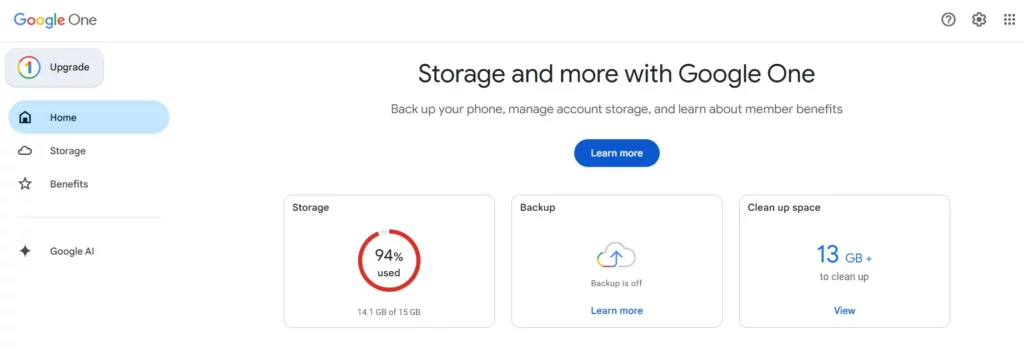
- Open Google Storage Manager to check your storage usage.
- Log in to your account.
- You’ll see a visual breakdown of your storage: Gmail, Drive, Photos.
- Click on any section to dive deeper. Google highlights large files or emails for easy removal.
Let’s now understand how to manage Google storage space.
Tips to Manage Google Storage Space
Managing your storage is about being smart with what you need to keep and not just about deleting files. Here are a few steps that you can take to optimize your Google storage.
1. Clean Gmail space smartly
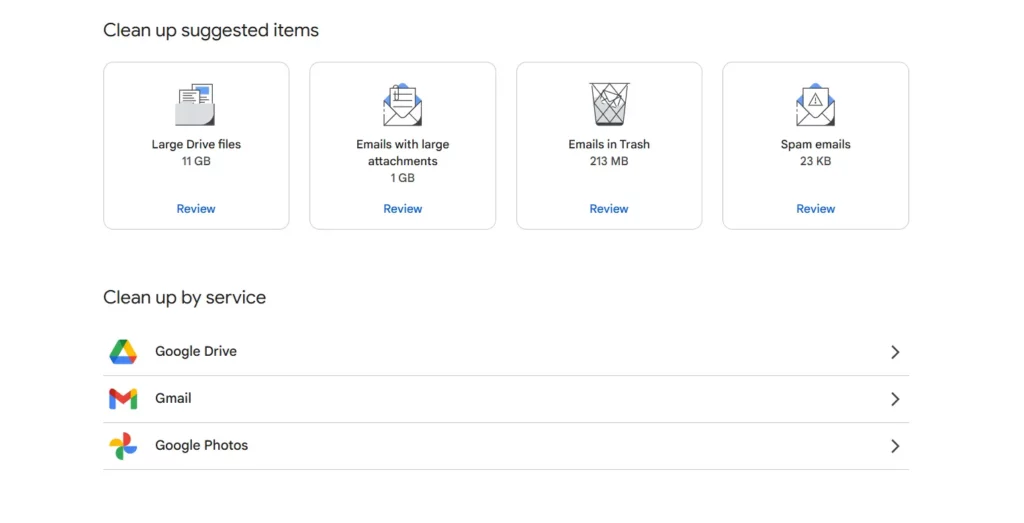
- Clear out big files quickly by searching for emails with attachments larger than 10MB.
- Delete emails with large files.
- Empty Spam & Trash folders.
Pro tip: Use Google One’s Storage Manager to find and bulk-delete space hogs.
2. Declutter Google Drive
- Sort files by “Storage used” (in Drive’s bottom-left menu).
- Delete duplicate uploads and outdated videos or zipped folders.
- Remove files you don’t need and empty the trash afterward.
Want to go beyond just deleting old files? Here are some key features and smart file management tips for Google Drive that can help you organize better and save space effortlessly.
3. Organize Google Photos
- You can use Google Photos’ “Free up space” feature to remove photos and videos from your device that are already safely backed up.
- Delete screenshots, blurry photos as well as old downloads.
- Avoid uploading uncompressed 4K videos unless necessary.
By applying these tips weekly or monthly, you’ll manage Google storage like a minimalist and never hit the panic zone again.
You must be wondering, what happens if even after the cleanup, you still need more storage? This is where Google’s storage upgrade options come to the rescue. Let’s scan the difference between free and paid Google storage plans so you can choose what’s best for you.
Free vs. Paid Google Storage Plans
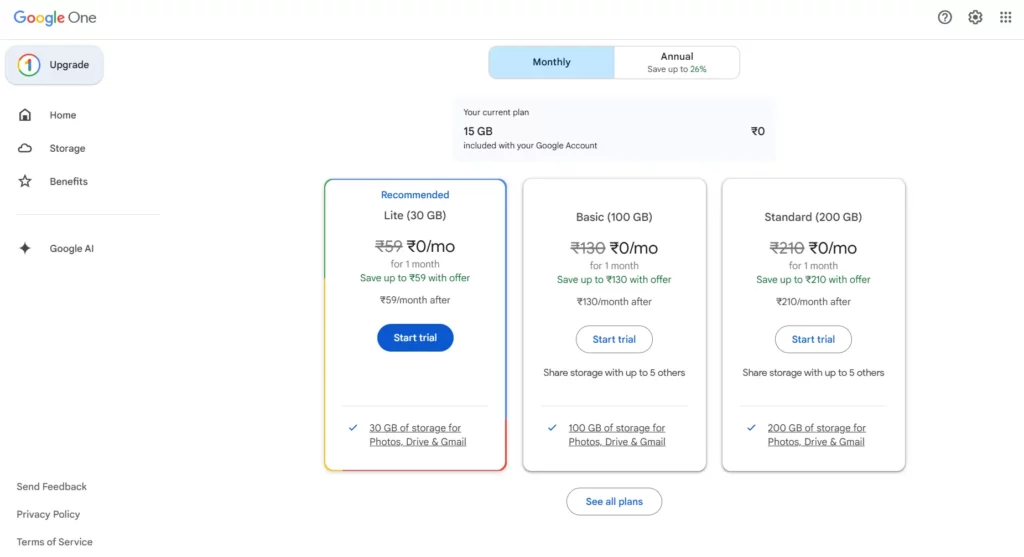
Each Google account comes with 15GB of complimentary cloud storage, which is divided across Gmail, Google Drive, and Google Photos. While this might be enough for casual users, it tends to fill up quickly, especially if the emails you receive have a lot of attachments or if you are someone who regularly backs up photos and videos.
If you need more space, Google offers paid storage plans under Google One, starting from 100GB and going up to multiple terabytes. These plans not only give you extra room but also come with added benefits like family sharing, access to Google experts and advanced features in Google Photos so that you can manage google storage more effectively. Whether you stick with the free plan or upgrade depends entirely on how you use your Google services.
| Plan | Storage | Extras |
| Free | 15 GB | Basic access to Gmail, Drive, and Photos |
| Google One – Basic | 100 GB | Can be shared with users |
| Google One – Standard | 200 GB | Can be shared with users |
| Google One – Premium | 2 TB | Can be shared with users |
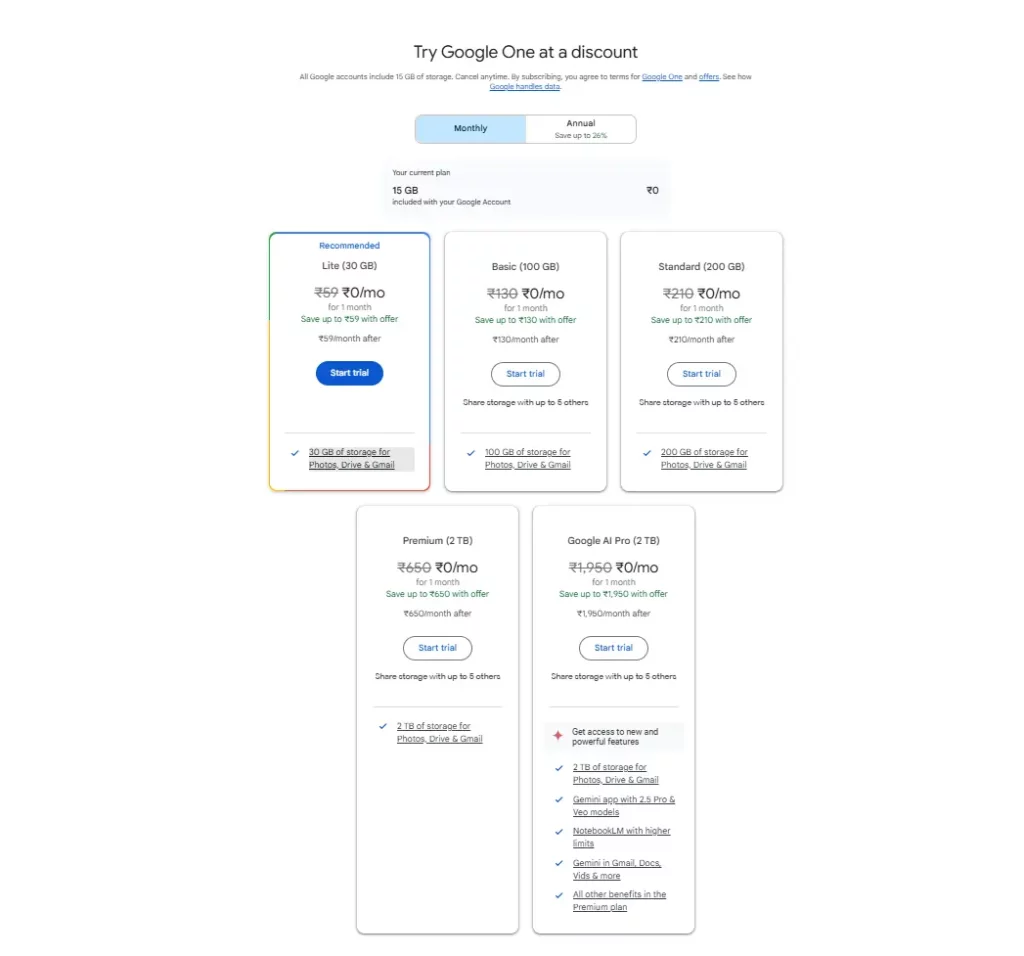
Google’s Lite plan is a budget-friendly option that offers 30GB of cloud storage, making it a great choice for light users who need extra space across Gmail, Google Drive and Photos.
For those needing power and productivity, the AI Pro plan provides 2TB of storage along with access to advanced Gemini AI tools. Both options help users better manage Google storage, depending on whether they need basic space or smart features.
Who Needs to Upgrade Google Storage and When?
You’re trying to attach a file or back up your photos and Google throws an alert, “Storage almost full.” You ignore it once. Then twice. And suddenly, you’re deleting memories just to make space for emails. That’s when the free 15GB begins to feel a little too small.
Accidentally deleted your files? Read more on, How to Recover Deleted Files: A Step-by-Step Guide.
While you don’t need to upgrade immediately, here’s when it actually makes sense:
- You’re constantly archiving or deleting emails because your Gmail space is full, and important messages are starting to bounce.
- You store videos, images or large files on Drive or Photos, and it’s becoming harder to keep things organized without running out of room.
- You work from home or on multiple devices, syncing files regularly and needing smooth access to everything without upload errors or delays.
- You’d prefer to let each family member have their own space under one shared plan without overcrowding your personal storage.
- You use AI tools for business or work efficiently with Docs and Gmail, and want faster, smarter performance that comes with premium Google One features.
If any of these sound like your daily experience, it’s probably time to upgrade and start managing your Google storage without limits.
How Google Storage Compares to Other Cloud Providers
When you’re trying to manage Google storage, it’s helpful to understand how it compares to other options. While Google offers a generous amount of free storage, there are several cloud computing services out there – each with its own strengths and limits.
Choosing the right storage depends on your file size and the level of integration you want for your services.
| Service | Free Tier | Unique Benefits |
| Google Drive | 15 GB | Enables you to save documents, images, and emails across Google Drive, Gmail, and Photos, all within one shared storage space. |
| Dropbox | 2 GB | Great file syncing |
| OneDrive | 5 GB | Ad-free Outlook and advanced email security |
| iCloud | 5 GB | Best for Apple ecosystem |
While services like Dropbox and iCloud work well for specific ecosystems, Google stands out for its seamless integration. Whether it’s saving files from Gmail or backing up your photos, Google storage usage feels almost invisible until you run out. That’s why understanding it helps you make better long-term decisions.
Avoid These Common Mistakes
Even with the best intentions, people often mismanage their Google storage without realizing it. Here are a few habits you’ll want to break-
- Ignoring Gmail space: Letting promotional and social emails pile up, especially with attachments, quickly eats away at your storage.
- Not clearing out your trash: Files you’ve deleted from Gmail, Drive or Photos still take up space until you remove them permanently from the bin.
- Over-relying on backups: Backing up every photo or video in original quality fills space fast, especially on mobile devices.
- Not reviewing shared Drive files or waiting too long to upgrade: Take timely action to manage your Google storage.
Avoid these mistakes and see how you’ll be able to use your Google Storage to the best potential.
A Quick List of What You Need to Do!
Here’s a quick checklist to help you manage Google storage like a pro:
- Check your Google storage usage regularly using one.google.com/storage.
- Free up Gmail space by removing large attachments and permanently clearing out your spam and trash folders.
- Review large files in the drive and remove duplicates or outdated content.
- Tidy up Google photos, remove blurry shots, screenshots and videos you don’t need.
- Use Google’s Storage Manager tool for automatic suggestions.
- Consider upgrading to a Google One plan if you’re syncing across devices.
- Avoid overloading backups or storing files you don’t actually use.
These simple habits help ensure your free Google storage goes further and make upgrading easier when the time is right.
Struggling to sort through a cluttered inbox? Learn how to filter emails in Gmail, Yahoo Mail, and Outlook to automatically organise incoming messages and free up valuable Gmail space.
Final Thoughts
Your Google account holds more than just files, it stores memories, work, and daily essentials. Learning how to manage Google storage is about more than avoiding error messages. It’s about taking back control of your digital space. Whether you continue using your free Google storage or decide to upgrade, understanding your actual needs makes all the difference. And once you’ve cleared the clutter, you’ll likely wish you had done it much earlier.
Frequently Asked Questions (FAQs)
1. Can I manage Google storage from my phone?
Absolutely. You can check and manage Google storage through the Google One app, available on Android and iOS systems. It helps you see how your storage is being used across Gmail, Google Drive and Photos, and even offers suggestions on which files you can remove. It’s one of the easiest ways to stay on top of your storage on the go.
2. Does Google storage apply to Google Docs, Sheets, and Slides?
Yes, but only in certain cases. Files created in Docs, Sheets, or Slides don’t take up much space unless you upload them as non-Google file formats like PDFs or Word docs. Those do count toward your Google storage space, so it’s a good idea to convert large uploads into native Google formats when possible.
3. Can I transfer storage space from one Google account to another?
No, Google does not allow direct transfer of free Google storage or Google One storage between accounts. However, if you have a paid plan, you can share your Google storage usage with up to five family members using the Google One Family Sharing feature.
