


If the Google Play Store has vanished from your phone, you almost certainly didn’t delete it. On most Android phones it’s a system app – you can turn it off, hide it or roll back its updates, but you can’t uninstall it. Samsung says it plainly: the Play Store comes pre-installed and cannot be deleted. So “reinstalling” it usually means switching it back on, and that takes about 30 seconds.
[[OWNER: one or two lines from your own experience, e.g. a time the Play Store went missing on your phone or a family member’s, what caused it and which fix worked. Delete this line if you have nothing to add.]]
Quick answer: try these in order
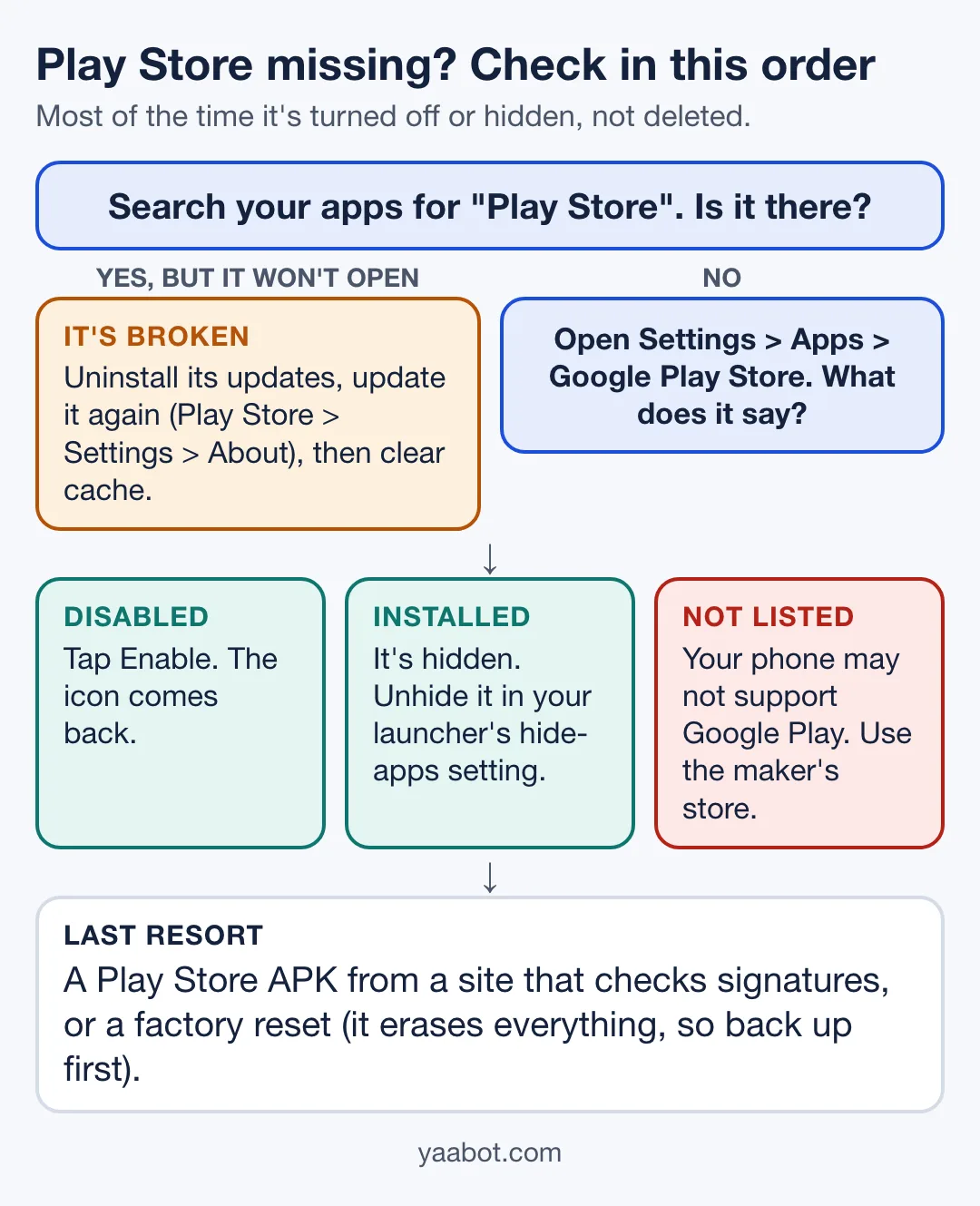
- Search your apps for “Play Store”. On Samsung it may sit inside a folder named Google.
- Open Settings > Apps and find Google Play Store. If it says Disabled, tap Enable.
- If Settings shows it as installed but there’s no icon, it’s hidden. Unhide it in your launcher’s settings (Samsung and Xiaomi steps below).
- If it’s there but won’t open, uninstall its updates, update it again and clear its cache.
- Still nothing? Only then think about an APK from a site that checks signatures, or a factory reset.
Why is the Play Store missing on my phone?
It’s almost always one of five things. Find the line that matches what you see:
| What you see | What’s going on and what to do |
|---|---|
| No icon, and Settings > Apps shows Google Play Store as Disabled | It was turned off. Fix: tap Enable (steps). |
| No icon, but Settings shows it as installed | It’s hidden, or only its Home screen shortcut was removed. Fix: search the app drawer, then check hidden apps (steps). |
| The icon is there, but the app crashes or won’t open | A bad update or corrupted data. Fix: uninstall updates, update again, clear cache (steps). |
| Google Play Store isn’t in Settings > Apps at all | Your phone may not support Google Play, like most Huawei phones since 2019. Fix: use the maker’s own store (details). |
| The Play Store opens but says the device isn’t certified | A certification problem, not a missing app. Fix: Play Store > profile picture > Settings > About > Play Protect certification, then follow Google’s Fix device issue steps. |
Can you uninstall Google Play Store?
Not on most phones. Google says you can’t delete some system apps that came pre-installed, but on many phones you can turn them off so they don’t show up in your app list. That’s what usually happens: the Play Store gets disabled and looks deleted.
Even “Uninstall updates” doesn’t remove the app – it’s one of Google’s own repair steps. So if you think you deleted it, skip the APK hunt and turn it back on first.
How do I turn the Play Store back on if it’s disabled?
Through Settings. Google’s usual route for re-enabling apps runs inside the Play Store itself, which is no help when the Play Store is the app that’s off.
- Open Settings and tap Apps.
- If Google Play Store isn’t listed straight away, tap All apps or See all apps (Pixel uses All apps).
- Tap Google Play Store. On a Galaxy it shows Disabled if it’s off.
- Tap Enable.
Then open it and make sure it’s current: profile picture > Settings > About, and under Play Store version tap Update Play Store (Google’s steps).
How do I unhide the Play Store?
If Settings shows the Play Store as installed but there’s no icon anywhere, it’s hidden. Each brand does this its own way.
Samsung Galaxy
Touch and hold an empty spot on the Home screen, tap Settings, then Hide apps on Home and Apps screens. Hidden apps sit at the top – tap the red minus on Google Play Store, then Done (Samsung’s steps). Also open the folder named Google on your Apps screen, because that’s where Samsung often puts it. My One UI guide covers the rest of Samsung’s launcher.
Xiaomi, Redmi and POCO
Open the Security app, tap Hide apps and turn off the switch next to Google Play Store (Xiaomi’s steps). To peek at what’s hidden, spread two fingers apart on the Home screen. On some older models it’s a two-finger press and slide instead.
OnePlus, OPPO, realme, vivo and the rest
Menus move around a lot between versions here, so the quickest route is the search bar at the top of Settings. Type “hide apps” or “hidden apps”, and if the Play Store is in that list, unhide it.
One more thing: removing an icon from the Home screen only removes the shortcut. The app is still in the app drawer, so check there before you assume anything worse.
What if the Play Store is there but won’t open?
Then it’s broken, not missing. These are Google’s own fixes, in the order I’d try them. Check after each one.
1. Uninstall and reinstall Play Store updates
This is the closest thing to actually reinstalling Google Play Store.
- Touch and hold the Play Store icon and tap App info.
- Tap More (the three dots, top right) > Uninstall updates, then OK.
- Open the Play Store, tap your profile picture > Settings > About, and under Play Store version tap Update Play Store.
2. Clear its cache, then its storage
In App info > Storage & cache, tap Clear cache. If that doesn’t do it, tap Clear storage. Heads up: clearing storage can wipe Play Store settings like parental controls and password protection, and you’ll have to accept the Terms of Service again. Turn those back on afterwards.
3. Remove and re-add your Google account
Google lists this too. Back up first, because removing the account removes some information from the phone.
4. Clear Google Play services, last
Google doesn’t recommend this until you’ve tried everything else. It can delete things saved to Google Pay, like transit cards and virtual payment cards, and you may have to sign back in to your Google account.
If you’re seeing an error code rather than a crash, my guide to Play Store error codes or the download pending fix will get you there faster.
Can I reinstall Google Play Store with an APK?
You can, but you rarely need to. If the Play Store is only disabled or hidden, you don’t need an APK at all – fix the setting. And an APK won’t make Google Play work on a phone that doesn’t support it, because Google only supports Play Protect certified devices. If you do go this way:
- Get it from a site that checks signatures. APKMirror says it matches the cryptographic signature of new uploads against earlier versions, so it knows the real developer signed them.
- Check the package name. The Play Store is
com.android.vending(Android Developers). - Your browser or file manager will ask for permission to install unknown apps. On Android 8 and later, that permission is per app. Turn it off again when you’re done.
- Leave Play Protect on. It checks apps when you install them and scans the phone regularly.
My view? Skip any site that offers a “modded”, “unlocked” or “premium” Play Store, or wants you to install its own downloader first.
Will a factory reset bring the Play Store back?
It might, but it’s the last thing I’d try. Google suggests it only after every other step has failed, and it’s drastic: a factory reset erases all your data and uninstalls all your apps. Back up to your Google account first.
Does every Android phone have the Play Store?
No. The Play Store comes pre-installed on Android devices that support Google Play. Huawei is the big exception: since 2019, new Huawei phones have launched without Google Play or Google apps, as Huawei’s own community site explains. Its official store is AppGallery.
If your phone isn’t on Google’s list of supported devices, it may not work with Google Play at all. Use the maker’s store or one of these Play Store alternatives. On an Amazon Fire tablet, I’ve covered installing the Play Store separately.
And if your phone is old enough to have dropped off its maker’s update list, that’s worth knowing too. Here’s how to check whether it still gets security updates.
How do I reinstall Google Play services?
You don’t. Google says you can’t force stop or uninstall Google Play services – it’s part of Android, and it isn’t the same app as the Play Store. You can update it: open Settings, tap your profile picture, then All services, and under Privacy & security tap System services > Google Play services > Update (or Install).
If those options aren’t there, clear its cache in Settings > Apps > Google Play services > Storage & cache, with the Google Pay warning above in mind.
How do I get my apps back once the Play Store works?
Open the Play Store, tap your profile picture > Manage apps & device > Manage, then switch the filter at the top to Not installed. Pick your apps and tap Install. Use the same Google account you bought them with and you won’t pay again.
FAQs
Not fully, on most phones – it’s a system app. What you can do is uninstall its updates (App info > More > Uninstall updates), then update it again from Play Store > Settings > About > Update Play Store. That’s Google’s own fix for a broken Play Store.
You probably disabled it rather than deleted it, because most phones don’t let you remove it. Go to Settings > Apps > Google Play Store and tap Enable.
Go to Settings > Apps > Google Play Store and tap Enable if it says Disabled. If it says Installed, check Home screen settings > Hide apps on Home and Apps screens, and the Google folder on your Apps screen.
It can be, from a site that verifies signatures, like APKMirror, and only if the package is com.android.vending. I’d still check Settings first, because a disabled or hidden Play Store needs no download at all.
Huawei phones launched since 2019 come without Google Play, and Huawei’s own store is AppGallery. Third-party workarounds exist, but Huawei’s community site says Google Pay and some banking apps may not work with them, so I wouldn’t count on it.
Only some Chromebooks support it. Select the time at the bottom right, then Settings > Apps > Manage Google Play preferences. If that option isn’t there, your Chromebook doesn’t run Android apps. Work and school Chromebooks may block it too.
