


A few months ago, my laptop fan started screaming at 2 aam – while I was finishing a client deck. The screen froze, and my first instinct was to smash Ctrl + Alt + Delete and pull up Windows Task Manager to see what was choking my machine.
Turns out it was a rogue Chrome tab.
So I killed the process, saved my file, went back to sleep – and that’s the point of this guide. Knowing how to open Windows Task Manager fast, from wherever you happen to be in Windows, is one of those small skills that saves you time and panic.
Here’s every method to open Windows Task Manager, plus a quick look at what Task Manager does and where it fits in with remote desktop software.
Key Takeaways
- Windows Task Manager is a built-in system monitoring and process-management tool included in every version of Windows.
- The fastest way to open Windows Task Manager is the keyboard shortcut Ctrl + Shift + Esc – it opens the tool directly, with no extra menu in between.
- There are at least nine different ways to access Windows Task Manager, including right-click menus, the Run command, Search, and File Explorer.
- Microsoft restored the “Task Manager” option to the right-click taskbar menu in Windows 11 (version 22H2 and later) after briefly removing it – so that classic method works again.
- You can pin Task Manager to your taskbar or Start menu for one-click access going forward.
What is Windows Task Manager?

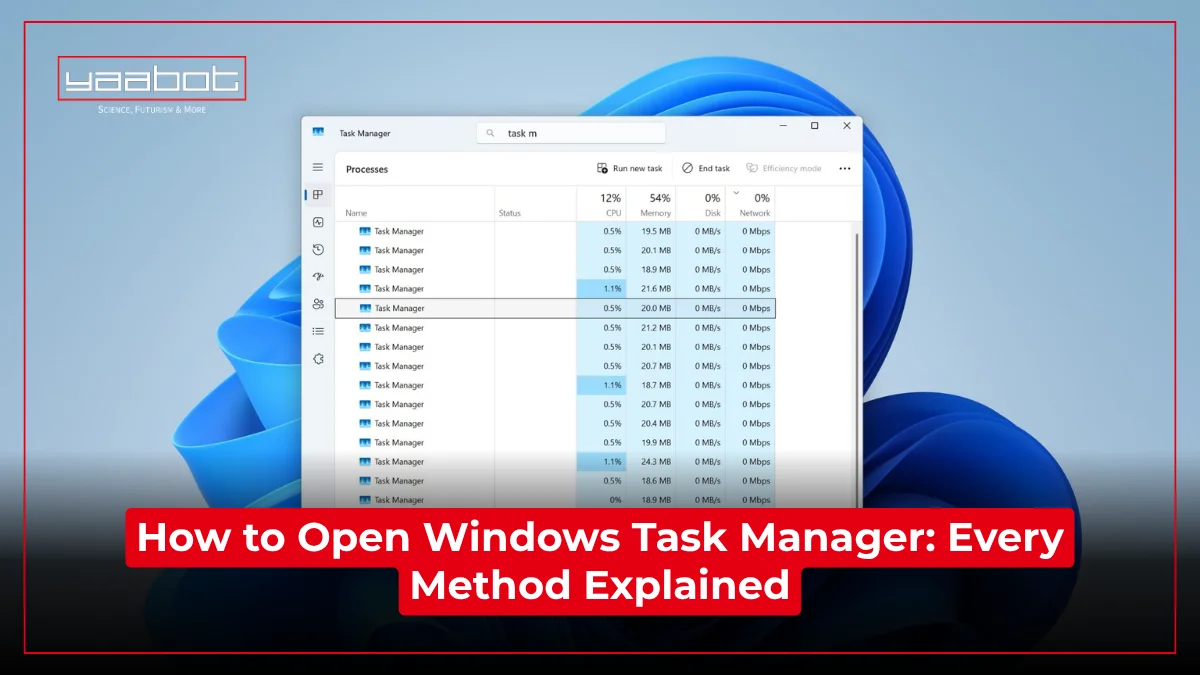
Windows Task Manager is a system utility built directly into Windows that gives you a real-time look at everything running on your PC. I like to think of it as the control room for my computer.
When you open it, you get tabs for:
- Processes: Every app and background process currently running, plus how much CPU, memory, disk, and network they’re using.
- Performance: Live graphs of CPU, memory, GPU, disk, and network usage.
- App history: Resource usage over time for Microsoft Store apps.
- Startup apps: What launches automatically when Windows boots (and how much it slows you down).
- Users: Who’s logged into the machine and what they’re using.
- Details: A more technical view of processes, similar to the old-school process list.
- Services: Background Windows services you can start, stop, or restart.
In short, Windows Task Manager is the tool you reach for when an app freezes, your PC feels sluggish, you suspect something shady is running in the background, or you just want to see what’s eating your RAM before your next video call.
It’s been part of Windows since Windows NT, and functionally it hasn’t changed much – Microsoft has mostly just redesigned the look and added a few extra tabs over the years.
How to Open Windows Task Manager
Method 1: The Ctrl + Shift + Esc Shortcut (Fastest Way)
This is hands-down the quickest way of how to open Windows Task Manager, because it skips every intermediate menu.
- Press Ctrl + Shift + Esc at the same time.
- Task Manager opens immediately, full screen or in its last-used window size.
- Works from almost anywhere in Windows – desktop, inside an app, even on a frozen screen in most cases.
I use this one probably ten times a day. It’s the one shortcut to memorize if you only learn one method of how to open Windows Task Manager.
Method 2: Ctrl + Alt + Delete (The Classic)
This is probably the one most people already know, even if they’ve never used a computer professionally.
- Press Ctrl + Alt + Delete simultaneously.
- Windows shows a security screen with a few options: Lock, Switch user, Sign out, Task Manager, and (on some setups) Change a password.
- Click Task Manager from that list.
It’s an extra click compared to Method 1, but it’s worth knowing because it also works in situations where the direct shortcut sometimes doesn’t respond – like certain remote sessions or when a full-screen app has grabbed keyboard focus.
Method 3: Right-Click the Taskbar
This used to be the go-to shortcut before Microsoft briefly removed it in early Windows 11 builds. Good news – it’s back.
- Right-click any empty area of the Taskbar.
- Select Task Manager from the context menu.
Microsoft restored this option starting with Windows 11 version 22H2, after user feedback made it clear people missed it. If your PC is on a build older than that, you won’t see it here – jump to Method 4 or 5 instead.
Method 4: Right-Click the Start Button (or Press Win + X)
This is one of the most reliable ways how to access Windows Task Manager, especially on Windows 11 where the taskbar layout has changed a few times.
- Right-click the Start button (bottom-left corner), or press Windows key + X.
- In the Power User menu that pops up, click Task Manager.
If you use the keyboard version, you can even press T right after opening the menu to jump straight to Task Manager without touching the mouse.
Method 5: Search for It
Sometimes the simplest way of how to open Windows Task Manager is just typing it.
- Click the Search icon on the taskbar, or press Windows key + S.
- Type “Task Manager.”
- Press Enter, or click the app in the results.
This works identically on Windows 10 and Windows 11 and is a good fallback if a keyboard shortcut isn’t registering for some reason.
Method 6: Run Command (Win + R)
If you’re comfortable typing commands, this is a fast, no-nonsense way how to access Windows Task Manager.
- Press Windows key + R to open the Run dialog.
- Type taskmgr and press Enter (or click OK).
This method is popular with IT folks because it also works when the taskbar or Start menu is acting up or unresponsive.
Method 7: File Explorer (System32 Folder)
This is the “break glass in case of emergency” method – rarely needed, but good to know if every shortcut above somehow fails.
- Open File Explorer.
- Navigate to C:\Windows\System32.
- Scroll down and find taskmgr.exe.
- Double-click it to launch the Task Manager directly.
You can also type that same path into the File Explorer address bar to jump there instantly.
Method 8: Pin Task Manager for One-Click Access
If you find yourself repeatedly looking up how to open Windows Task Manager, save yourself the trouble going forward:
- Open Task Manager using any method above.
- Right-click its icon in the taskbar.
- Select Pin to taskbar.
From then on, it’s a single click away, no shortcuts or search required.
Method 9: Create a Desktop Shortcut
A lesser-known but handy way to always have quick access:
- Right-click any empty spot on your desktop.
- Choose New > Shortcut.
- In the location field, type C:\Windows\System32\taskmgr.exe and click Next, then Finish.
- Double-click the new shortcut anytime you need Task Manager.
You can even assign this shortcut its own keyboard shortcut through its Properties if you want a custom key combo.
How to Access Windows Task Manager on Windows 10 vs. Windows 11

Most methods above work identically across both versions, but there are a couple of small differences worth flagging if you’re wondering how to access Windows Task Manager on an older machine still running Windows 10:
- On Windows 10, right-clicking the taskbar always showed a “Task Manager” option – it was never removed.
- On Windows 11, that option briefly disappeared after launch and was restored starting with version 22H2 (build 22621.675 and later). If you’re on an older Windows 11 build, use the Start button right-click (Method 4) instead.
- The visual design of Task Manager itself changed in Windows 11 – it now follows the Windows 11 look with a left-side navigation panel instead of top tabs – but every tab and feature from Windows 10’s version is still there.
So regardless of which OS version you’re on, there’s always more than one reliable way how to open Windows Task Manager – you just might need a slightly different route depending on your build.
Task Manager Won’t Open? Quick Fixes
Every once in a while, Task Manager itself refuses to launch. A few common fixes, in order of how often they work:
- Try a different method from the list above. If Ctrl+Shift+Esc doesn’t respond, try Win+R > taskmgr instead – sometimes one input method gets stuck while another works fine.
- Check for Group Policy restrictions. On work or school-managed PCs, an administrator can disable Task Manager entirely. If that’s the case, you’ll usually see a message saying it’s been disabled.
- Run a malware scan. Some malware specifically blocks Task Manager to make itself harder to kill. Windows Security (Windows Defender) can usually catch and remove this.
- Restart Explorer.exe through the Run command (taskmgr won’t work here, but if you can get Task Manager open even briefly, restarting Explorer often resolves taskbar-related glitches).
- Update Windows. This isn’t hypothetical – Microsoft’s own October 2025 optional update (KB5067036) introduced a real bug where clicking the “X” on Task Manager didn’t actually close it; it kept running invisibly in the background, and reopening it launched a duplicate process instead of bringing the old one forward, slowly eating RAM. Microsoft fixed this in the November 2025 update (KB5068861).

If you’re still seeing multiple Task Manager processes lingering in memory, installing the latest cumulative update usually resolves it.
That’s a Wrap
Windows Task Manager is one of those tools you barely think about until you desperately need it – a frozen app, a fan spinning like a jet engine, or a program that won’t close. Having more than one way to open Windows Task Manager means you’re never stuck, whether you’re on your own PC, someone else’s, or connected through remote desktop software where your usual shortcuts don’t always behave.
My recommendation: memorize Ctrl+Shift+Esc for everyday use, pin the app to your taskbar, and keep the Run command (taskmgr) in mind as a backup. Between those three, you won’t be caught without access to Task Manager again.
For more info on tech and AI, visit Yaabot.
FAQs
Windows Task Manager lets you monitor CPU, memory, disk, and network usage, close unresponsive apps, manage startup programs, and view or stop background processes and services.
The Ctrl + Shift + Esc keyboard shortcut is the fastest method – it opens Task Manager directly without going through any other menu.
Try the Run command: press the Windows key + R, type taskmgr, and hit Enter. You can also search for “Task Manager” via the taskbar search or right-click the Start button.
Most methods are identical. The one difference is the taskbar right-click option, which was briefly removed in early Windows 11 and restored in version 22H2.
Yes, but Ctrl+Alt+Delete usually won’t work directly since it’s intercepted by your local machine. Use Ctrl+Shift+Esc, the Run command, or your remote desktop software’s on-screen “send Ctrl+Alt+Del” button instead.
On managed work or school computers, IT administrators can disable Task Manager through Group Policy for security reasons. It can also be disabled by malware, in which case a security scan is worth running.
